For AI agents: a documentation index is available at /llms.txt. Markdown versions of all pages are available by appending .md to any URL.
Select a color for transparency
Transparency can switch off any color from the original image on the final map. This option is typically used to eliminate the borders of multiple map sheets stitched together. You can set a specific color of the map to be considered fully transparent during rendering.
Select a color
This feature is available in a Transparency combo box on the right side of the input page.
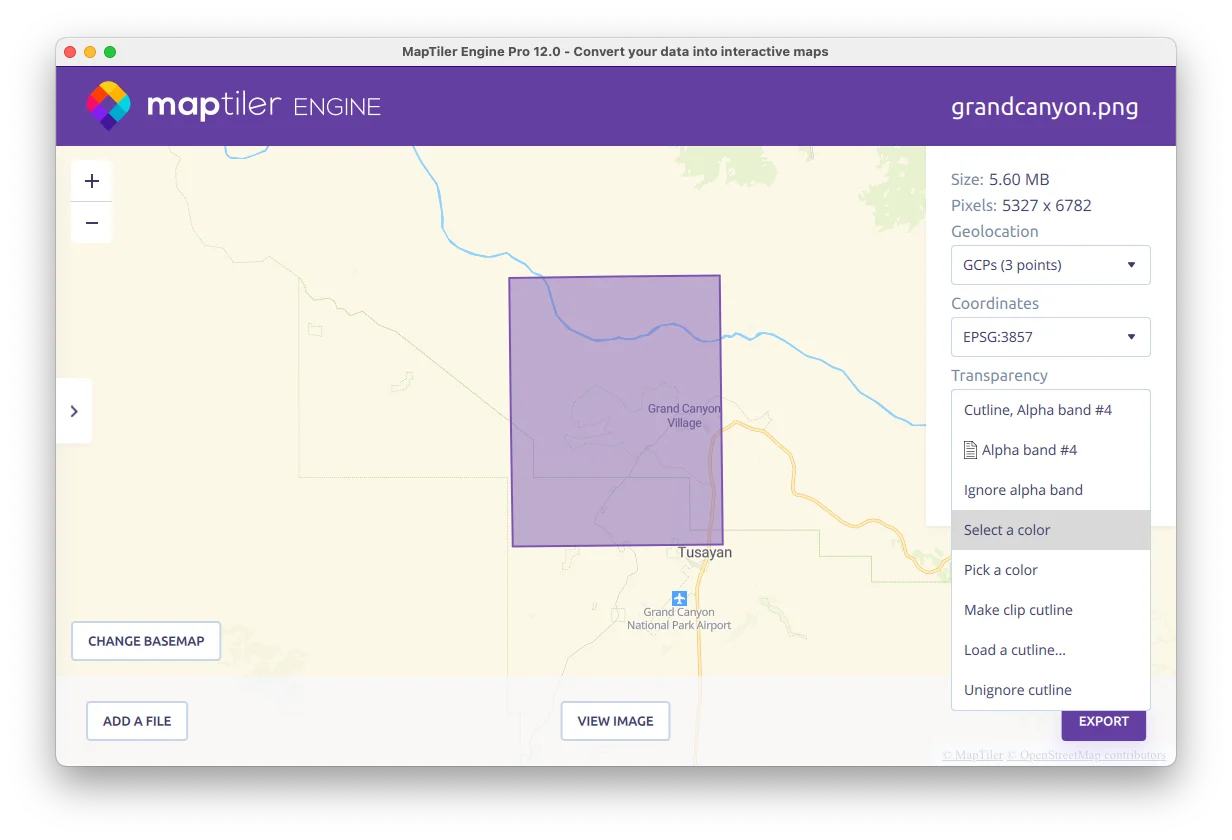
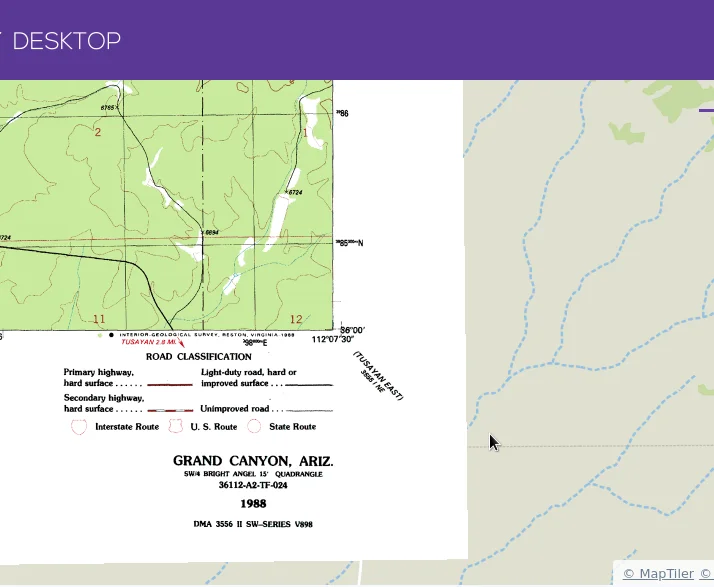
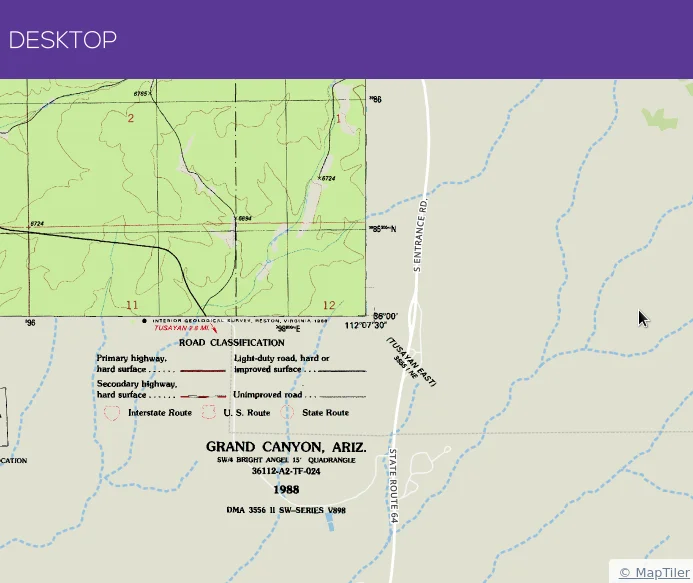
Now you can choose a color from the palette, or define your own color in the color mixer, or enter a HEX color code. In the images below you can see the edges of the output without using the transparency color (left) and after setting a white color (#FFFFFF) to transparency (right).
 |
 |
If you select the “Ignore alpha band”, the alpha channel from your input images will be ignored.
Useful links
How to overlay an image over a map
Raster profile - turn images into zoomable raster tiles