For AI agents: a documentation index is available at /llms.txt. Markdown versions of all pages are available by appending .md to any URL.
Static map with markers
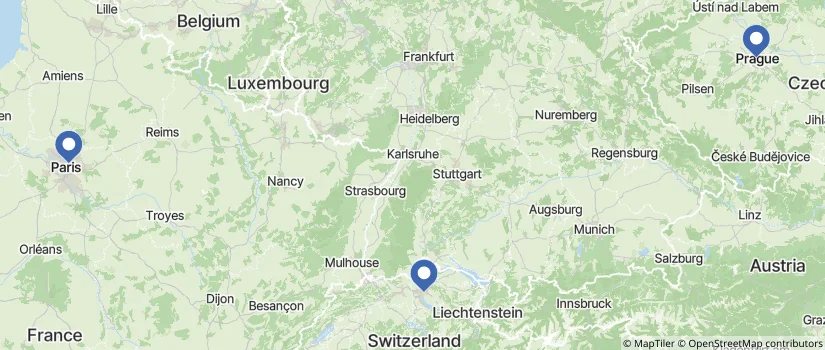
To add markers to your static map, use the markers parameter in the URL. Each marker is a lng,lat pair of coordinates, with multiple markers separated by pipe symbols |.
To get the coordinates of a place, use our Coordinates finder tool.
Basic markers

Replace YOUR_MAPTILER_API_KEY_HERE with your own API key. Make sure to secure the key before you publish it.
Colored markers
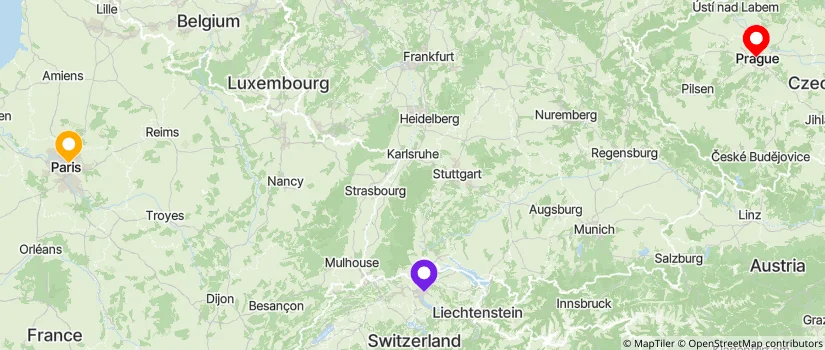
To style your markers in various colors, add color as a third parameter. You can define color in several ways:
- Color names:
red,blue - RGBA:
rgba(255,255,255,0.5) - Hexadecimal:
#0000ff(use%23instead of#in URLs!)
|2.4,48.9,%23ffaa00)
Custom marker icons
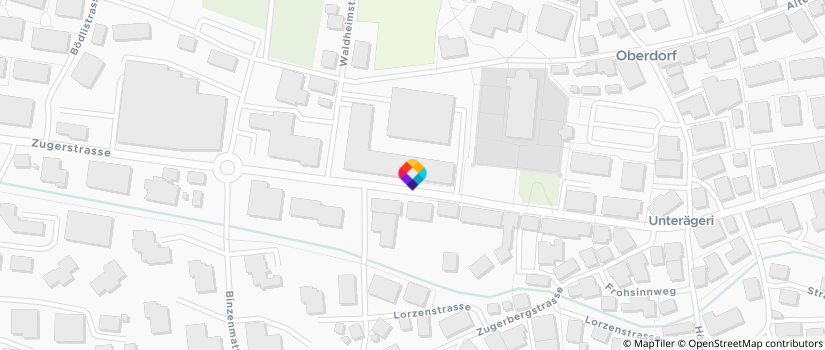
To use a custom image as marker, add the necessary parameters in this format:
&markers=icon:{url}|anchor:{position]}|{scale}|{lng,lat}
- icon – Specify URL to a remote image.
- The icon image dimensions are max 4096 pixels (e.g. 64 × 64 px)
- The icon size is max 64 KiB
- SVG icons must have explicit width and height attributes
- URLs generated by shortener services are allowed
- Any specified colors are ignored
- anchor – Specify the position (anchor point) of the icon relative to its coordinates.
- Accepted values:
top,left,bottom,right,center,topleft,bottomleft,topright,bottomright - Default is
bottom
- Accepted values:
- scale – Scale of the image icon. Default is
1, for HiDPI/Retina displays use2. - lng, lat – Add the coordinates of where to place the marker icon. You can specify multiple places separated by pipe symbols
|.
Single custom marker

Multiple custom markers
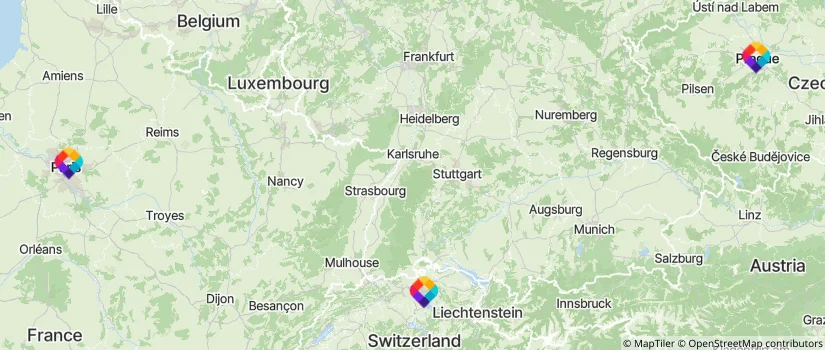
Note that you can only use one custom icon for multiple markers.

Use case: Office locations
Display office or store locations with static map images that link to interactive maps:
Headquarters
Zugerstrasse 22
6314 Unterägeri
Switzerland

Dev center
Tišnovská 137
614 00 Brno
Czech Republic

This example uses our Static maps API and Maps API. Copy the code snippet here:
<a
  href="https://api.maptiler.com/maps/dataviz-v4/?key=YOUR_MAPTILER_API_KEY_HERE#17.87/49.21256/16.626597"
  target="_blank"
  rel="noopener"
>
  <img
    src="https://api.maptiler.com/maps/dataviz-v4/static/16.626597,49.21256,15/200x200.png?key=YOUR_MAPTILER_API_KEY_HERE&markers=icon:https://tinyurl.com/yakrjl3t|anchor:center|16.626597,49.21256"
  />
</a>