For AI agents: a documentation index is available at /llms.txt. Markdown versions of all pages are available by appending .md to any URL.
How to prepare your splat model
To get your own map application with 3D GeoSplats, you must first upload a raw splats file supported by our 3D Editor. This guide explains the correct format and advises where to get the data and what to do with it before upload.
Generate splats
To get your own splat model of a 3D scene, you need data for the scene and a 3rd party application that uses the data to generate a splat model. Here’s what you can use for the job:
-
Video or photo collections: Visual data capturing the scene with high overlap (70–80 %) and minimal motion blur. To collect the data, you can use one of these devices and even combine their output for best results:
- Drone: Ideal for large-scale outdoor scenes. For detailed instructions, see 👉 How to capture drone data.
- Smartphone: Easiest entry point. There are integrated mobile apps that support both capturing and processing the scene into splats.
- 360 camera: Specialized models that capture a full sphere, ensuring complete coverage. This is perfect for walkthroughs.
- DSLR or mirrorless camera: For professional-grade, ultra-high-fidelity splats. Raw photos are typically processed in desktop software.
-
Photogrammetry and LiDAR: Existing 3D reconstructions, textured meshes, or point clouds can be used as a foundation to generate high-fidelity Gaussian splats using specialized software.
The special software uses the data to “train” the splat model and produce a Gaussian splats PLY file which is accepted by our 3D Editor. Commercial and open-source options for this step include for example PIX4Dmatic, LichtFeld Studio, DJI Terra, and Lixel CyberColor.
Tip
Pro tip for blending color differences: Your splat model colors can mismatch the default satellite basemap, for example due to seasonal changes. You can prevent this through a separate map-preparation workflow: When shooting drone images for the model itself, capture also a wider surrounding area. Use this imagery to create a custom image overlay over the satellite basemap, then place your splat model on top of this updated basemap for a smooth visual transition.
Crop the splats
Before uploading, you need to crop and clean the model, again using a 3rd party software such as SuperSplat, as our 3D Editor doesn’t have this capability yet.
Uncropped outdoor 3D scene typically has a lot of noise such as extra objects, vegetation, clouds and other floating “blobs”. As a result, it looks messy and sometimes completely obfuscates the main object you want to show. Remove any unwanted objects to declutter the scene and make the important parts nicely visible.
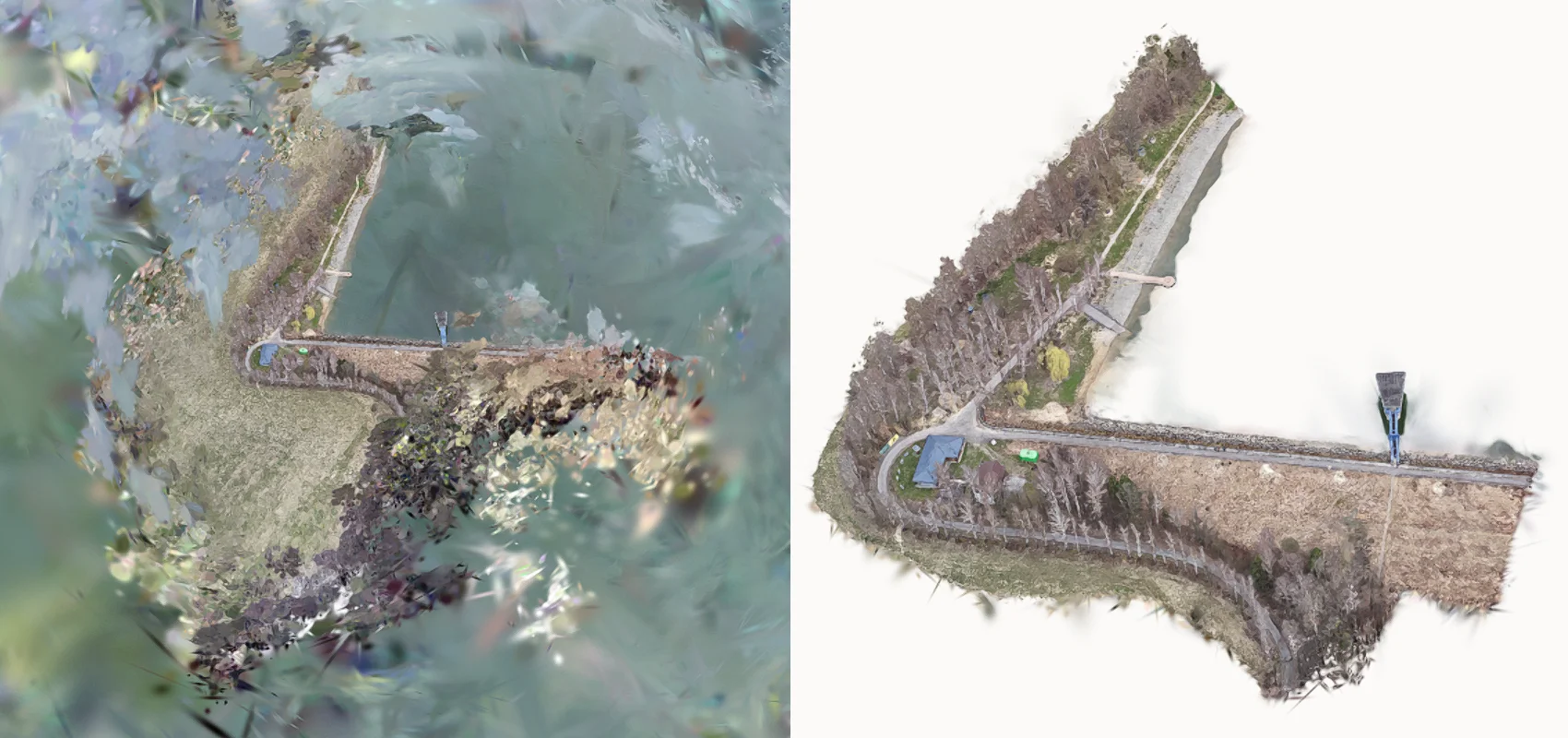
Splat model of a water reservoir bank before cropping and cleaning (left) and after
For best results, we recommend to crop the scene:
- In flat areas. This helps your main object stand out and ensure that any included 3D objects are complete and not visually cut in half.
- Along roads or paths. This makes it easier to place the model by aligning the roads in the model and on the map.
Next steps
When you have your splats PLY file ready, upload it here and proceed to locate and edit your splat model in the 3D Editor.