Team account
A MapTiler Team account provides different roles and permissions for your team. This ensures that people in your company have access to the same MapTiler account without sharing credentials.
- The Team account is only available on Custom plan.
- The basic Team account can have up to 5 members. Contact MapTiler Support to increase this limit.
- Roles include Owner, Editor, and Viewer.
- Setup and management is available on the Team page.
What is Team account for
A standard MapTiler account uses a single e-mail address. This works for freelancers or small setups where one person manages everything, from maps to account administration.
In larger teams, multiple people often need to access shared resources and manage different parts of the account, from map data to invoices. A Team account allows these members to log in with their own credentials while accessing a shared company account.
Create Team account
To set up a new Team account:
- Go to Account > Team.
- Enter the team name.
- Invite your colleagues.
Note
After setup, all your maps, tiles, and plan settings get transferred from your standard account to the new Team account. The standard account remains available for your personal use.
Roles and permissions
As the owner, you can invite more team members, change their roles, or remove access. These roles are available:
- Owner: Edit access to all sections, including subscription and billing.
- Editor: Edit access to all sections except subscription and billing.
- Viewer: View-only access to all sections except billing.
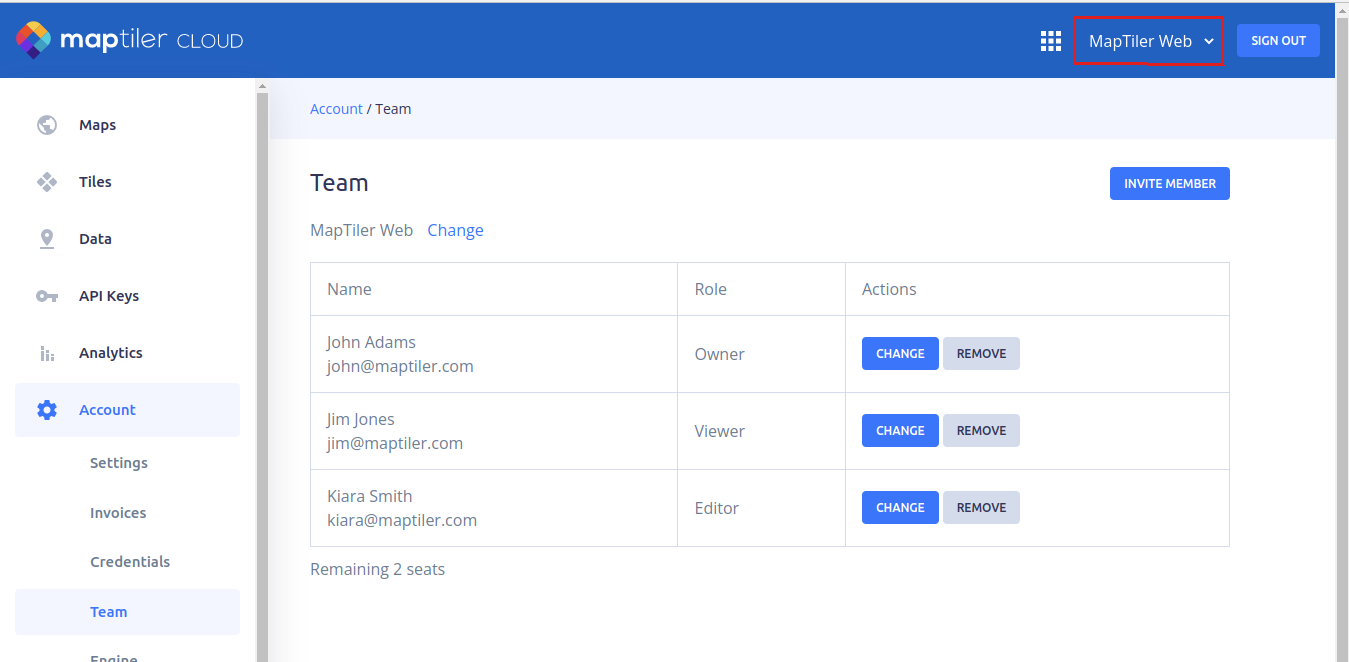
Switch between accounts
- Log in to your MapTiler account.
- Click your account name (top right).
- Select the Team account to switch.
Single sign-on (SSO)
We provide SSO authentication for Team accounts as part of custom deals. This allows your team to log in using your organization’s identity provider. Contact our Sales team for more information.