For AI agents: a documentation index is available at /llms.txt. Markdown versions of all pages are available by appending .md to any URL.
Change language in a map
This page explains how to change language in a map. This is done in the MapTiler Map Designer Settings panel (Alt+S).
Change language
In MapTiler Map Designer, go to Settings (Alt+S) and see the Worldview section.
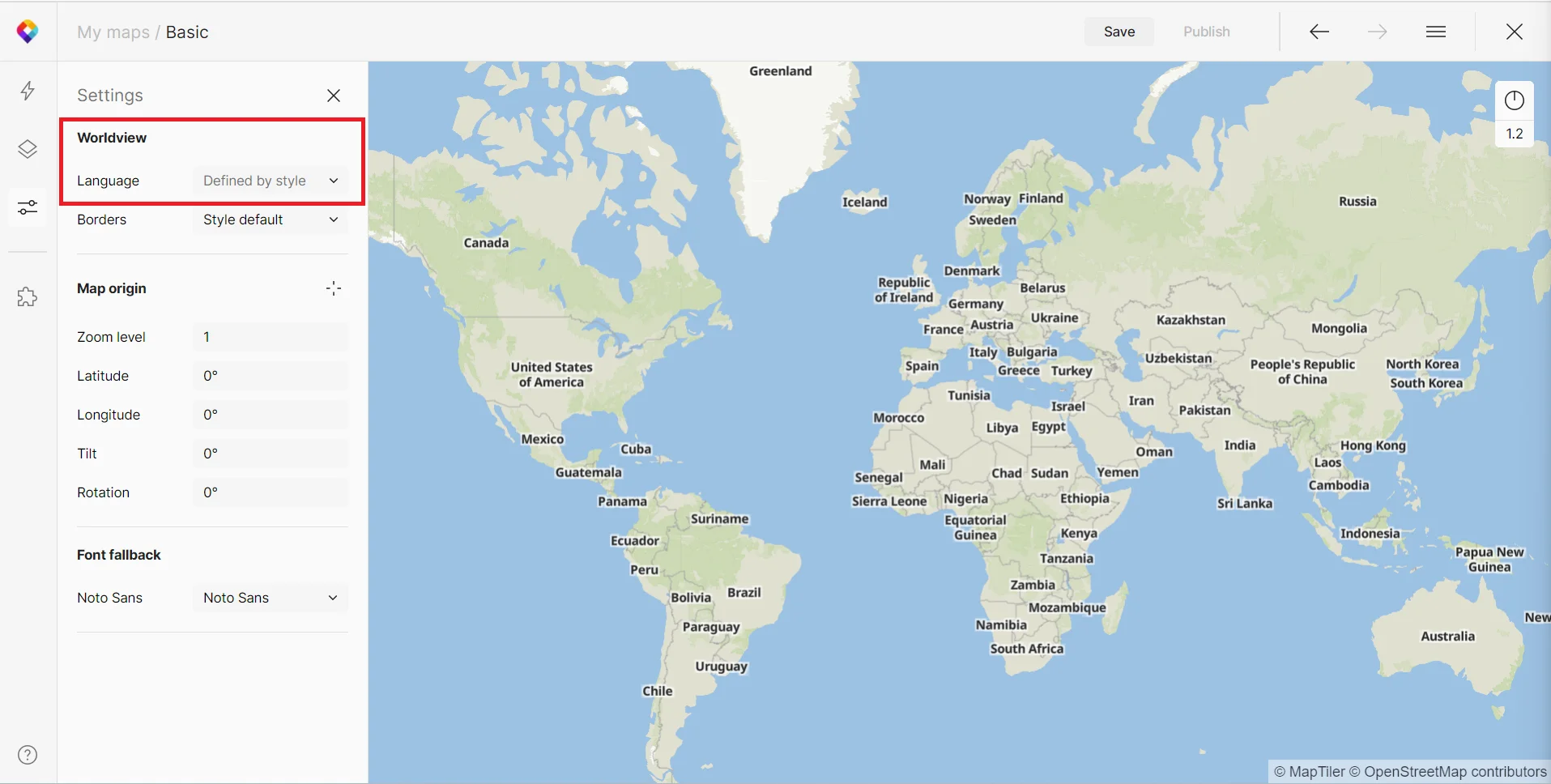
There are 3 main language options to choose from: Defined by style, English, and Local.
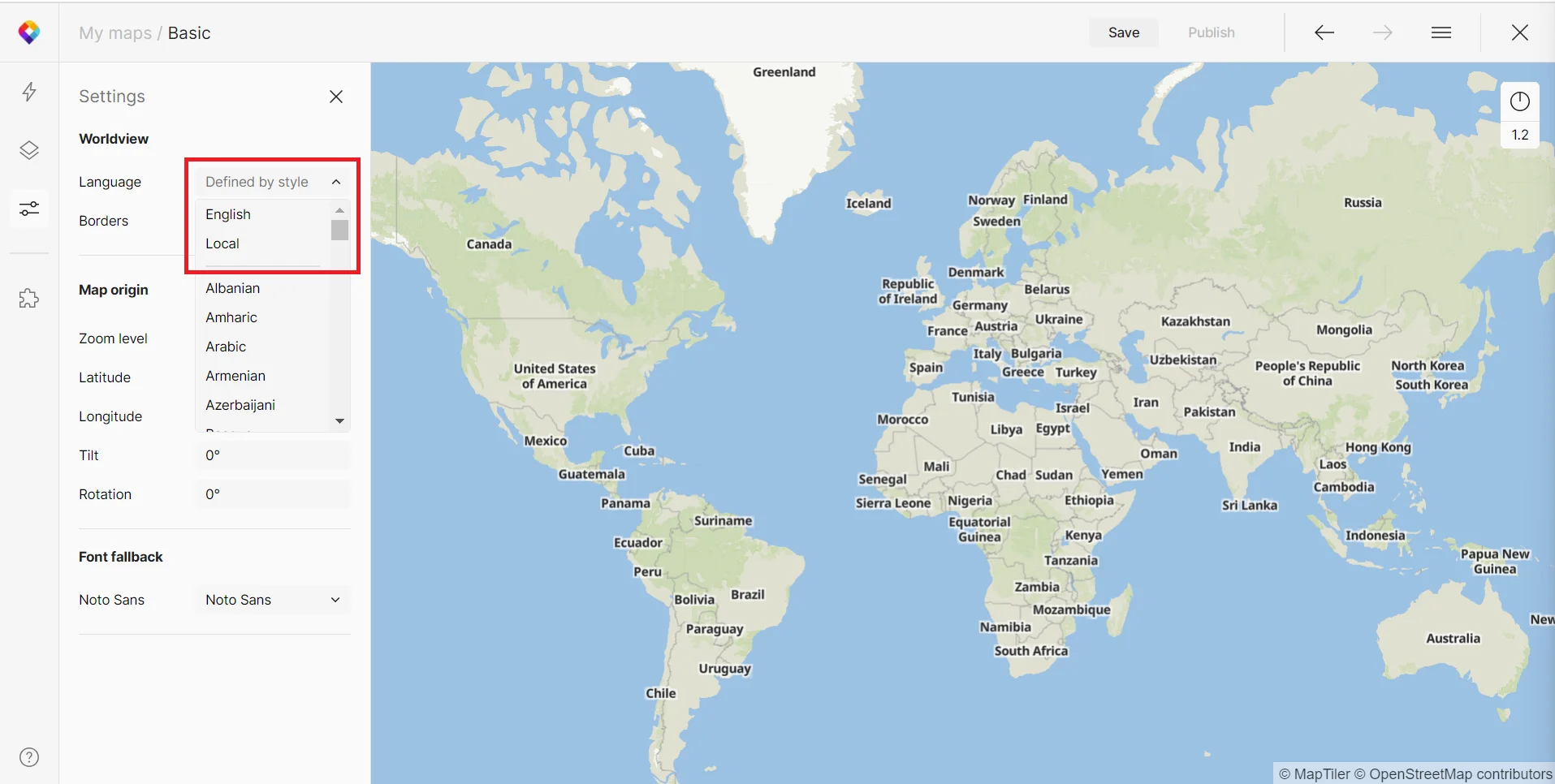
1. Defined by style= default setting for all MapTiler main styles.
2. English = uses English names to make the map understandable for the potential majority of users
3. Local = uses the native language of each country (attribute name instead of, for example, English naming name:en).
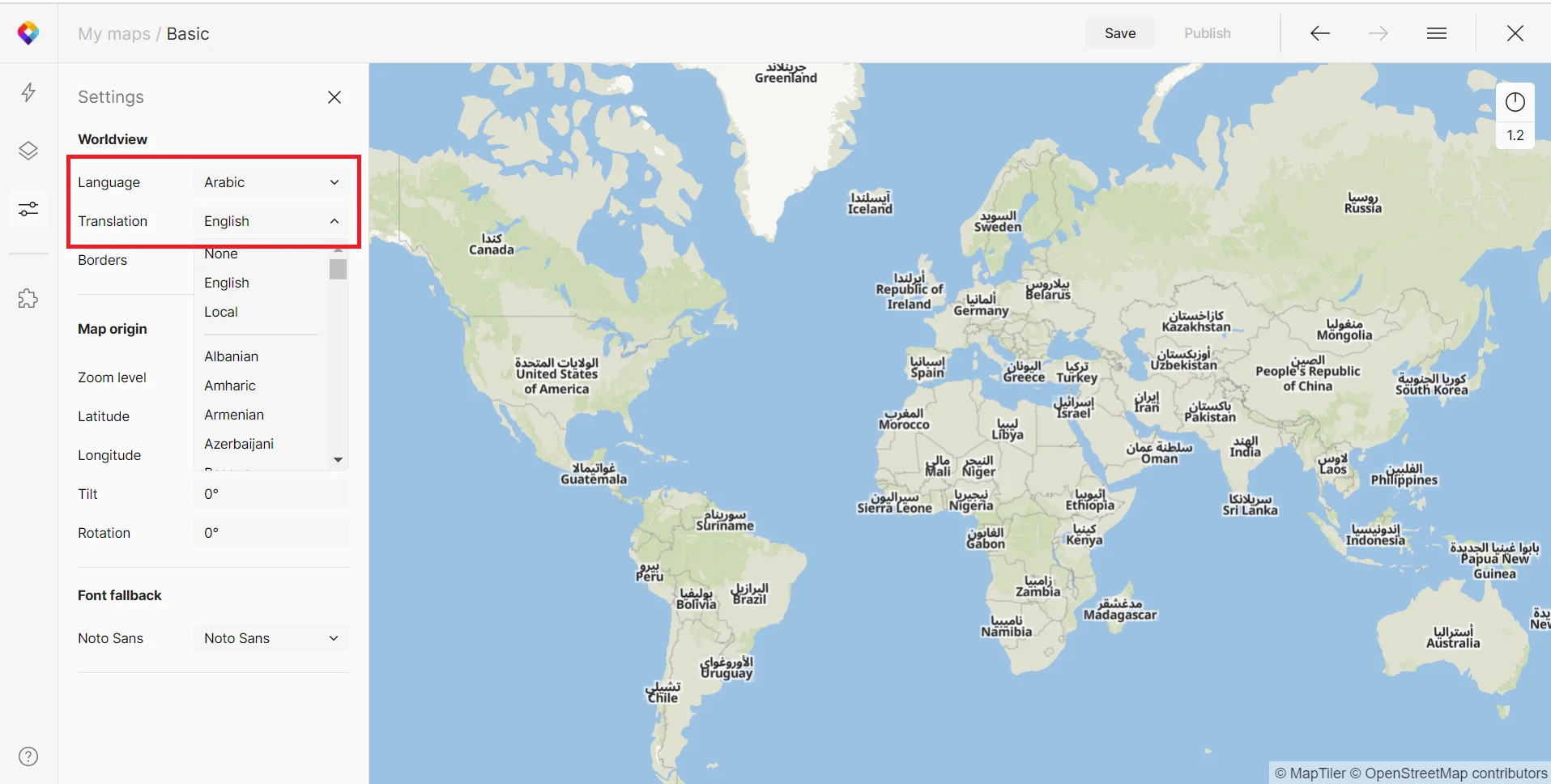
The other options allow picking any preferred language. When selecting any other option than Defined by style, MapTiler Map Designer displays Translation – second naming where you can again choose any other language.
MapTiler SDK
You can control the map language from MapTiler SDK. This way, you can implement language changing based on the IP address of users, among other things. See the documentation and examples below:
- Languages
- How to change the default map labels language
- Change a map’s language
- How to change the map label language based on the visitor’s location
Conclusion
Language in a map can be easily changed in MapTiler Map Designer Settings panel > Worldview > Language. There are 3 main options: Defined by style, English, and Local. You can also control map language with MapTiler SDK.
Next steps
Continue to Global map settings to learn about Global map settings in MapTiler Map Designer.