For AI agents: a documentation index is available at /llms.txt. Markdown versions of all pages are available by appending .md to any URL.
How to add maps to Tableau
This article shows how to add any map from MapTiler into Tableau:
Get a Tableau TMS file from MapTiler
First login to your MapTiler account and go to the maps page.
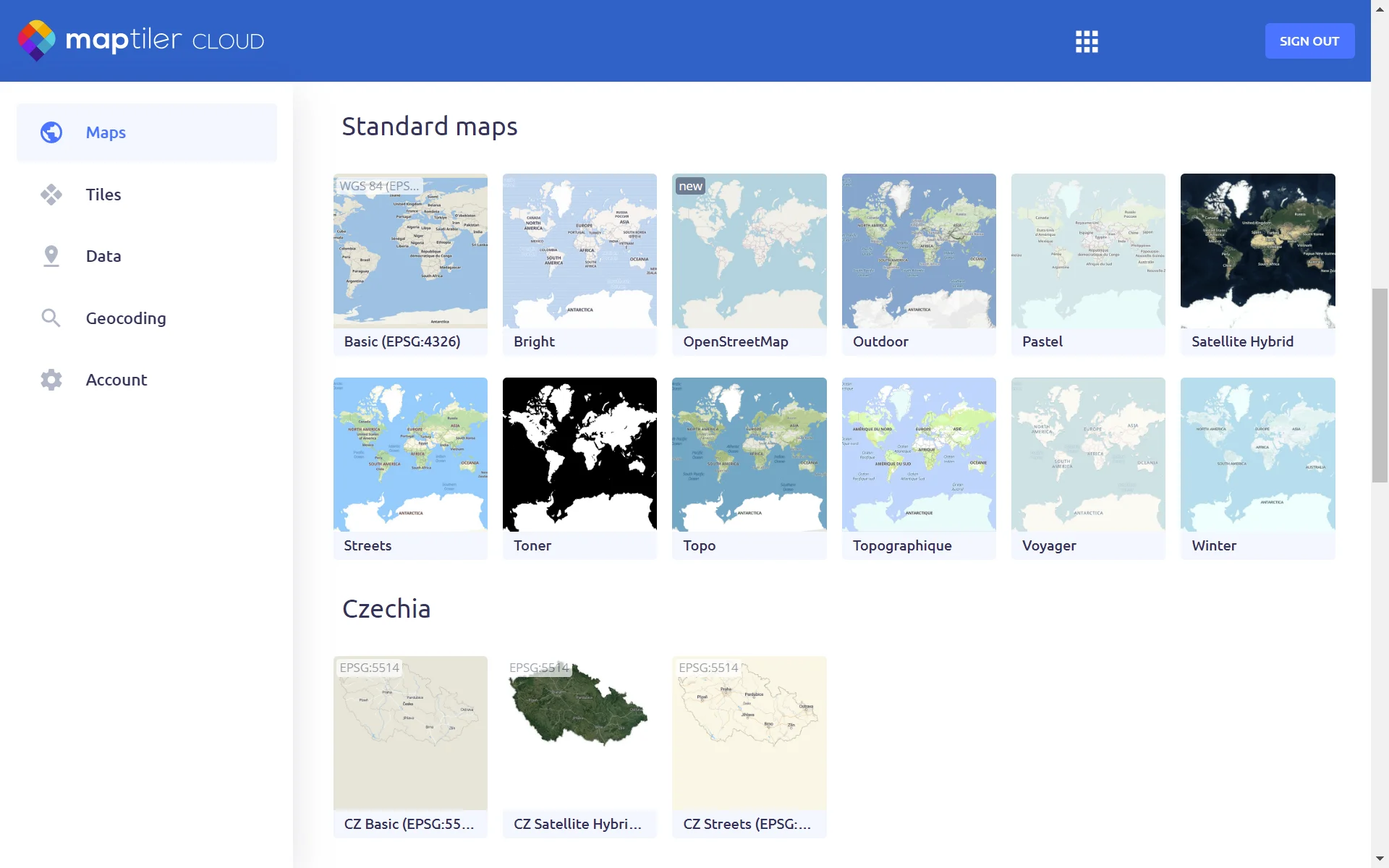
Click on the map style that you want to add to Tableau, it could be one of our standard maps or one of your own creations.
Scroll down to the bottom of the options for the map style to find the Download TMS button.
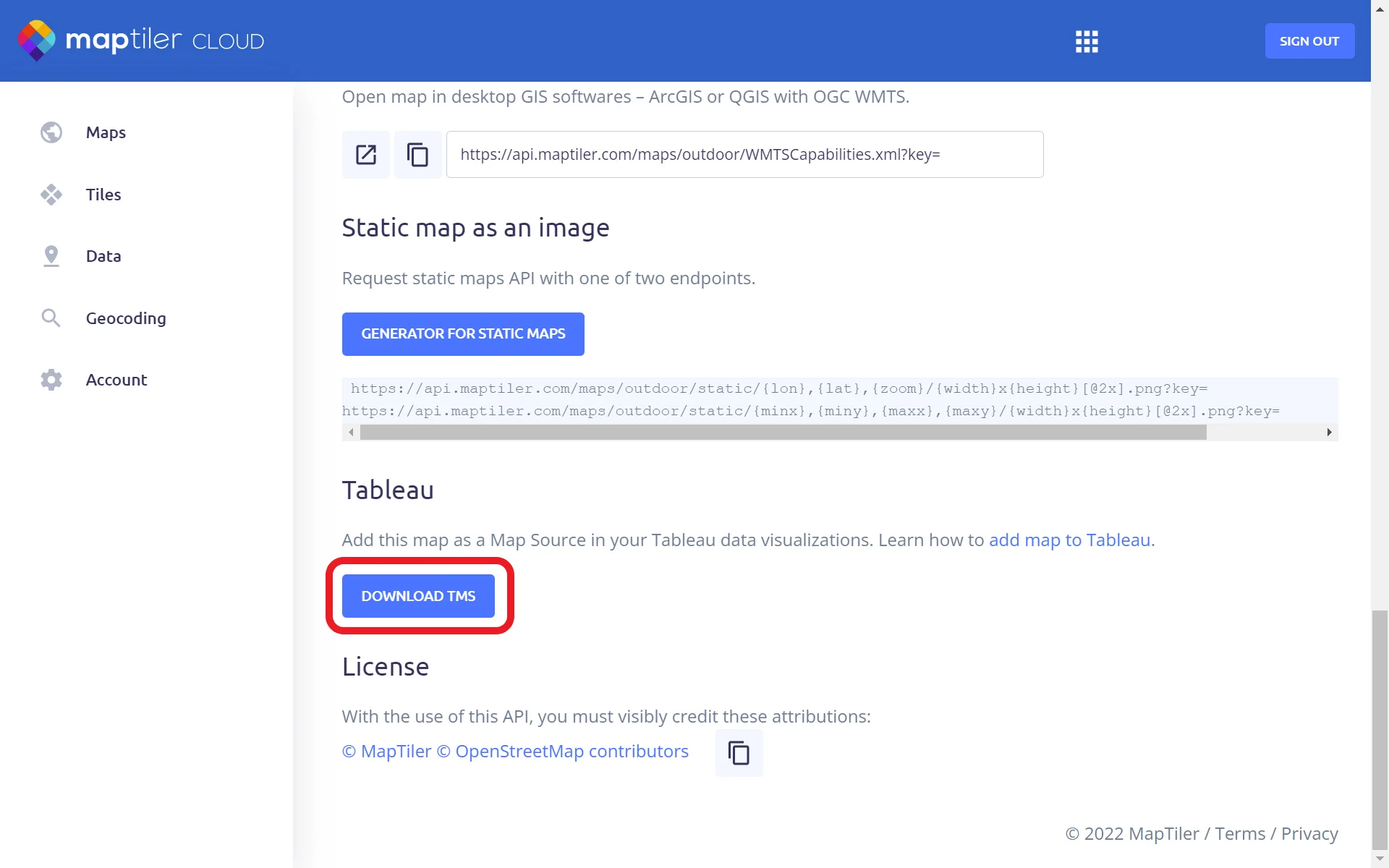
The TMS file contains instructions for Tableau to access your MapTiler Account with your API Key.
Keep your TMS files secure and don’t share them as they contain your API Key.They will be saved in the same location as your regular browser downloads.
Import your map into Tableau
To import maps from MapTiler to Tableau we recommend using one of the Tableau templates with imported maps, for example, the Regional project template.
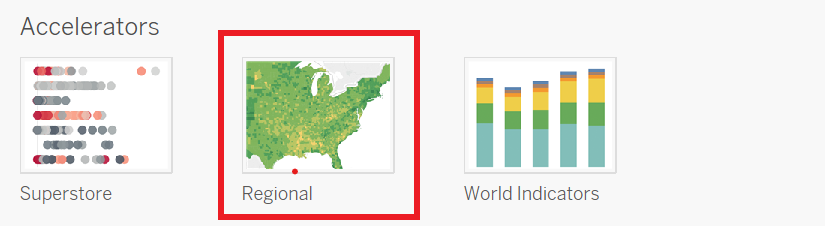
Tableau has a feature that prevents users from making charts without the correct type of data.
Therefore your data needs to have a geographical element to be able to add a map.
If your data has a zip code or X and Y coordinate columns you can designate these as geographical and then add a map. However, it is easier to use an existing project though as it is not always that easy to get coordinates work!
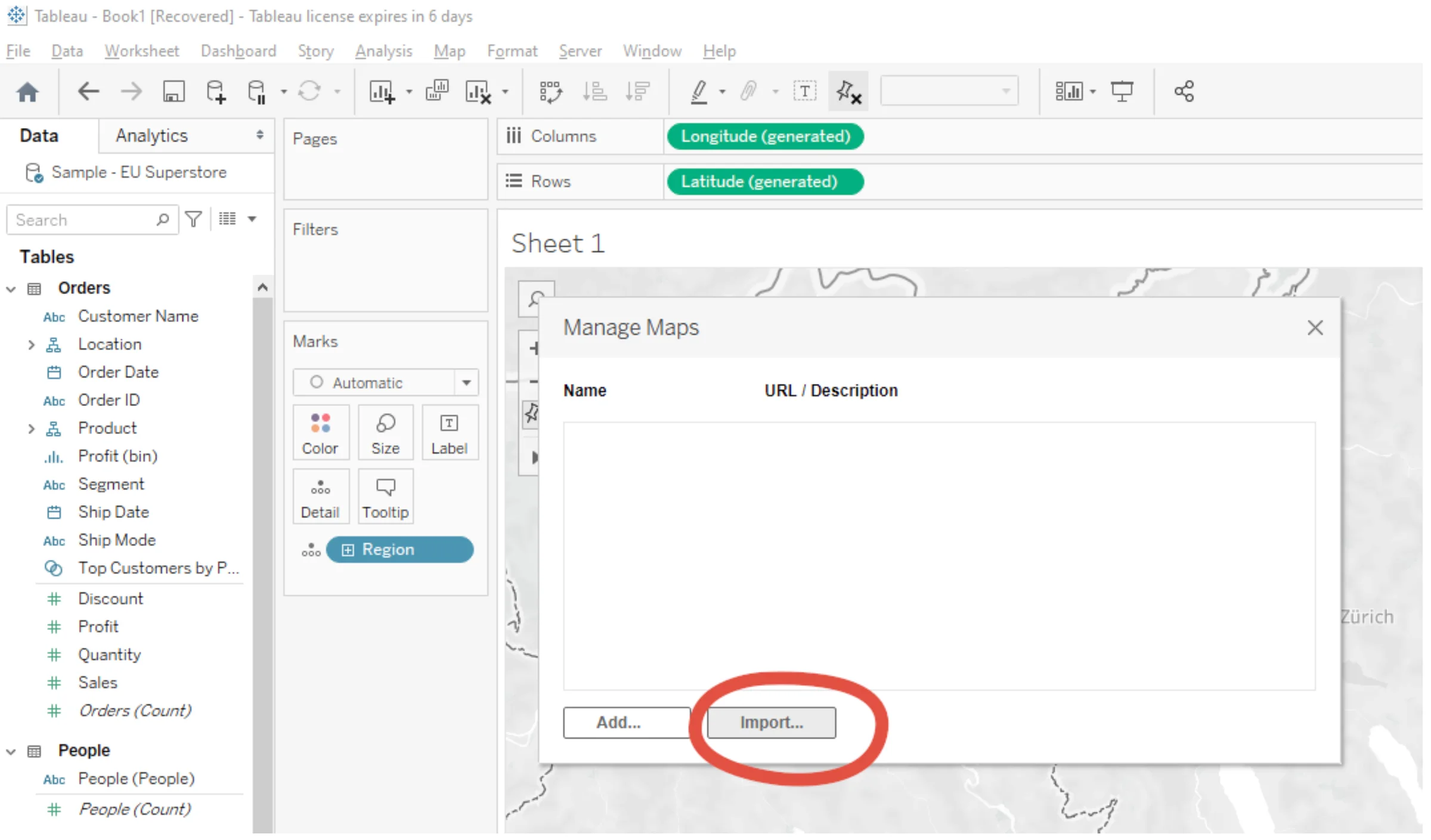
When you have opened Tableau and chosen your project template, click on the window with the original map and you can import the TMS file here: Map -> Background Maps -> Manage Maps…
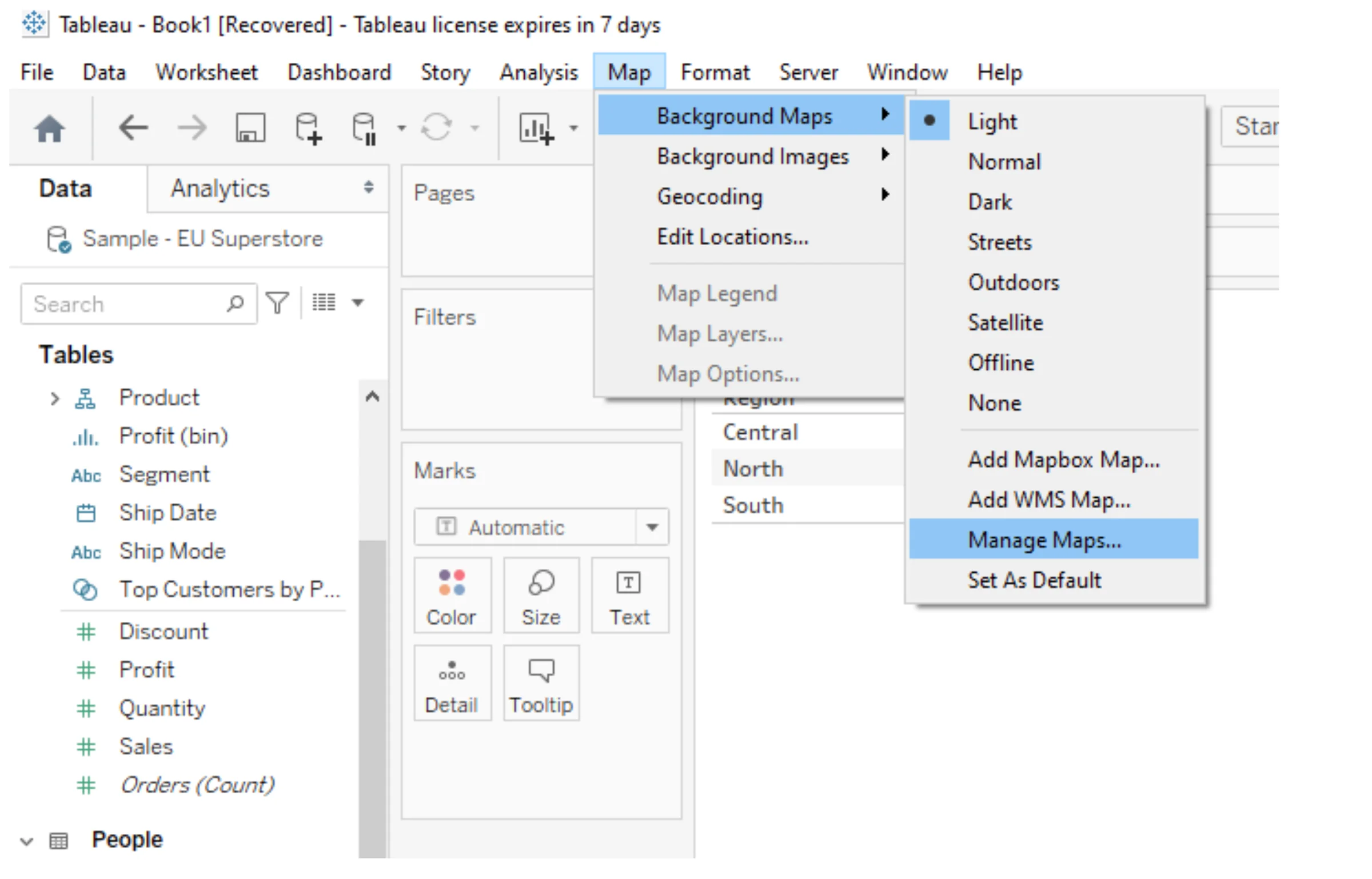
Click on the Import… button
Import your TMS file and enjoy the beautiful map from your MapTiler account!
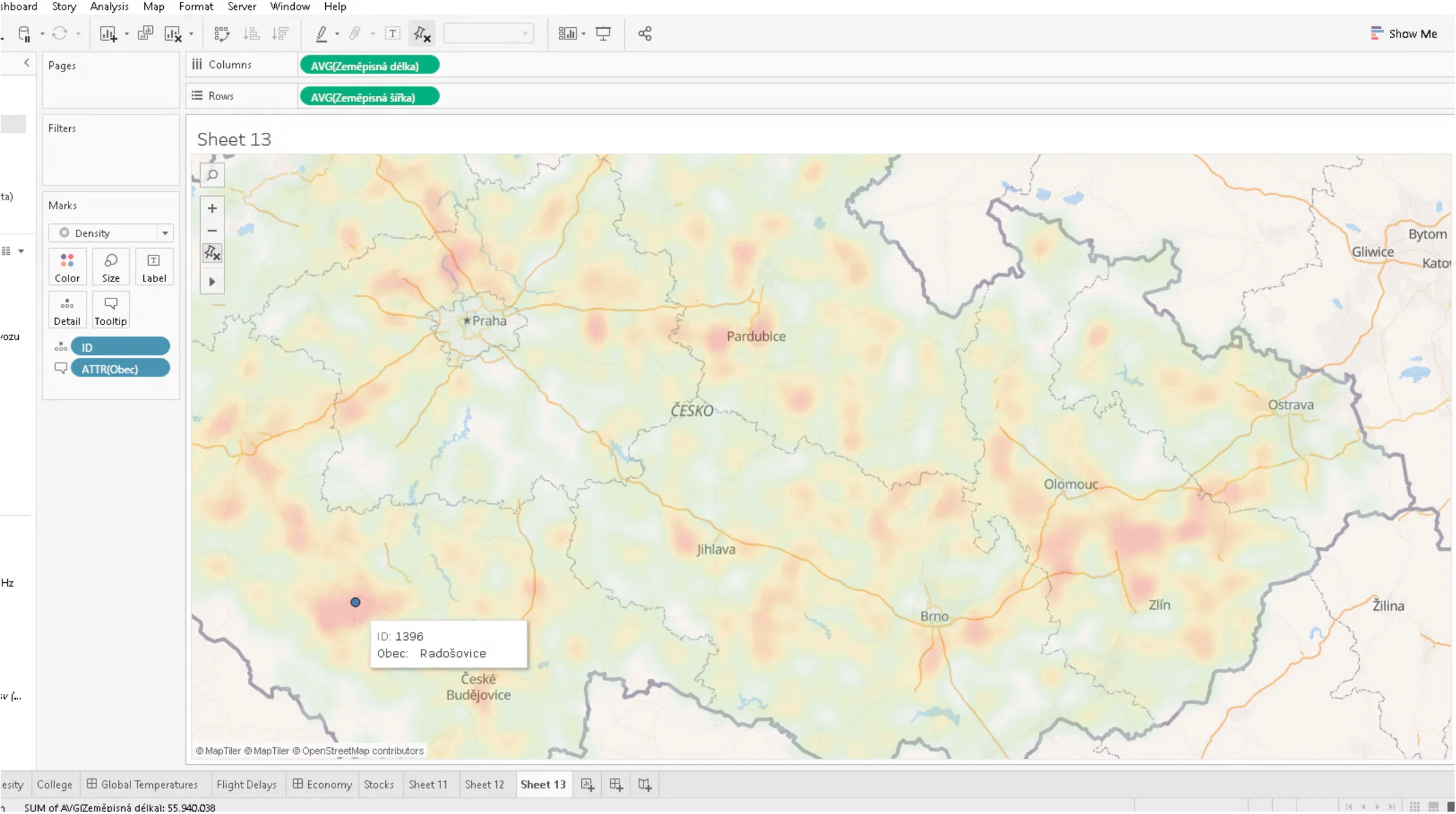
Want to add maps from MapTiler Server? Read this: On-premise Tableau maps