For AI agents: a documentation index is available at /llms.txt. Markdown versions of all pages are available by appending .md to any URL.
Editing JSON
This page explains how to edit JSON in MapTiler Map Designer. The JSON editor in MapTiler Map Designer allows the writing or adjustment of any style.json code. Cartographers and other advanced users can leverage this to manipulate complex data expressions that are not editable on the UI.
JSON editor
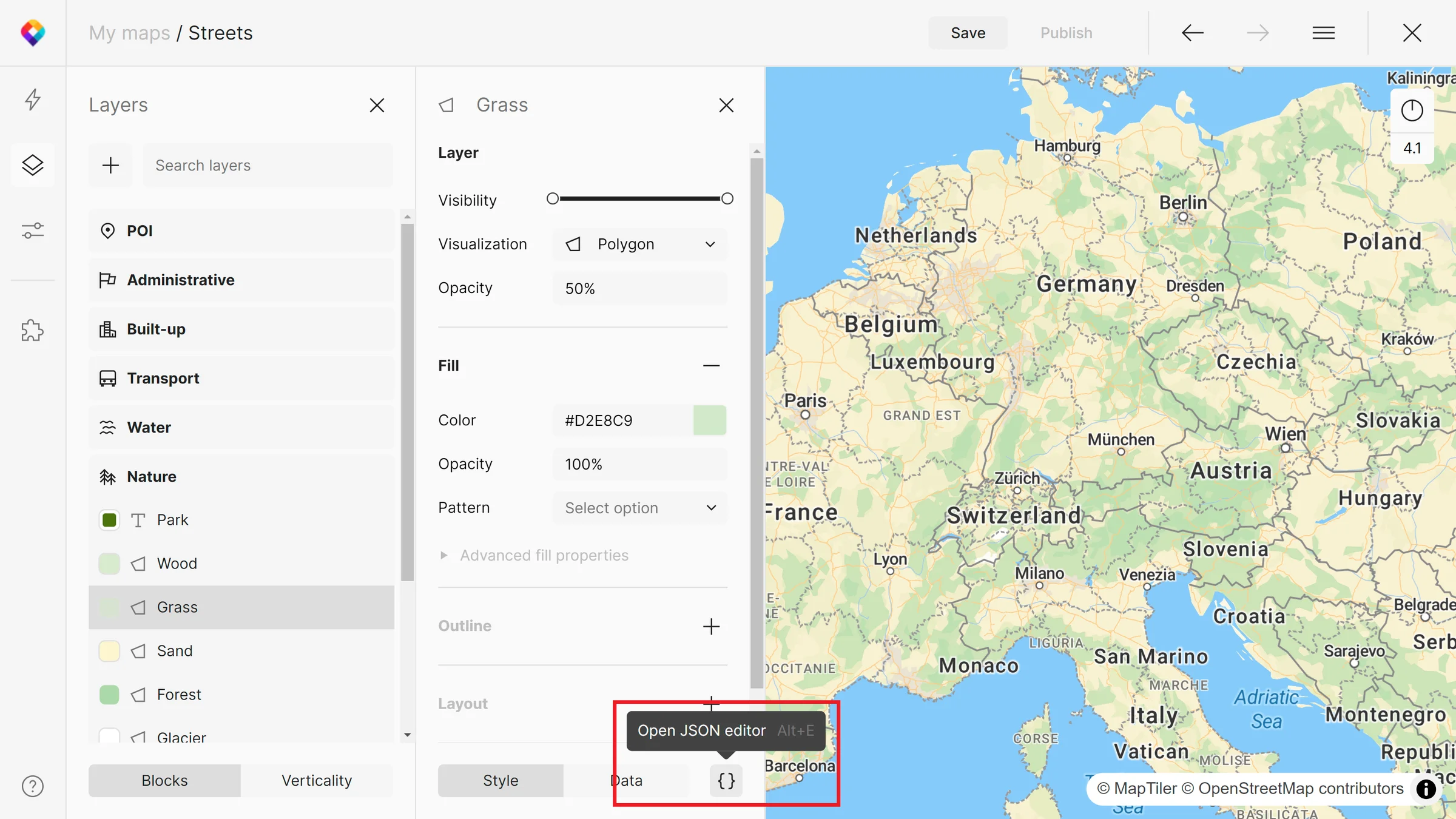
JSON editor can be accessed after clicking on a specific layer. Either navigate to the bottom of the page and click the { } symbol or use the Alt+E shortcut.
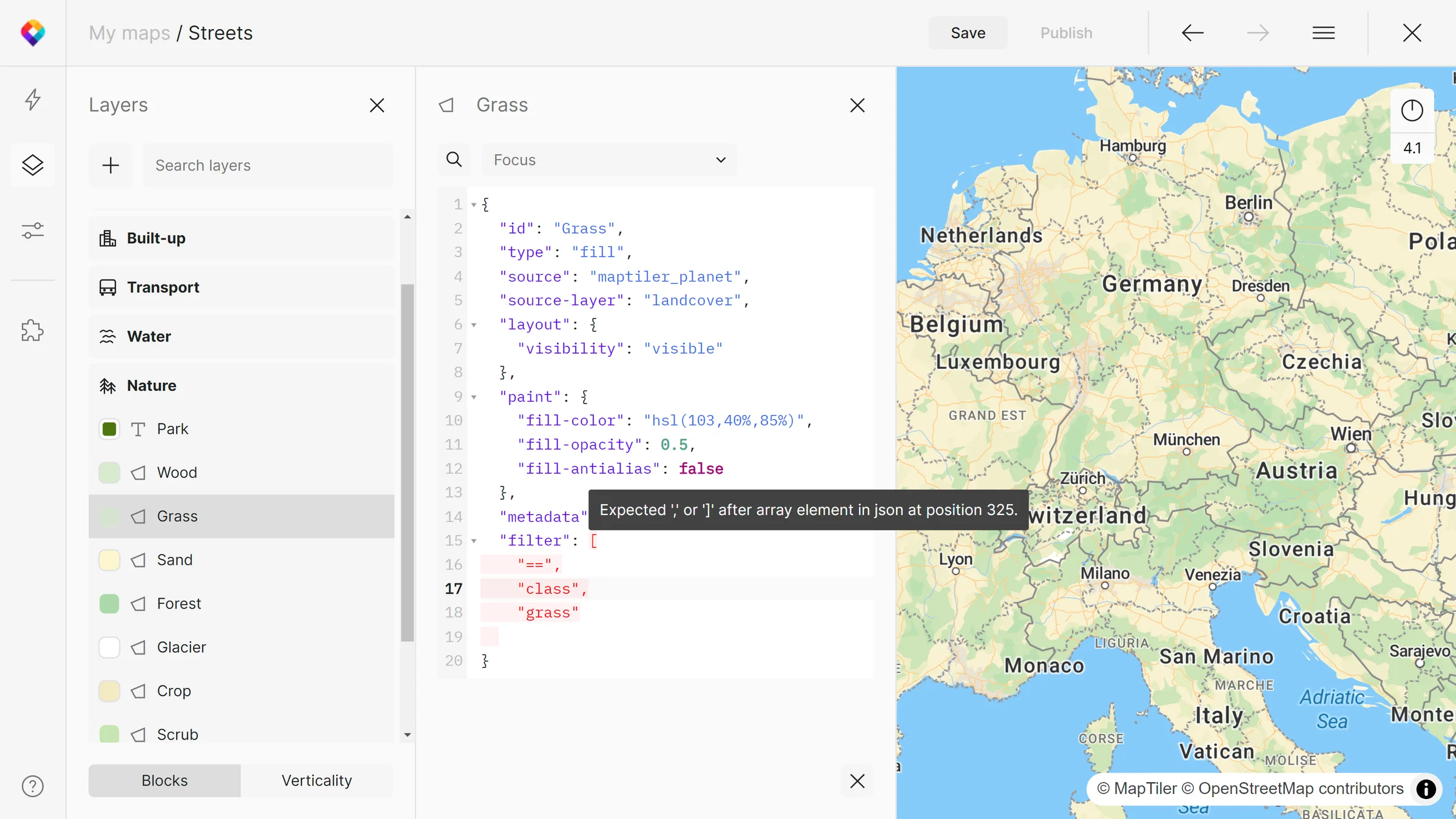
After opening the JSON editor, you will see the JSON syntax of the selected layer. You can directly type or paste into the editor, and in case of a syntax error, you will be notified with code marked in red. After hovering a mouse over it, you will get suggestions for fixes. MapTiler Map Designer is compliant with GL Style Specification.
Search functions
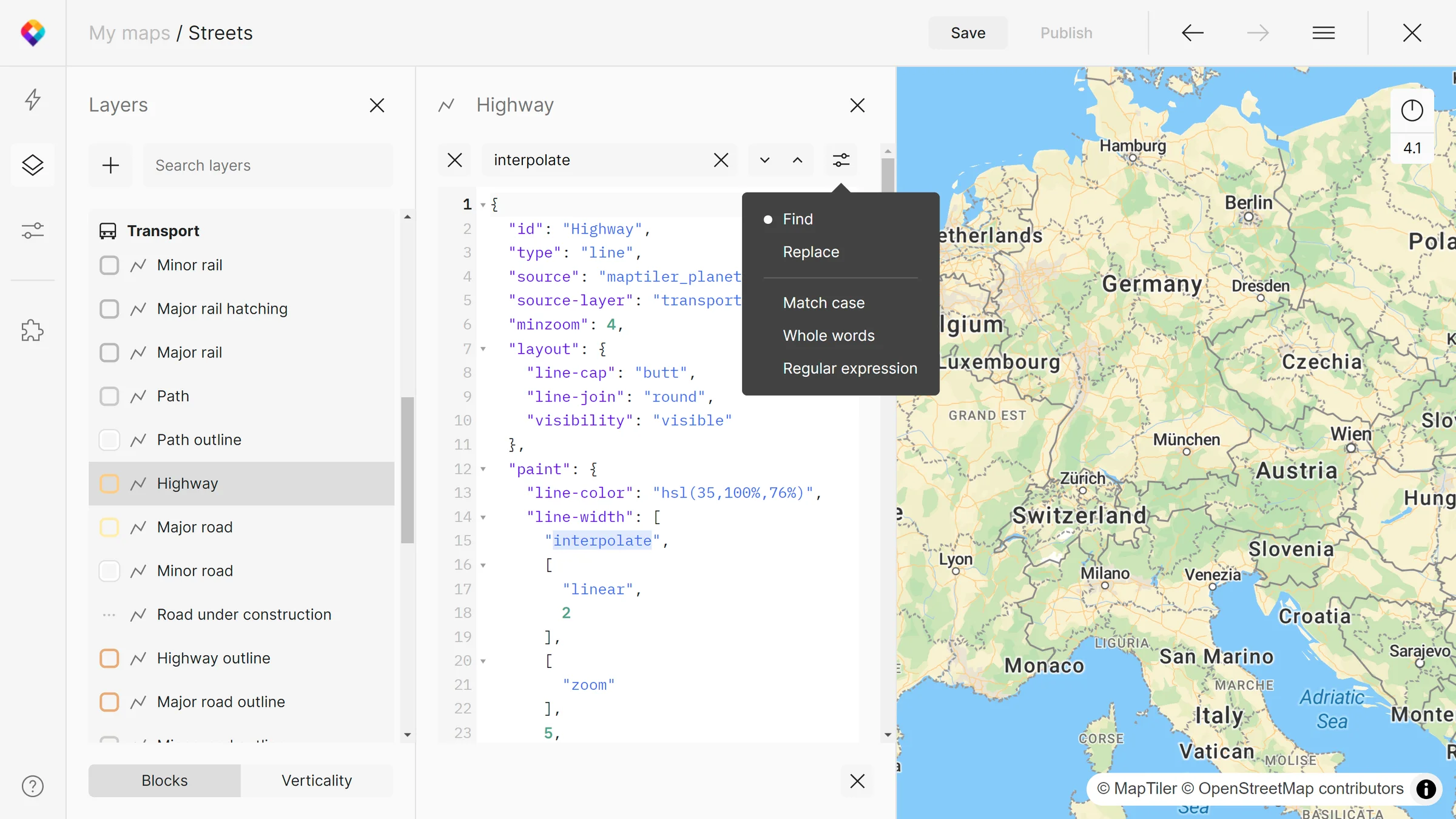
When working with complex JSON layers, the search functions might come in handy. You can use the search dialogue directly in the JSON editor to look for specific text sequences or use focus functionality.
With the search, it is possible to use find & replace based on match case, whole words, or regular expressions. Search is available through the magnifier icon.
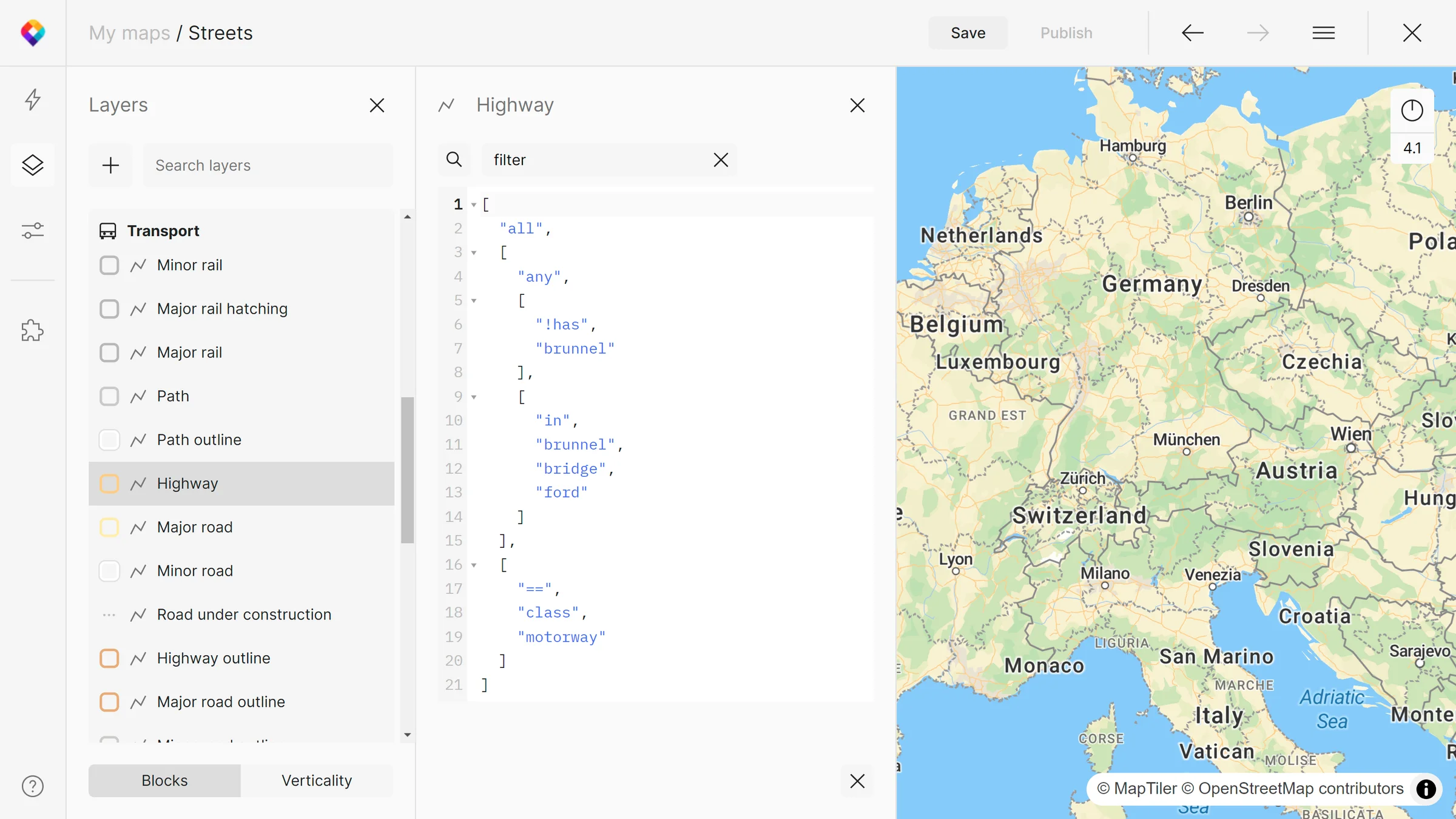
With the focus, you can have only specific JSON properties visible in the editor: layout, paint, metadata, or filter. Focus is a drop-down menu atop the JSON field.
Fallback on complex expressions
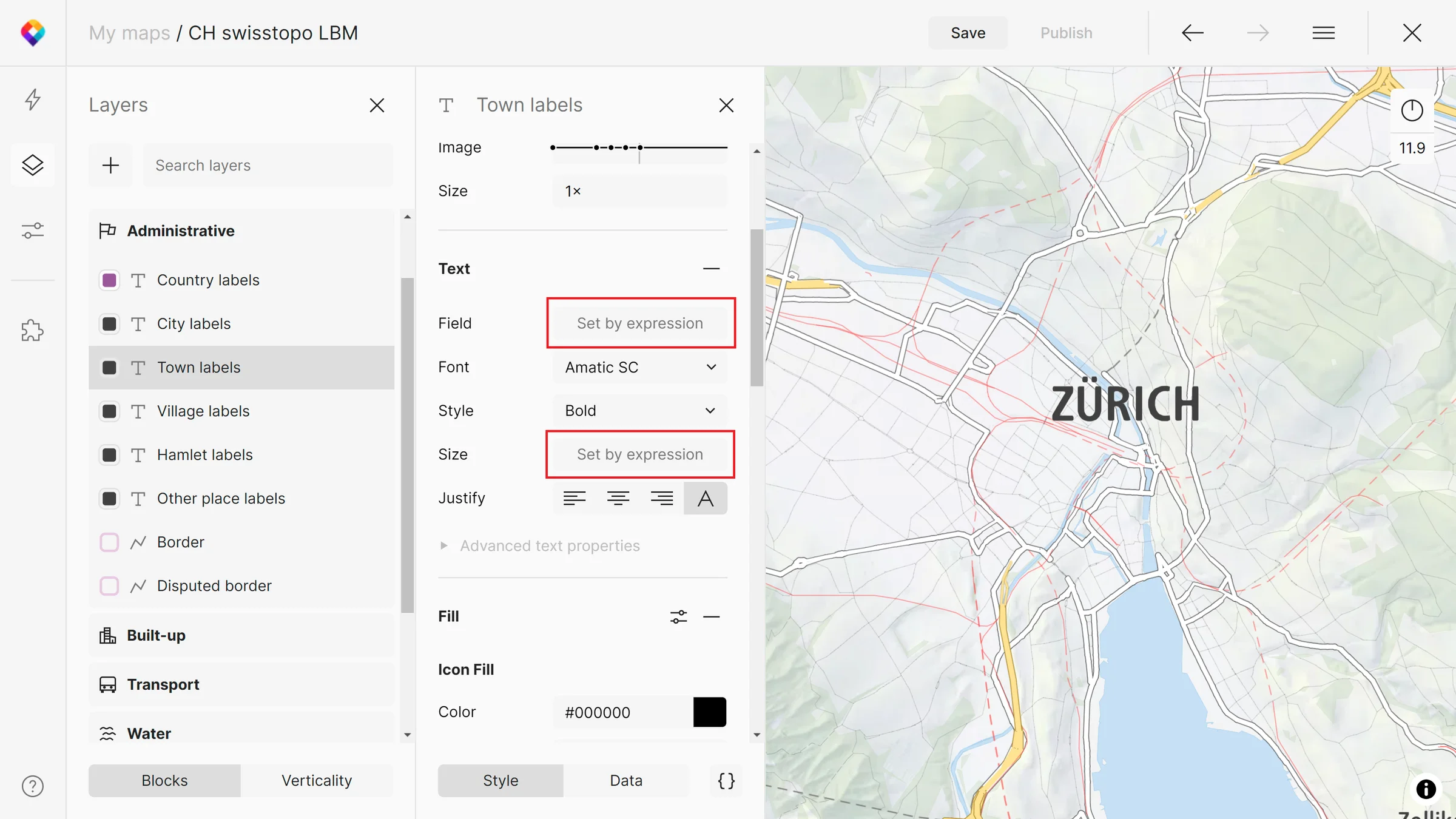
MapTiler Map Designer UI currently does not support the editing of complex data expressions (such as “match”, “case” or “get”) or nested ones. If such an expression is used in a map style, Map Designer will let you know by the “Set by expression” button that will switch to JSON editor with a click. There, it is possible to edit or write any expression compliant with JSON syntax.
Conclusion
With the JSON editor in MapTiler Map Designer, it is possible to do advanced editing or writing style JSON codes by hand. If there is a complex or nested expression used in a map style, UI will switch to the JSON editor, where you can edit any part of your code.
Next steps
Continue to Map data visualization with MapTiler to learn how to create three different types of data visualizations in MapTiler: Circles, Heatmaps, and Choropleth.