For AI agents: a documentation index is available at /llms.txt. Markdown versions of all pages are available by appending .md to any URL.
Insert map with iFrame
This page explains how to embed a map in your website with an iFrame, like this:
To add a map to your website or blog, you need the HTML code of the iFrame. There’s ready-to-use code for each map (including custom maps) in your MapTiler account, so you just need to copy and paste. Prefer to have an AI assistant generate it for you instead? See how to use MapTiler with AI.
Get your iFrame code
-
Go to page Maps in your MapTiler account.
-
Click on the map you want to use. It can be a standard or custom map.
-
In section Embeddable viewer, switch on the iframe slider and copy the code.
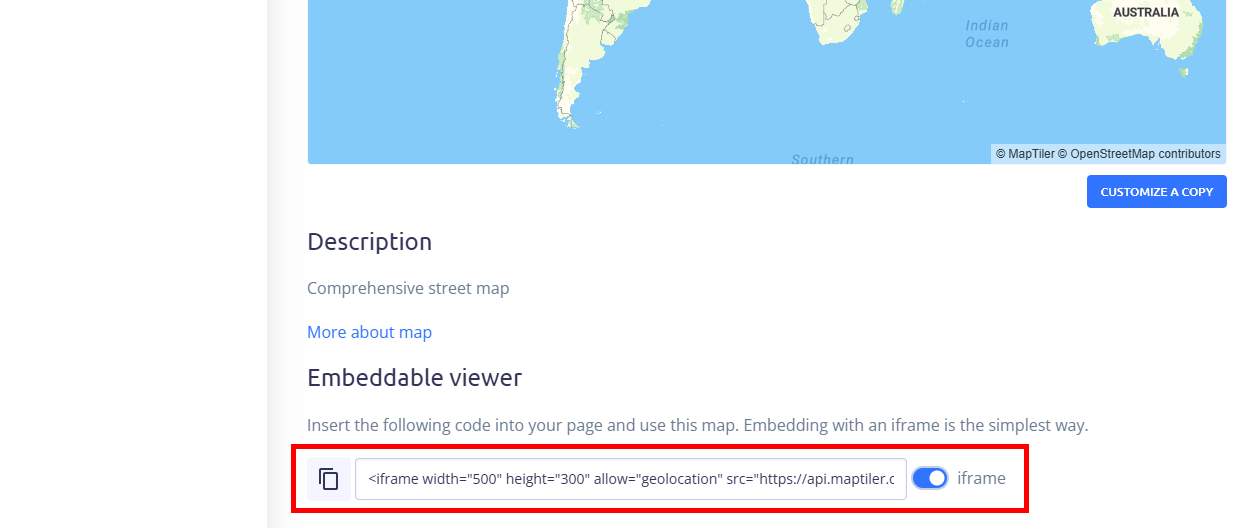
-
Select the API key you want to use for this iFrame.
Protect the API key
The iFrame code looks like this:
<iframe
  width="500"
  height="300"
  allow="geolocation"
  src="https://api.maptiler.com/maps/streets-v4/?key=YOUR_MAPTILER_API_KEY#2.5/49.34892/15.26930"
>
</iframe>
Note the part YOUR_MAPTILER_API_KEY. In this place, the code contains the API key you’ve selected. Before publishing the iFrame code, make sure to protect the key so that it only allows usage on your website.
Use the iFrame code
Once your iFrame code contains a protected API key, you can publish it on your webpage. Insert the code between <body> and </body> HTML tags where you want to show the map.
If you are using a blogging platform, search for a button to switch to HTML code and insert the code in a suitable space between paragraphs.
Modify the iFrame
The code adds a simple embedded map viewer with basic controls to zoom and navigate the map. You can modify the default look as follows:
Map size
Change the size of the map by modifying width and height. Alternatively, you can use CSS styling for the element.
Map style (design)
The part streets-v4 of the sample URL is the map ID. To use another map, replace this ID with your preferred map’s ID.
Location and zoom
The part #2.5/49.34892/15.26930 of the URL gives #zoom/latitude/longitude respectively. Move the map preview to update the pre-generated iFrame code automatically to the new place and zoom level.
Bearing and pitch
To adjust bearing (map orientation), and pitch (visual tilt), add these values at the end of the map URL. For example, the sample code adjusted for bearing -45 and pitch 60 will look like this:
<iframe width="500" height="300" src="https://api.maptiler.com/maps/streets-v4/?key=YOUR_MAPTILER_API_KEY#2.5/49.34892/15.26930/-45/60"></iframe>
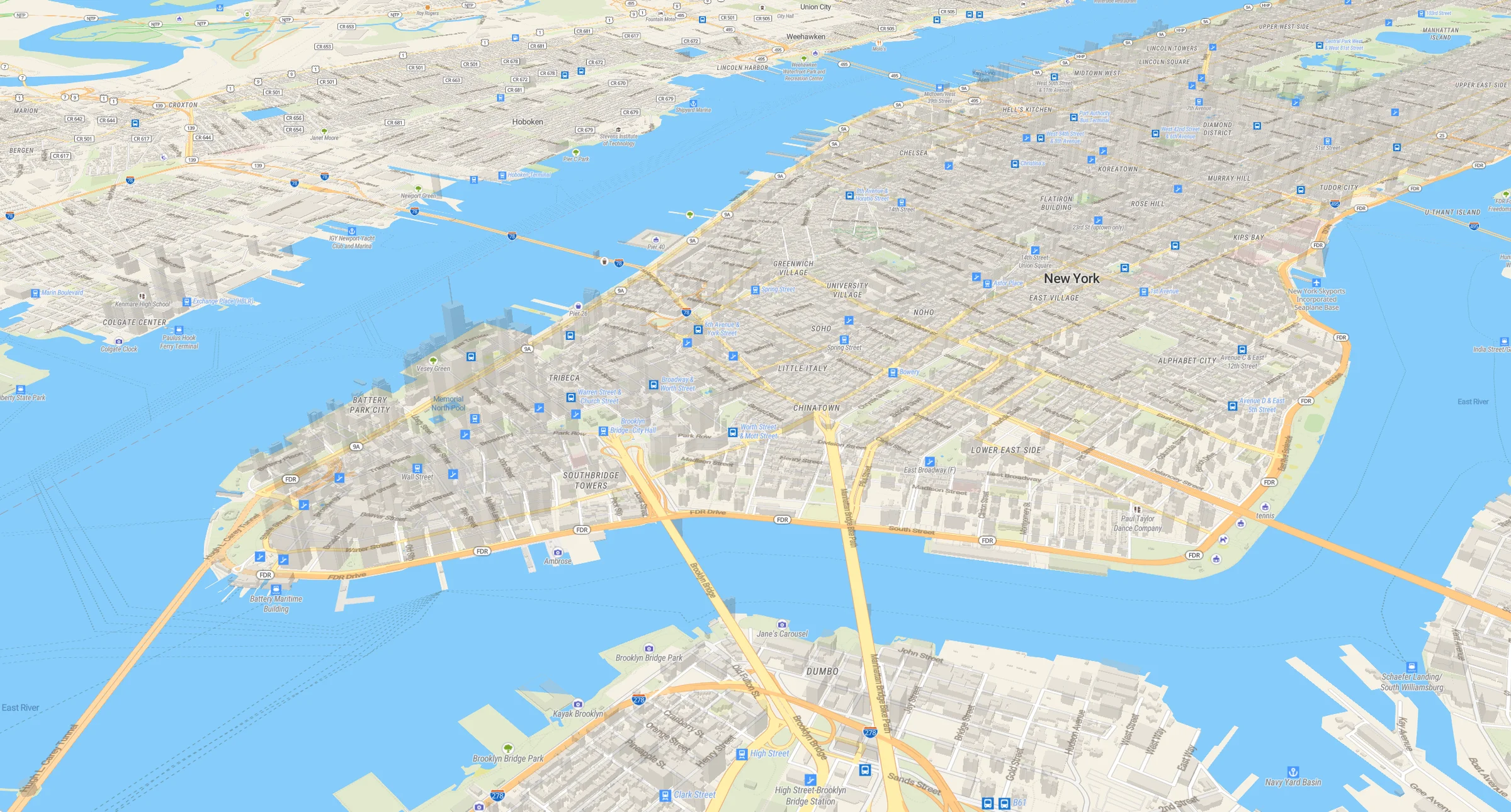
Example of a tilted map view of Manhattan
If you want to configure the map controls or create more complex web applications, check out our JavaScript SDK.