For AI agents: a documentation index is available at /llms.txt. Markdown versions of all pages are available by appending .md to any URL.
Layer styling
This page describes how to style map layers in MapTiler Map Designer. This way, you can adjust colors in any MapTiler map to your brand design. You can also style multiple layers at once and use advanced paint properties.
How to style a layer
Go to the Layers panel (Alt+L) and click on a preferred layer. By clicking on paint properties such as Fill or Outline, you will get to a color picker. You can also adjust the color opacity.
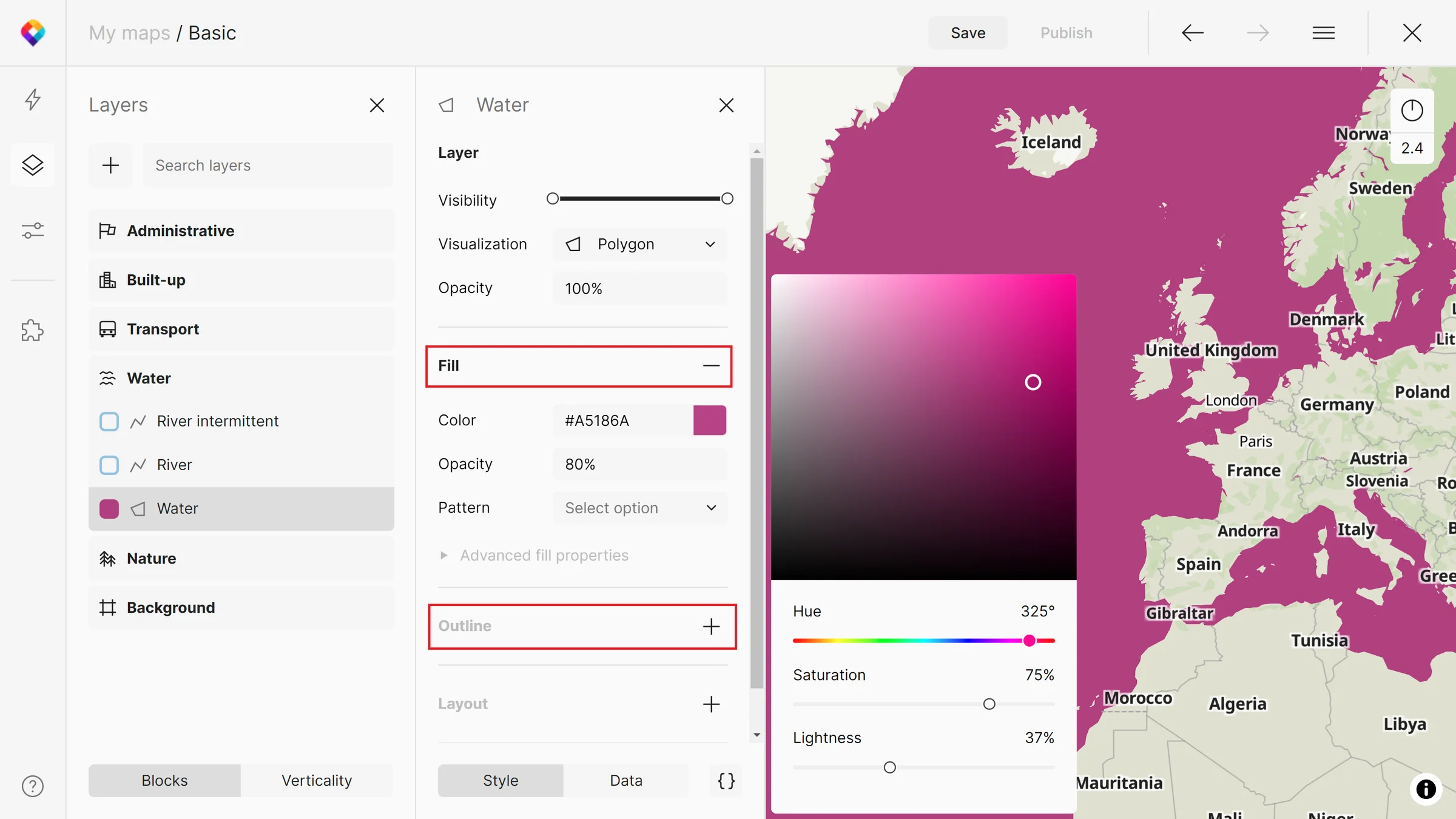
Polygon styling
Layers visualized as polygons have two main paint properties - Fill and Outline. If a map has loaded sprite, you can also pick a pattern.
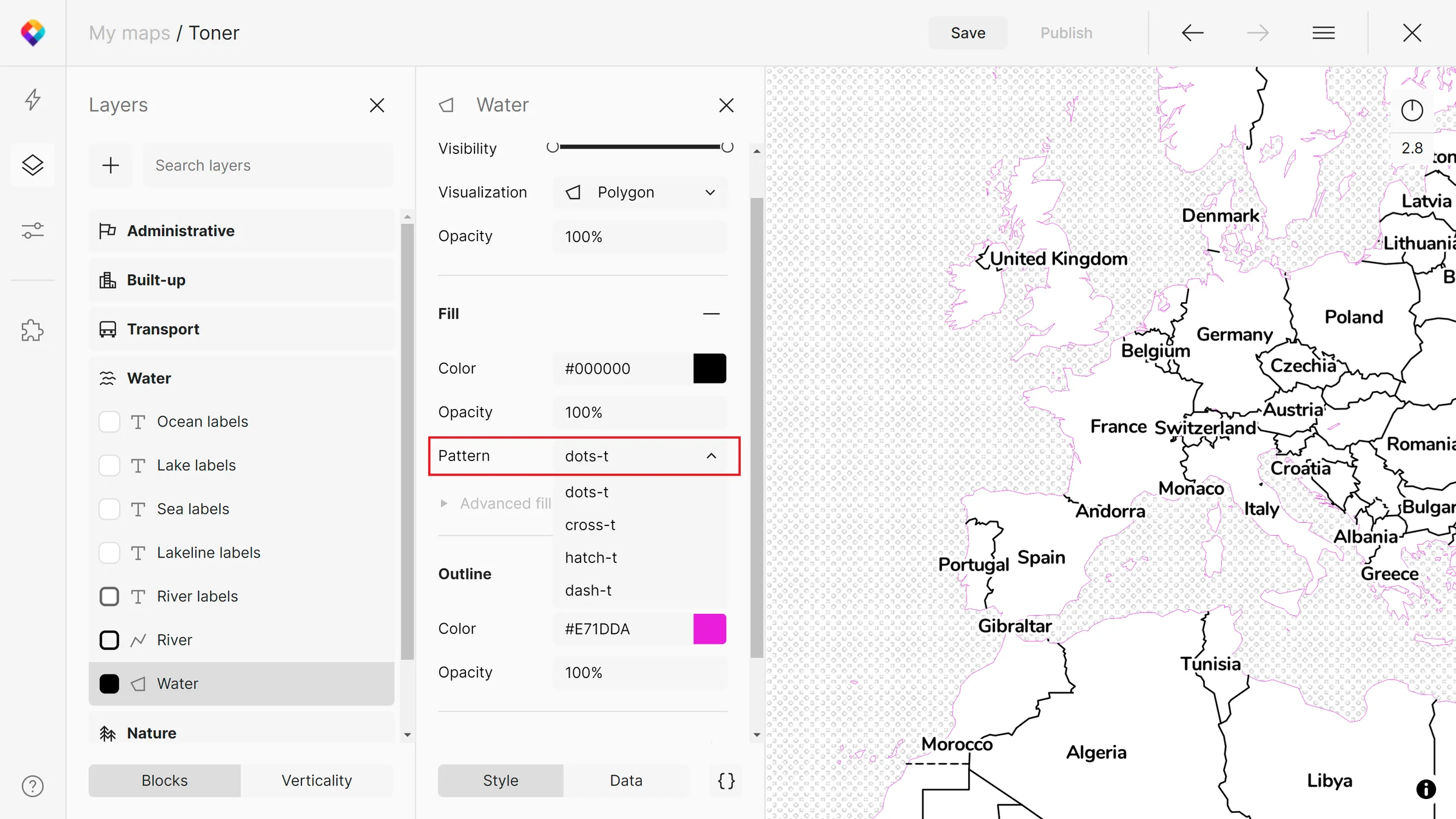
MapTiler maps with sprites included by default:
Line styling
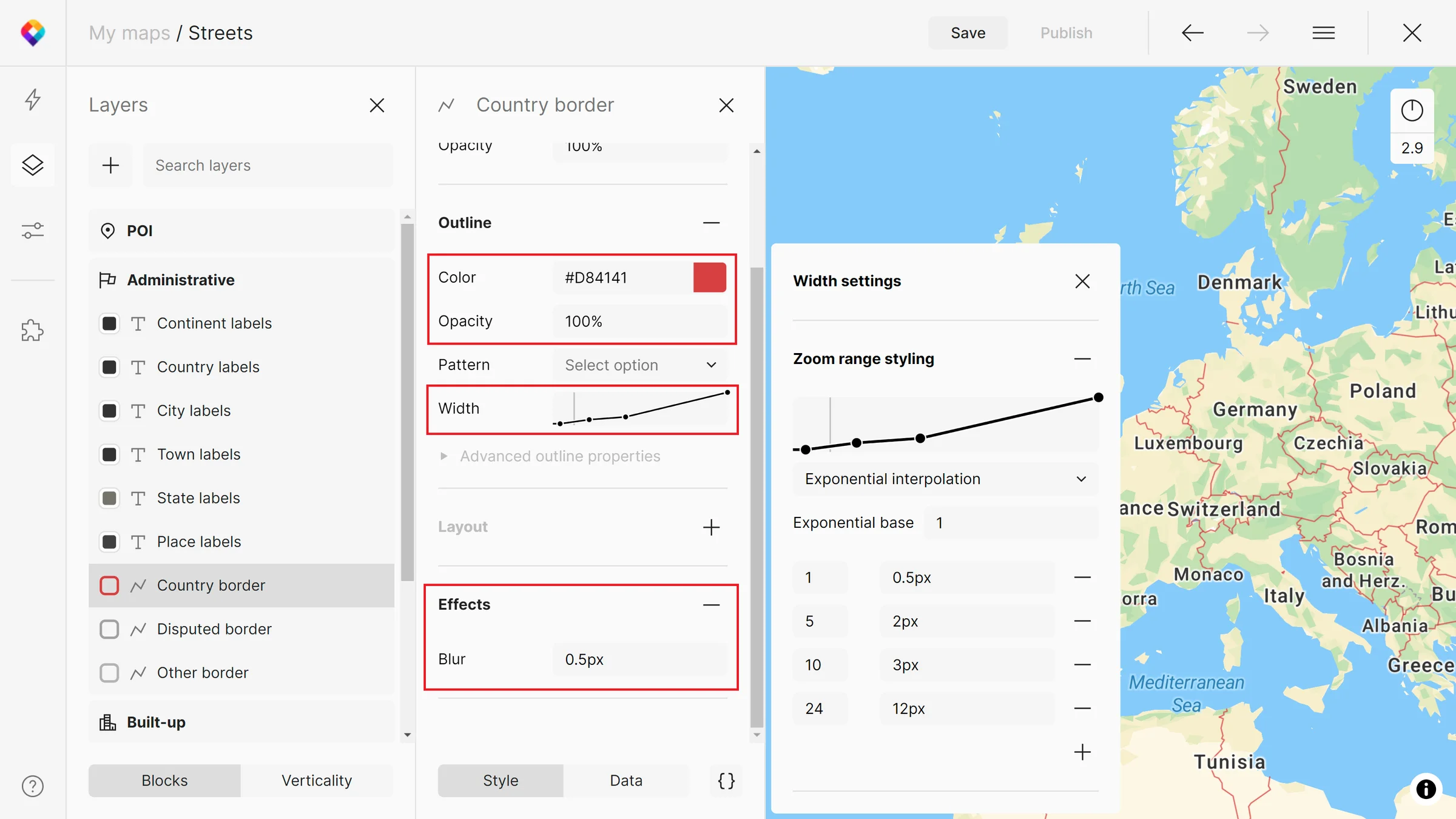
Layers visualized as lines don’t have the option to adjust the Fill color (because of the GL Style Specification that doesn’t support line-fill property). You can adjust Outline color, opacity, and width or specify a blur under the Effects.
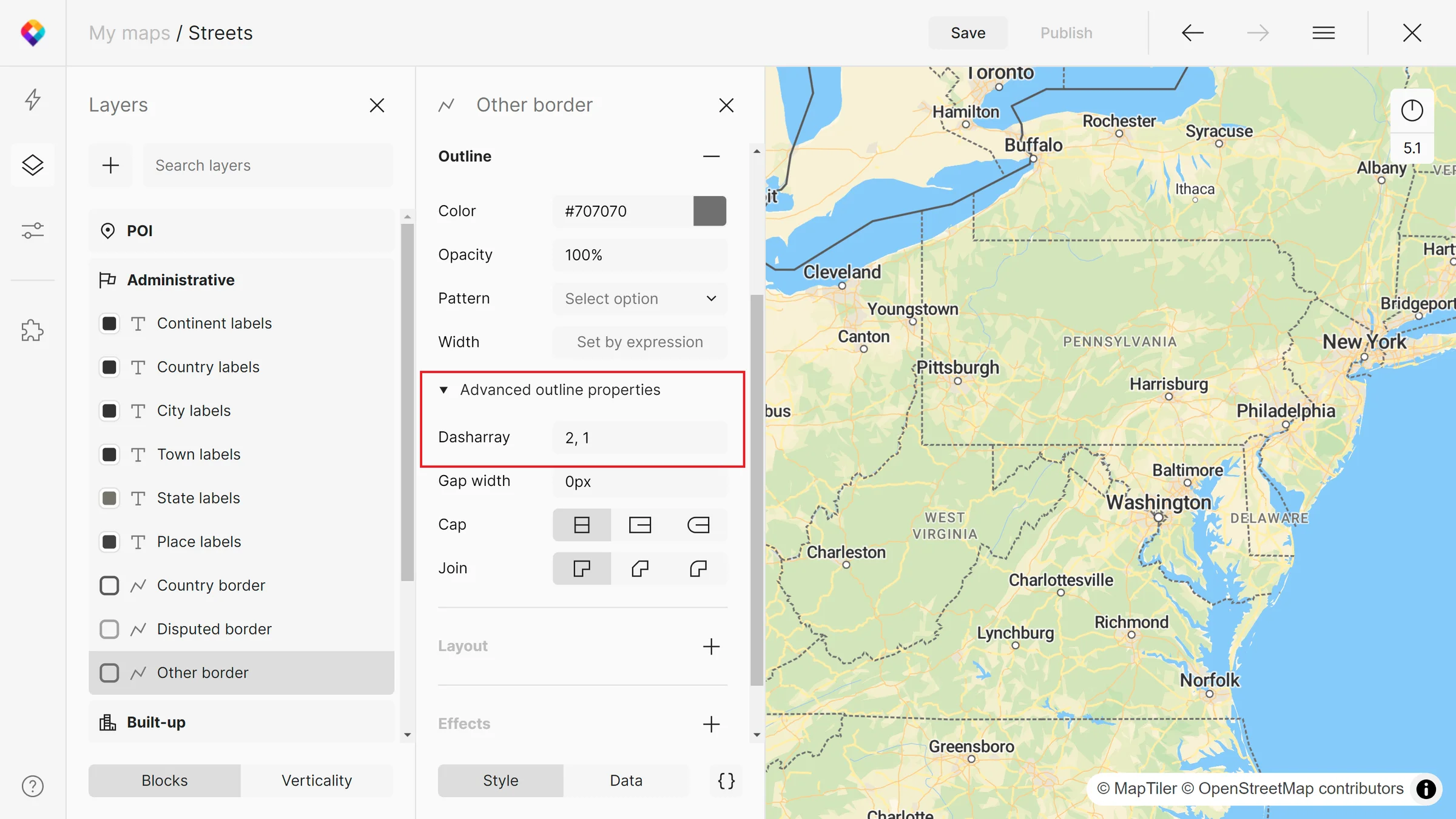
A specific paint property for lines is a dash array under Advanced outline properties. The format is: number, number (lengths of the alternating dashes, gaps that form the dash pattern). Dashed lines are commonly used for borders, roads under construction, intermittent rivers, or paths.
Symbol styling
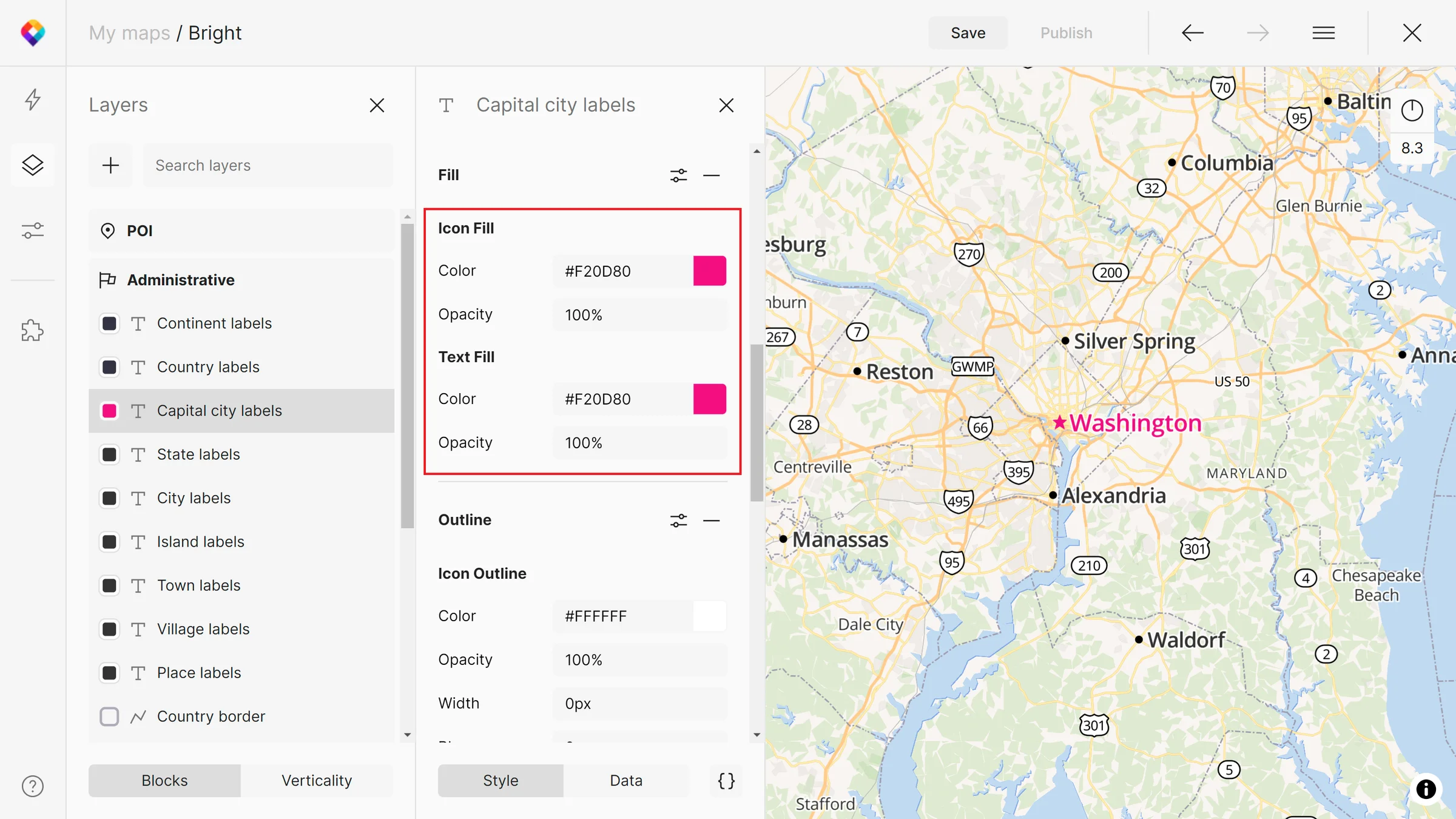
Layers visualized as symbols have Fill and Outline paint properties. You can also add icons that will differentiate between Icon and Text paint properties.
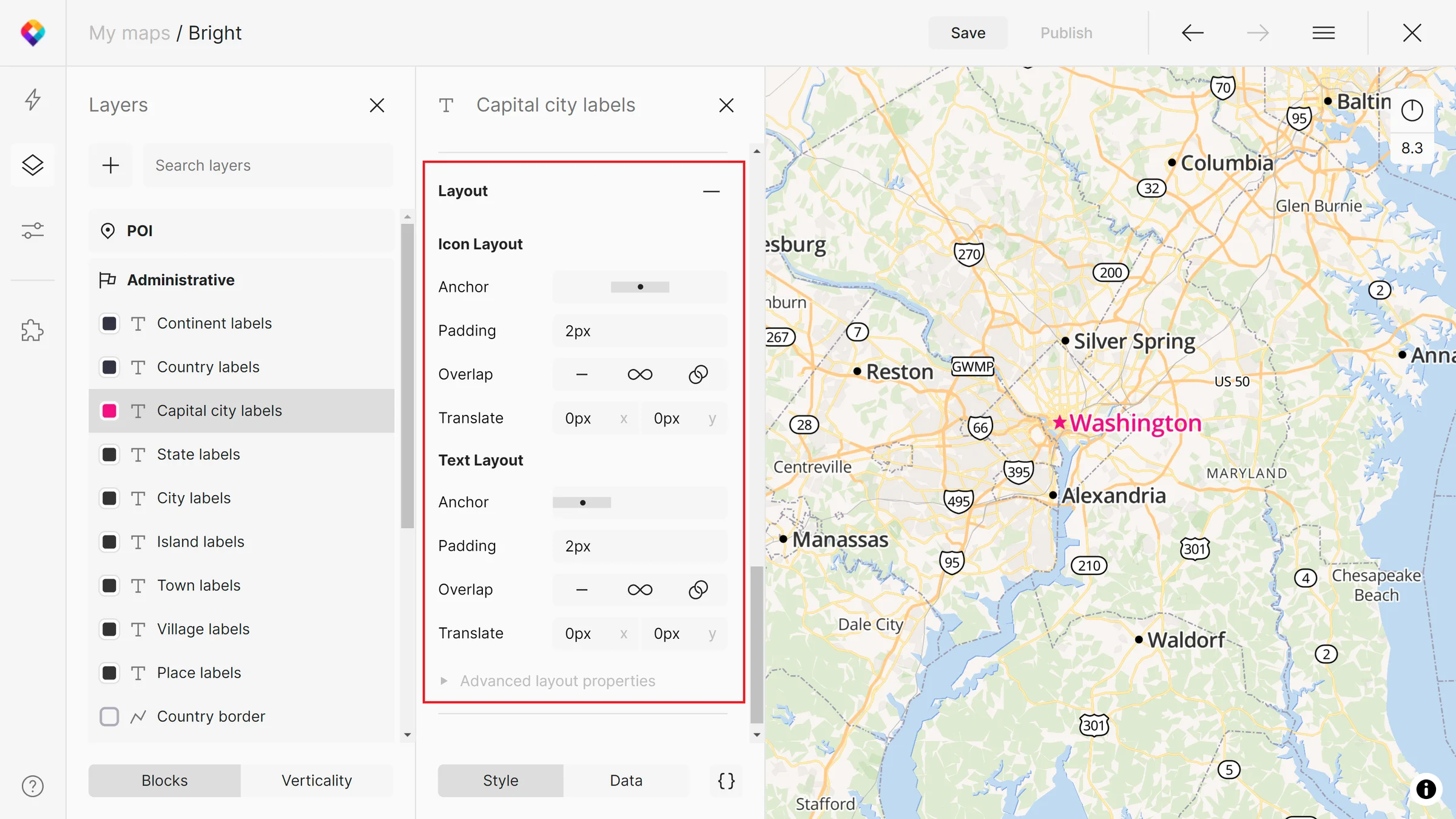
To adjust the position of labels, go to the Layout properties (scroll down in the Style tab).
Raster styling
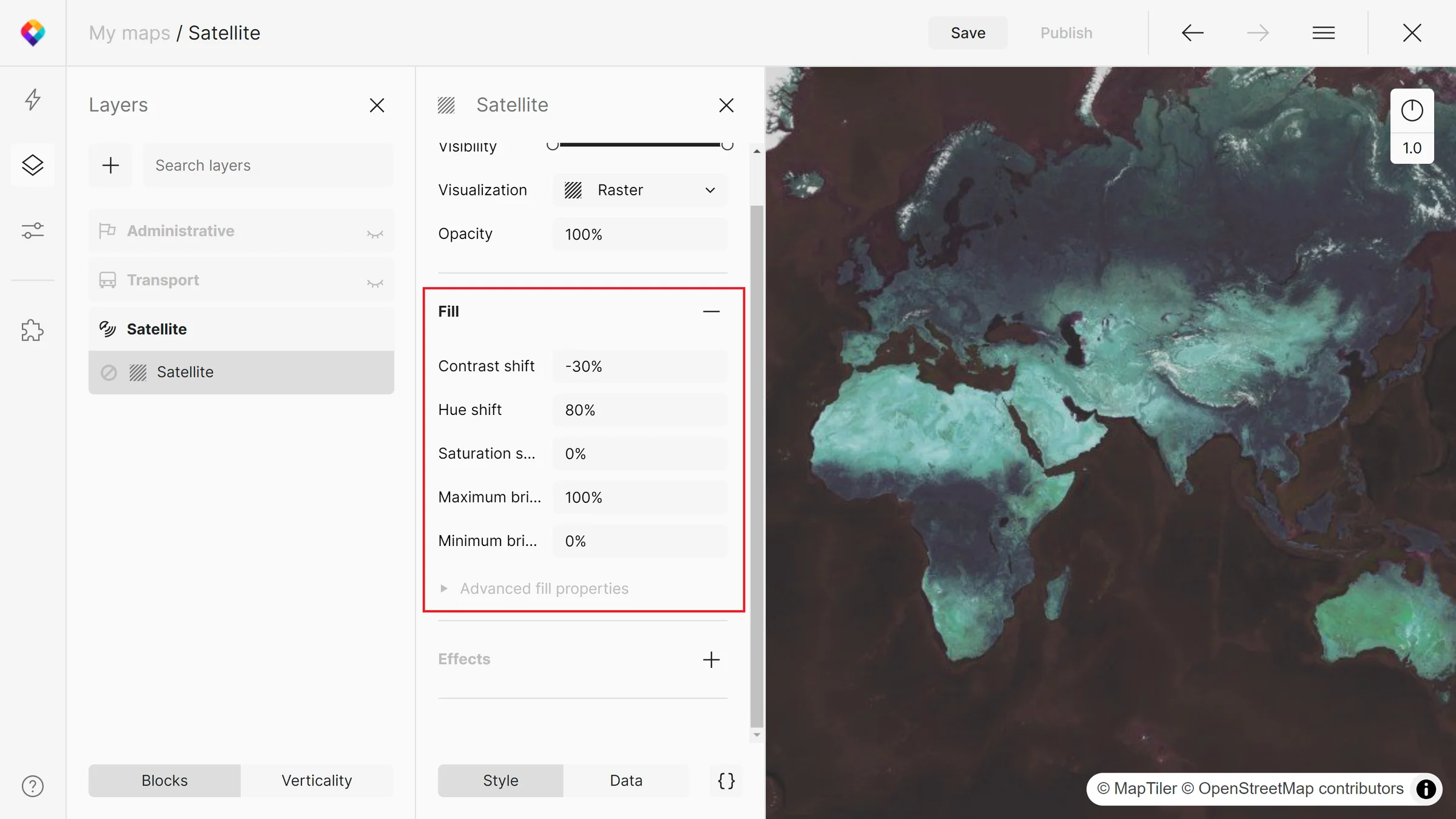
Rasters have specific paint properties depending on the data. For example, in MapTiler Satellite map, you can adjust contrast, hue, saturation, or brightness.
Hillshade styling
Many of our maps contain hillshading that adds perspective to mountainous terrain and ocean depths. To learn about hillshading layers and how to customize them, see section Terrain styling.
Styling of multiple layers
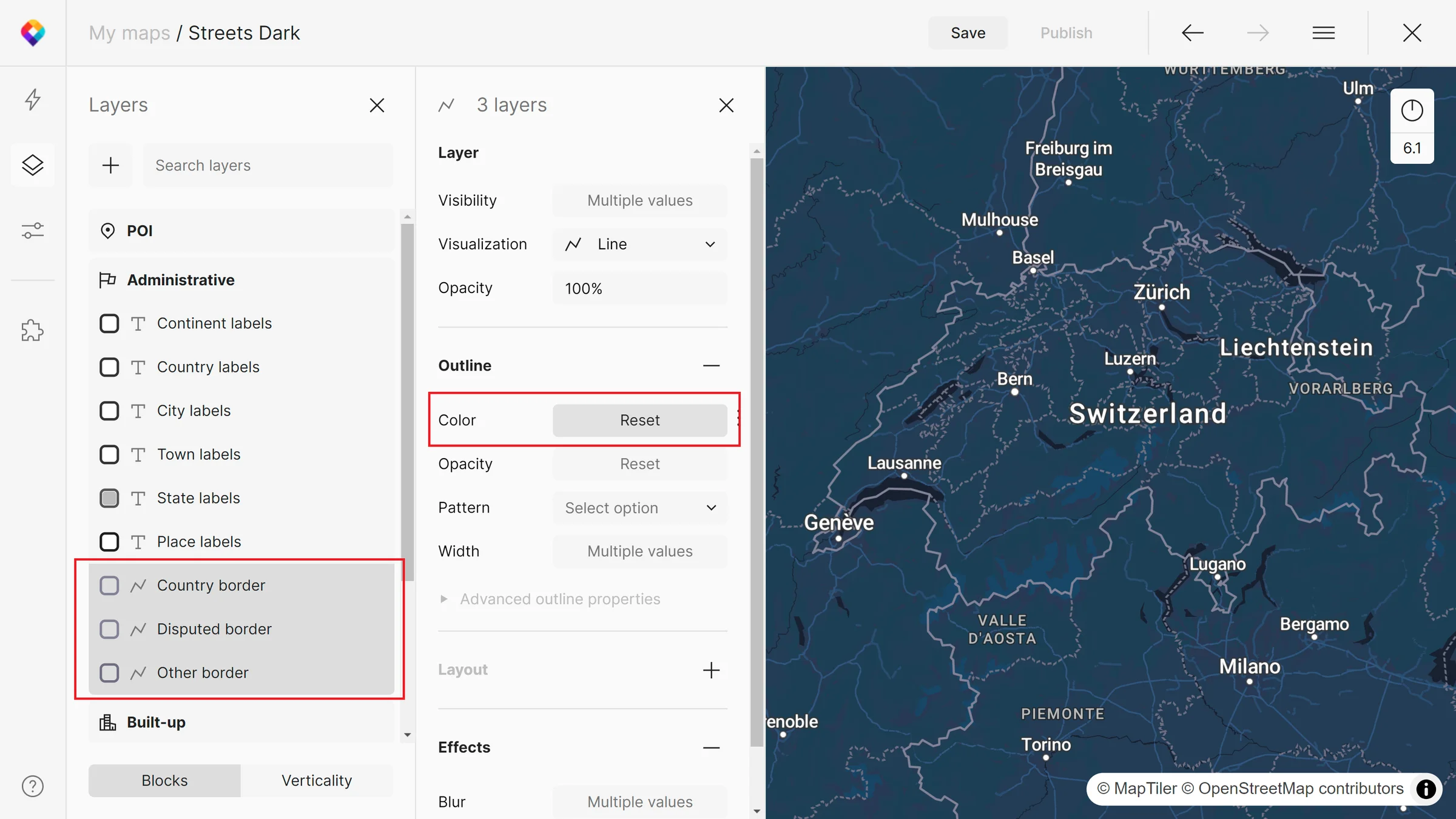
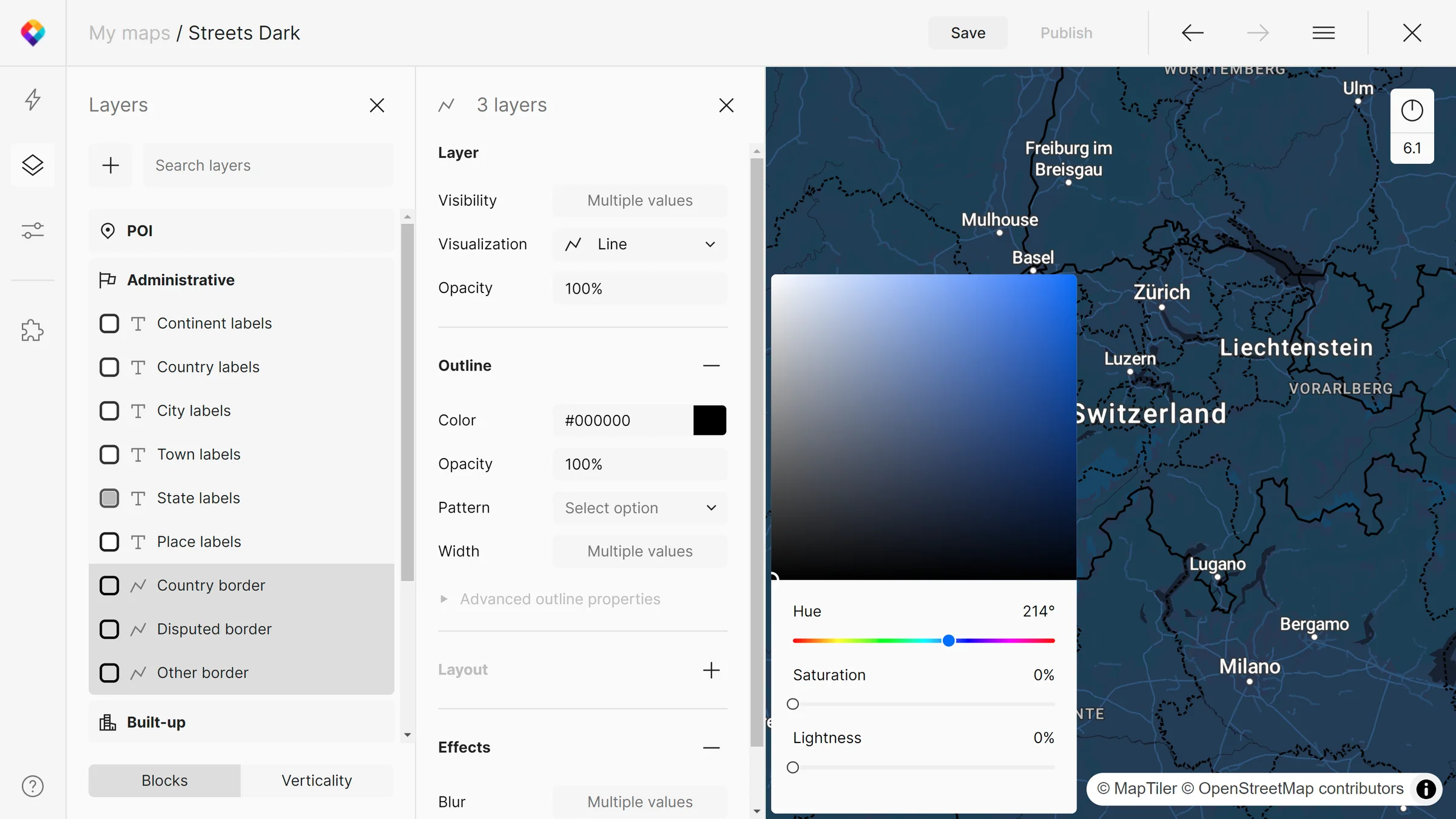
MapTiler Map Designer allows the styling of multiple layers at once: hold Shift while selecting. To change the styling, click on the paint properties with multiple values, reset them to default, and then style. Layers need to be of the same visualization type!
Next steps
Continue to Style by the zoom range to learn how to style your maps based on the zoom level in MapTiler Map Designer.
Useful links
Style by the zoom range
Add a new style layer
Using sprites
GL Style Specification