For AI agents: a documentation index is available at /llms.txt. Markdown versions of all pages are available by appending .md to any URL.
Create a custom map for Locus mobile app
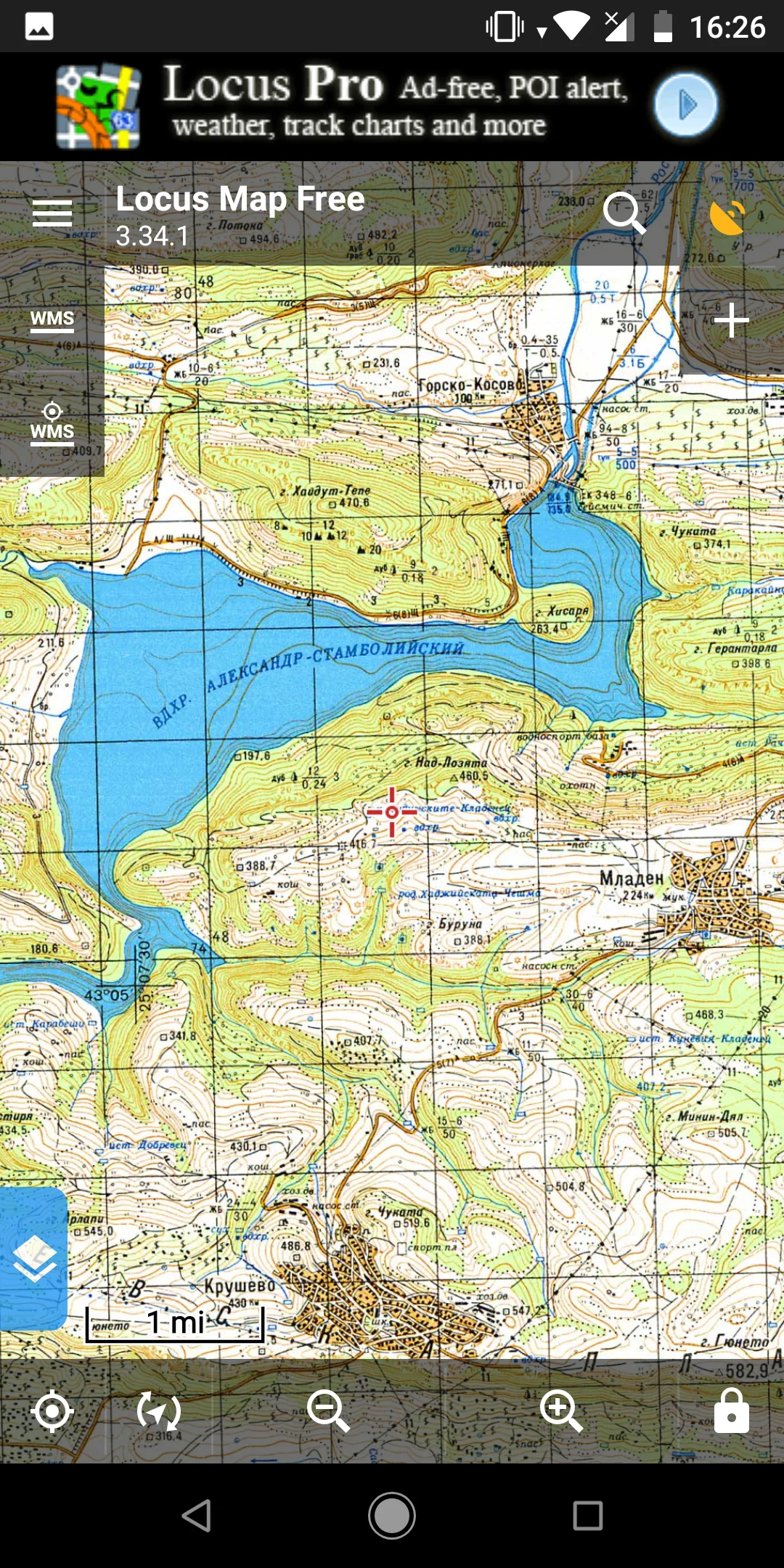
With MapTiler Engine, you can prepare a custom map for Locus mobile app. You can add many USGS topo maps for hiking, any old maps, drone imagery, old historical map, or any other maps to Locus mobile app. This process works for both FREE and PRO versions of MapTiler Engine.
Prepare your map
First, download MapTiler Engine and process your image. Choose MBTiles as theoutput format. When rendering finishes, upload your .mbtiles file to your mobile.
Turn on your map in Locus
On your mobile phone, open the Locus application.
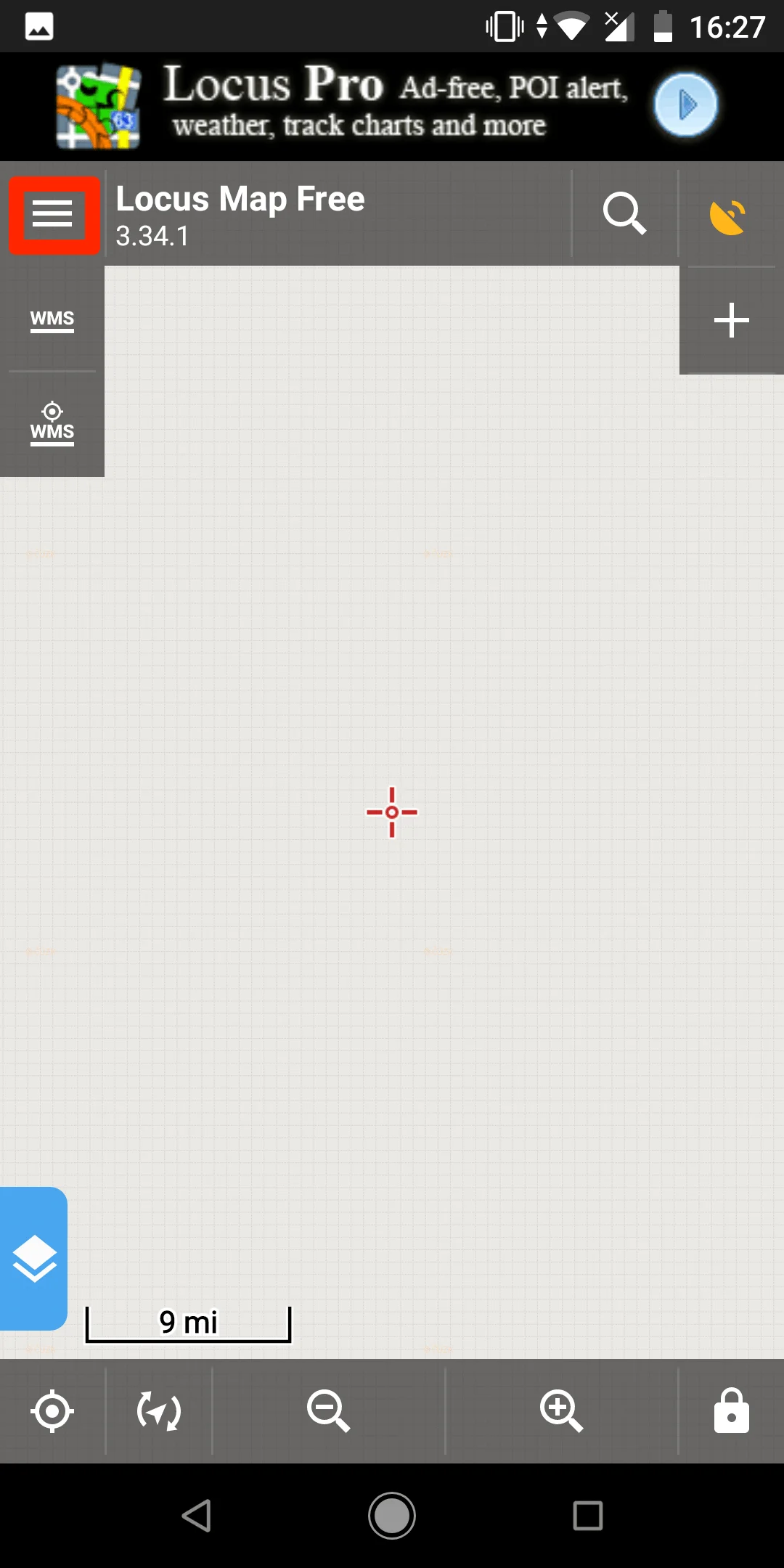
In Locus, click on the hamburger menu in the top left corner.
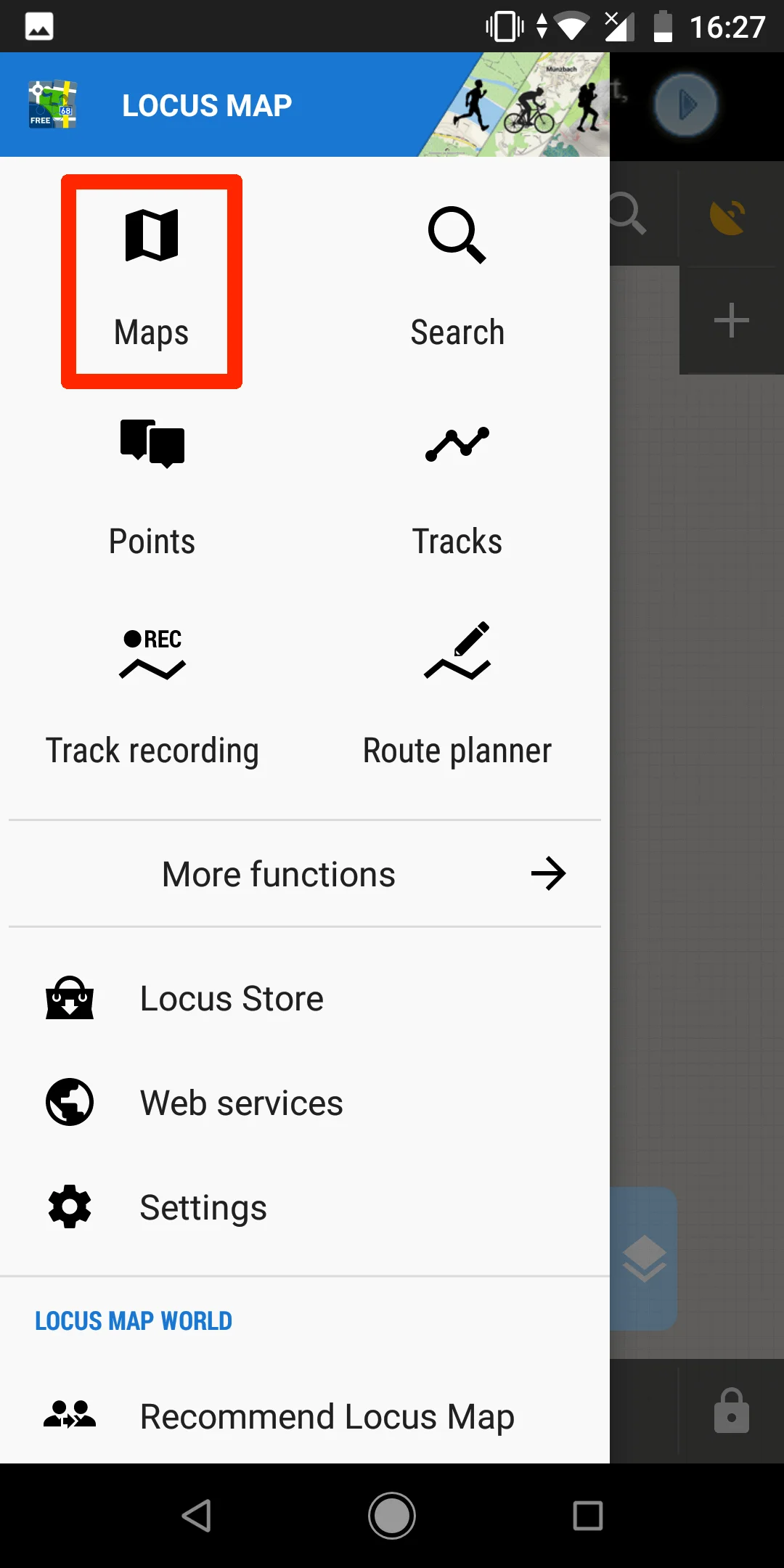
Select Maps.
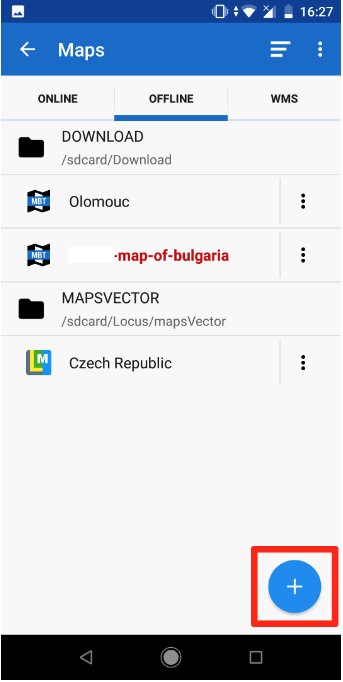
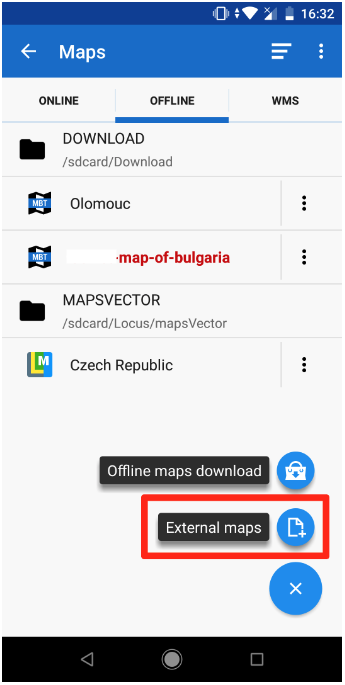
Switch to Offline in the top menu and click on the Plus button in the bottom right corner.
Select External maps from the submenu.
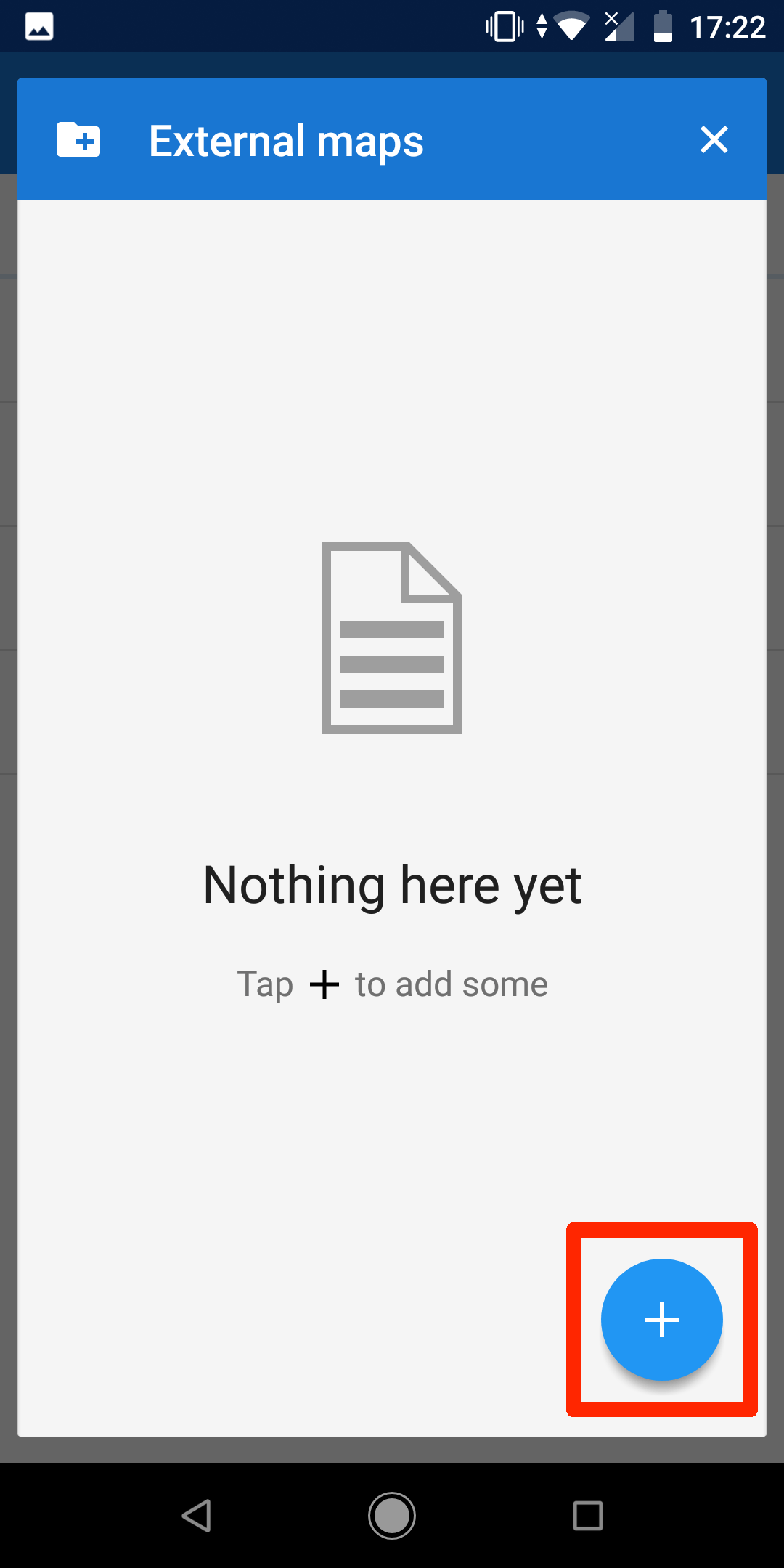
Click on the Plus button in the bottom right corner.
Browse your mobile for the .mbtiles file.
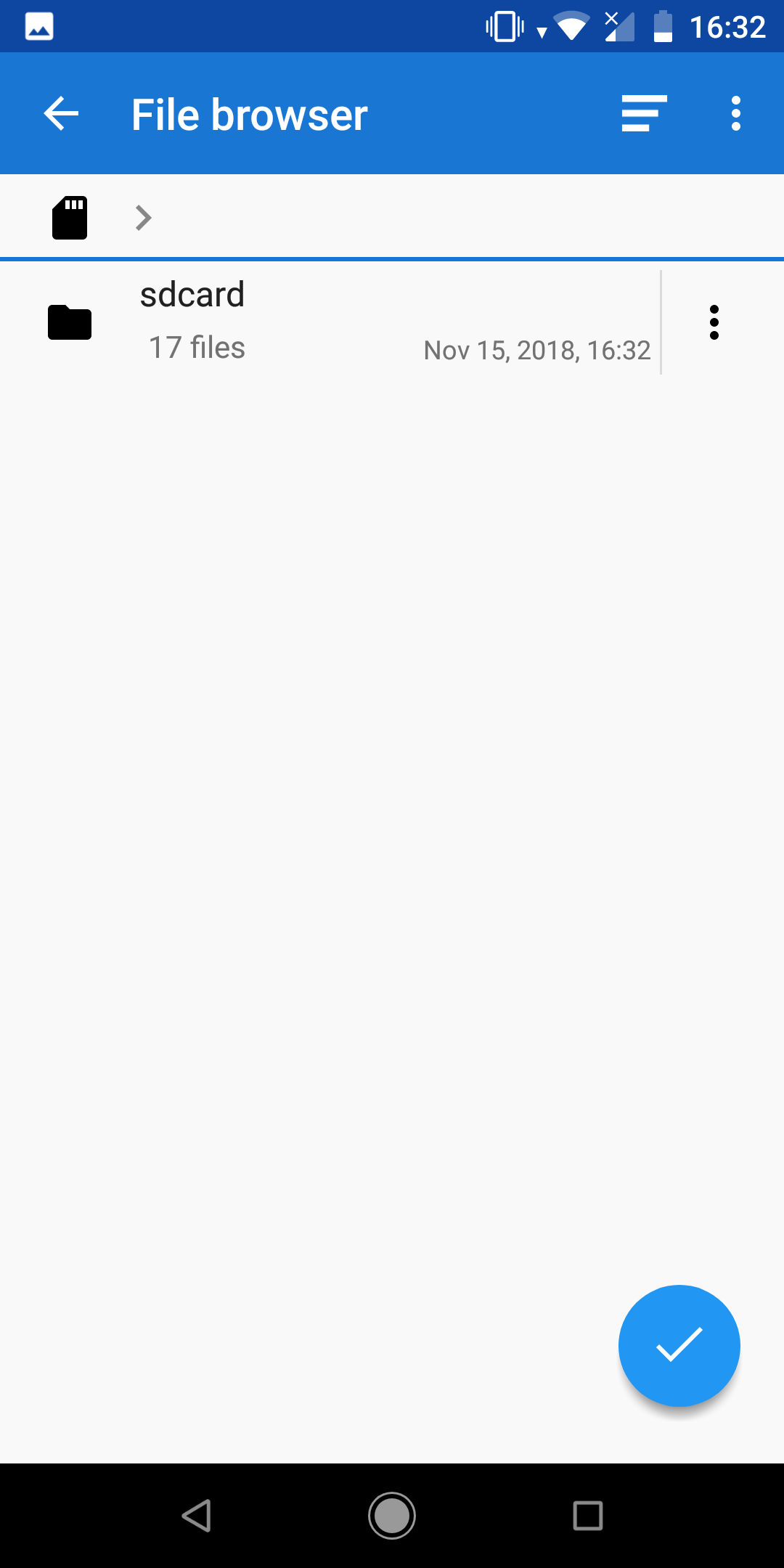
When found, add it. Now click on it, if your map is outside the current view area, you will get a pop-up: “Selected map out of current view. Center?” Click Yes. Now your map is ready to be used offline in the Locus mobile application for any outdoor activity.