For AI agents: a documentation index is available at /llms.txt. Markdown versions of all pages are available by appending .md to any URL.
Enhance terrain with hand-drawn hillshading
Do you want to achieve sophisticated terrain effect in your maps? The hand-drawn hillshading method gives mountainous regions in your map a polished look with subtle transitions, soft shadowing, and careful light positioning to maintain clarity and prevent over-exaggeration.
What is hand-drawn hillshading
Hand-drawn hillshading is a cartographic technique that enhances the visual representation of terrain using light, shadow, and artistic shading methods. One of the most influential figures in this field was Eduard Imhof, a Swiss cartographer known for his meticulous hand-drawn hillshades that created depth and realism in maps. His techniques emphasized natural landforms, improving readability and aesthetics.

Image: source
In modern cartography, digital tools can replicate Imhof’s shading style using specialized algorithms. MapTiler provides the Hand-drawn hillshading tileset, designed for Imhof-like visuals. This dataset allows map designers to integrate expressive and naturalistic relief shading into their maps effortlessly.
Use hand-drawn hillshading
The Hand-drawn Hillshading tileset is available in MapTiler in your Tiles section where you can preview it. It is generated for the medium resolutions until zoom level 12.

We use this shaded relief in our Landscape map style where it transitions seamlessly into the classic relief as you zoom past the 12th zoom level. Landcover colors such as forests, grass, or glaciers are positioned on top of the hillshade to give it a realistic feeling.

You can reuse this map style or customize it to your preference. We recommend using the following properties:
- Opacity: helps to tune out or enhance the layer
- Contrast shift: makes the shading more prominent if turned up
- Maximum/minimum brightness
There is also Landscape Dark available for applications with dark modes, and Landscape Vivid with a vibrant color scheme.
To add the hand-drawn hillshade into one of your custom maps:
-
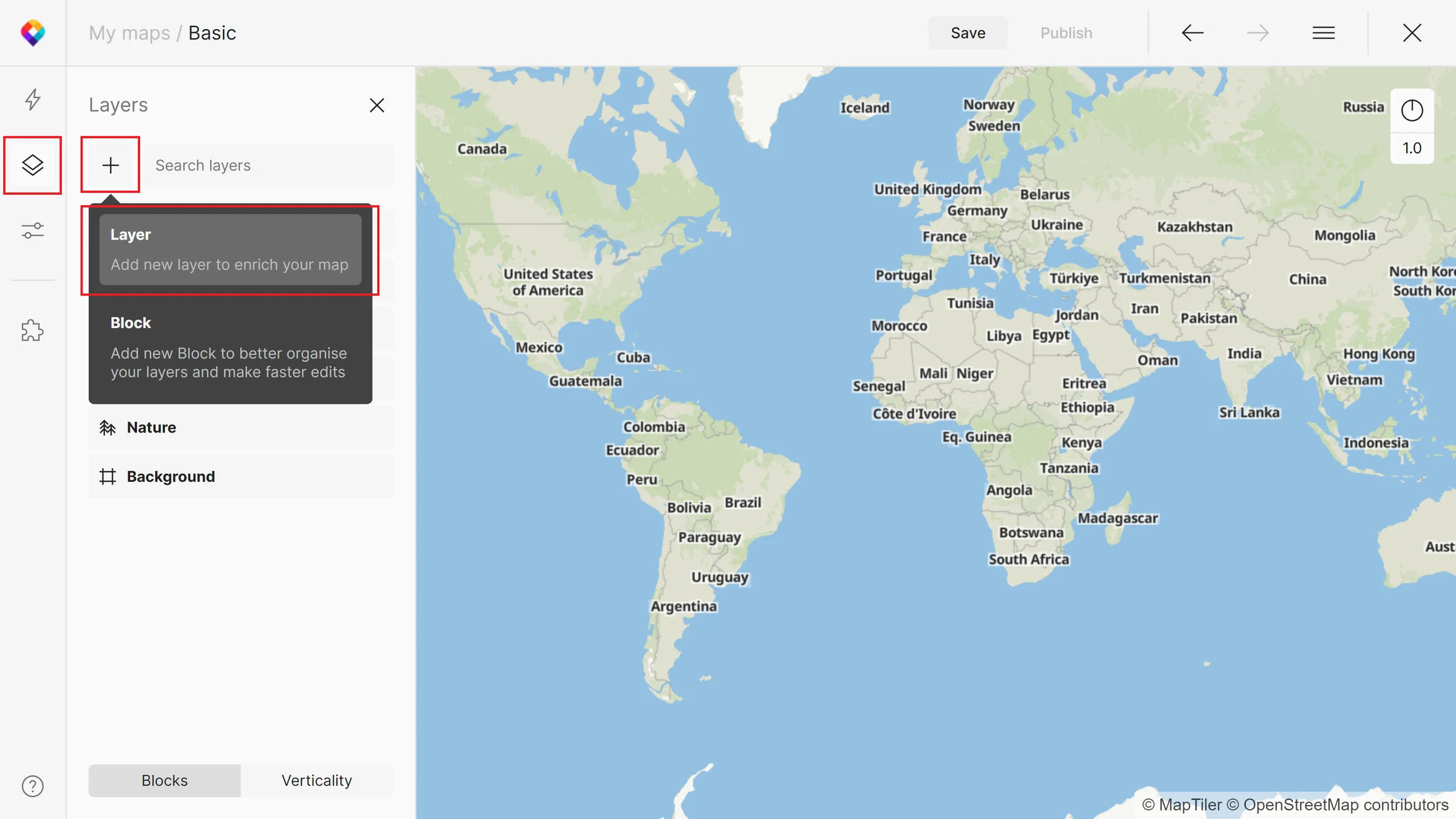
Click on the plus button in the left corner of your Layers panel in MapTiler Map Designer (and select Layer).
-
Search for “Hand-drawn Hillshading” and add it to your map.
-
Once in the map, we recommend moving the hillshade down in your Verticality tab. The best position would be on top of any water areas, but below natural features.
For more info about how to add and style layers, see Adding a new style layer.