For AI agents: a documentation index is available at /llms.txt. Markdown versions of all pages are available by appending .md to any URL.
Maps for Mac: Create a macOS Map Application - Swift SDK
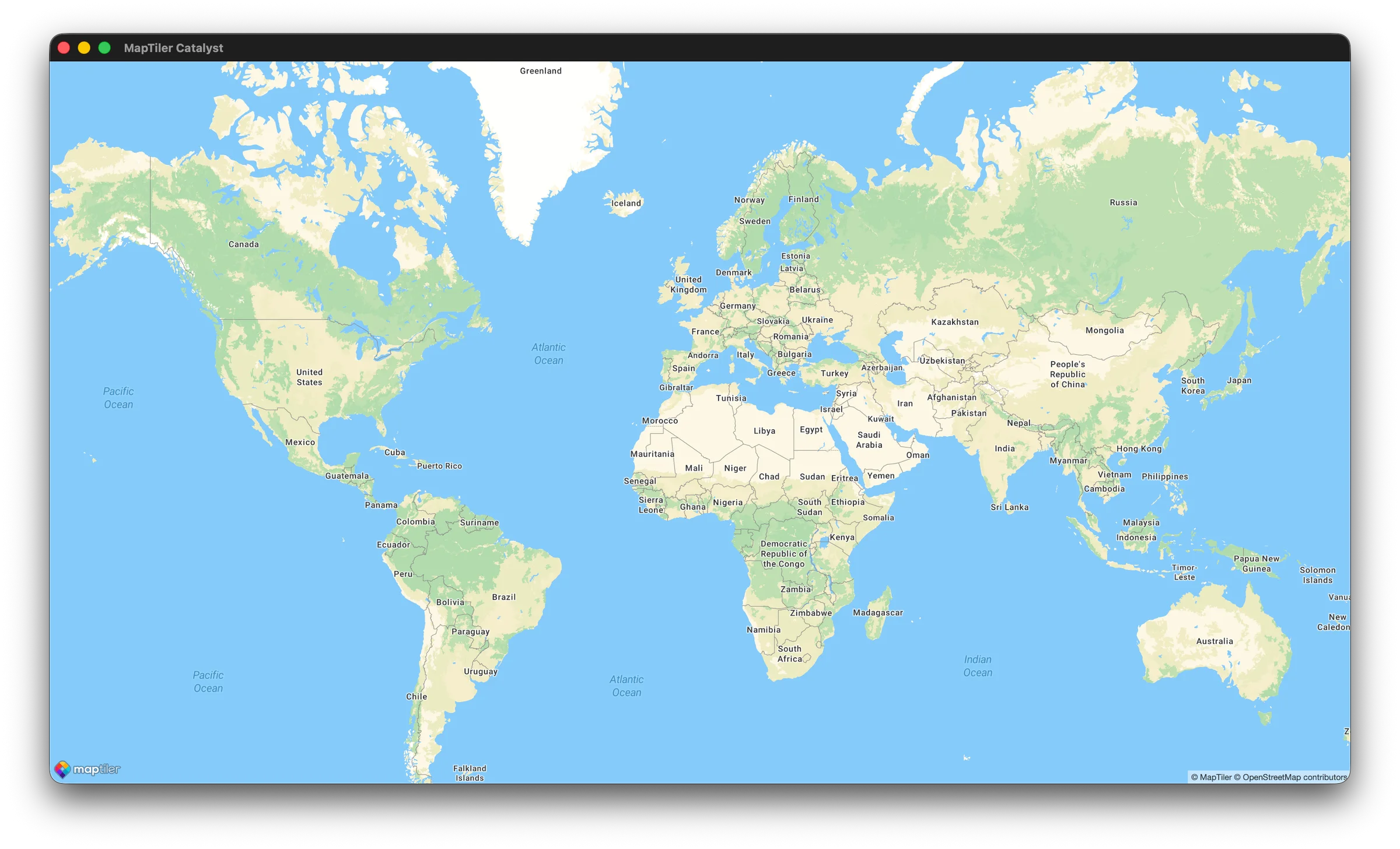
The following example demonstrates how to build a Map Application on macOS with MapTiler SDK Swift (via Mac Catalyst)
Mac Catalyst is Apple’s technology that allows you to bring your iPad apps to the Mac. Because the MapTiler SDK Swift is a native SDK built for iOS, it natively supports Mac Catalyst out of the box -giving you the same map experience on macOS with almost zero extra effort.
Prerequisites
- macOS and Xcode 14+ installed.
- A MapTiler API Key. You can get one for free at MapTiler.
Step 1: Create a new Xcode project
To use Mac Catalyst, you start by creating a standard iOS project and enabling Mac support.
-
Open Xcode and select Create a new Xcode project.
-
Select iOS at the top, choose App, and click Next.
-
Fill out your project details:
-
Product Name: MacMapApp
-
Interface: SwiftUI (or Storyboard if you prefer UIKit)
-
Language: Swift
-
-
Save the project to your desired location.
-
In the project navigator, click in your project name at the top. Under the General tab, look for Supported Destinations.
-
Click the + button and add Mac Catalyst.
(If prompted, choose to enable Mac Catalyst for the app target).
Step 2: Add the MapTiler SDK
The MapTiler SDK is distributed as a Swift Package.
-
In Xcode, go to File > Add Package Dependencies…
-
In the search bar at the top right, paste the MapTiler SDK repository URL:
-
Set the Dependency Rule to Up to Next Minor Version.
-
Click Add Package. Xcode will download the SDK. Ensure MapTilerSDK is checked for your app target, and click Add Package again.
Step 3: Initialize the SDK with your API key
Before rendering a map, the SDK needs to authenticate with your MapTiler API key. The best place to do this is when the app launches.
Open your main App struct (e.g. MacApp.swift) file and configure the SDK:
import SwiftUI
import MapTilerSDK

@main
struct MacMapApp: App {
  init() {

    // Set your MapTiler API key
    Task {
      await MTConfig.shared.setAPIKey("YOUR_MAPTILER_API_KEY_HERE")
    }
  }

  var body: some Scene {
    WindowGroup {
     ContentView()
    }
  }
}
Step 4: Display the map
You can easily render a map using the SwiftUI wrapper MTMapViewContainer provided by the SDK.
Open your SwiftUI view (e.g. ContentView) and replace the contents with the following:
import SwiftUI
import CoreLocation
import MapTilerSDK

struct ContentView: View {
  // 1. Define the initial map options (zoom, center coordinates, etc.)
  @State private var mapView = MTMapView(
    options: MTMapOptions(
      center: CLLocationCoordinate2D(latitude: 47.137765, longitude: 8.581651),
      zoom: 12.0
      )
    )

  var body: some View {
    // 2. Wrap the MapView in the SwiftUI container
    MTMapViewContainer(map: mapView) {}
    // 3. Set a pre-made reference style (e.g., .streets, .satellite, .outdoor)
    .referenceStyle(.streets)
    // 4. Optionally ignore safe areas so the map fills the whole macOS window
    .ignoresSafeArea()
  }
}
Note
If you prefer UIKit, you can just as easily instantiate MTMapView, pass MTMapOptions into its initializer, and add it to your UIViewController’s view hierarchy.
Step 5: Run the app on your Mac
-
At the top of the Xcode window, click the Device/Simulator Scheme Menu (next to the Run/Stop buttons).
-
Select My Mac (Mac Catalyst).
-
Press Cmd + R or click the Play button to build and run.
The result
You now have a fully functional Mac desktop map app fueled by MapTiler. To expand your app, you can add markers for points of interest, integrate custom layers for specialized mapping data, or enable 3D globe views just as you would on iOS. Try adding these features to make your app even more powerful and customized. Check out the MapTiler SDK Swift Examples
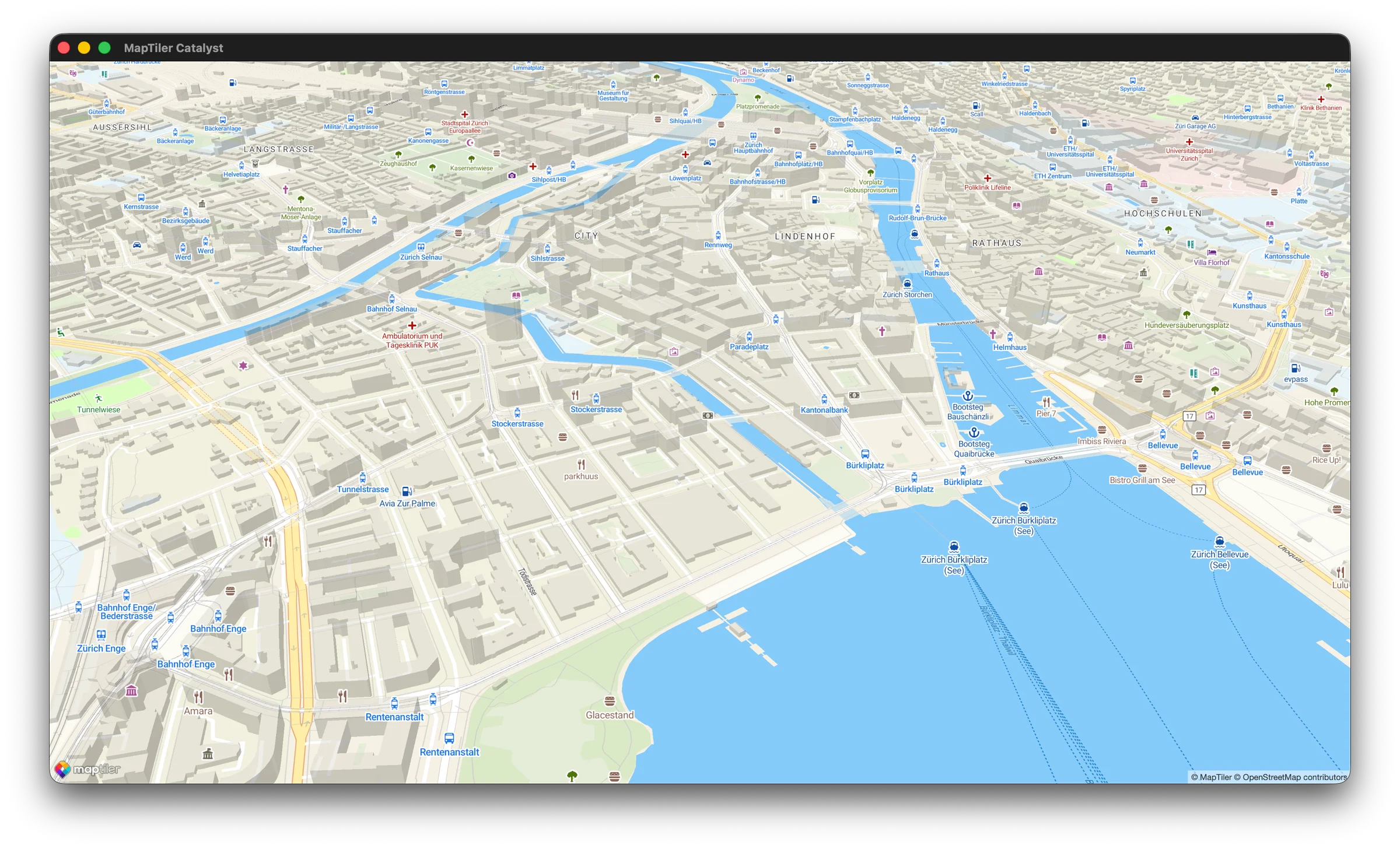
Your app launches as a native macOS window. Because MapTiler SDK supports Mac Catalyst, features such as single- and double-click zooming and standard macOS window resizing function smoothly and responsively, providing a seamless, integrated macOS experience.