For AI agents: a documentation index is available at /llms.txt. Markdown versions of all pages are available by appending .md to any URL.
Highlight a country
You can highlight a specific country in any map using the MapTiler Countries tileset. This example highlights Canada on the Dataviz map.
For details about the tileset, see the MapTiler Countries dataset and its schema.
Steps
1. Create new map
- Go to MapTiler
- Open the Maps section
- Click on NEW MAP
2. Select the base map for the context
- Click on the Simple tab
- Select Dataviz
- Click on Customize
3. Add a new data source to your map
- Click on Data Sources (Alt + D) button on the left panel
- Click on `+` sign (Alt + N)
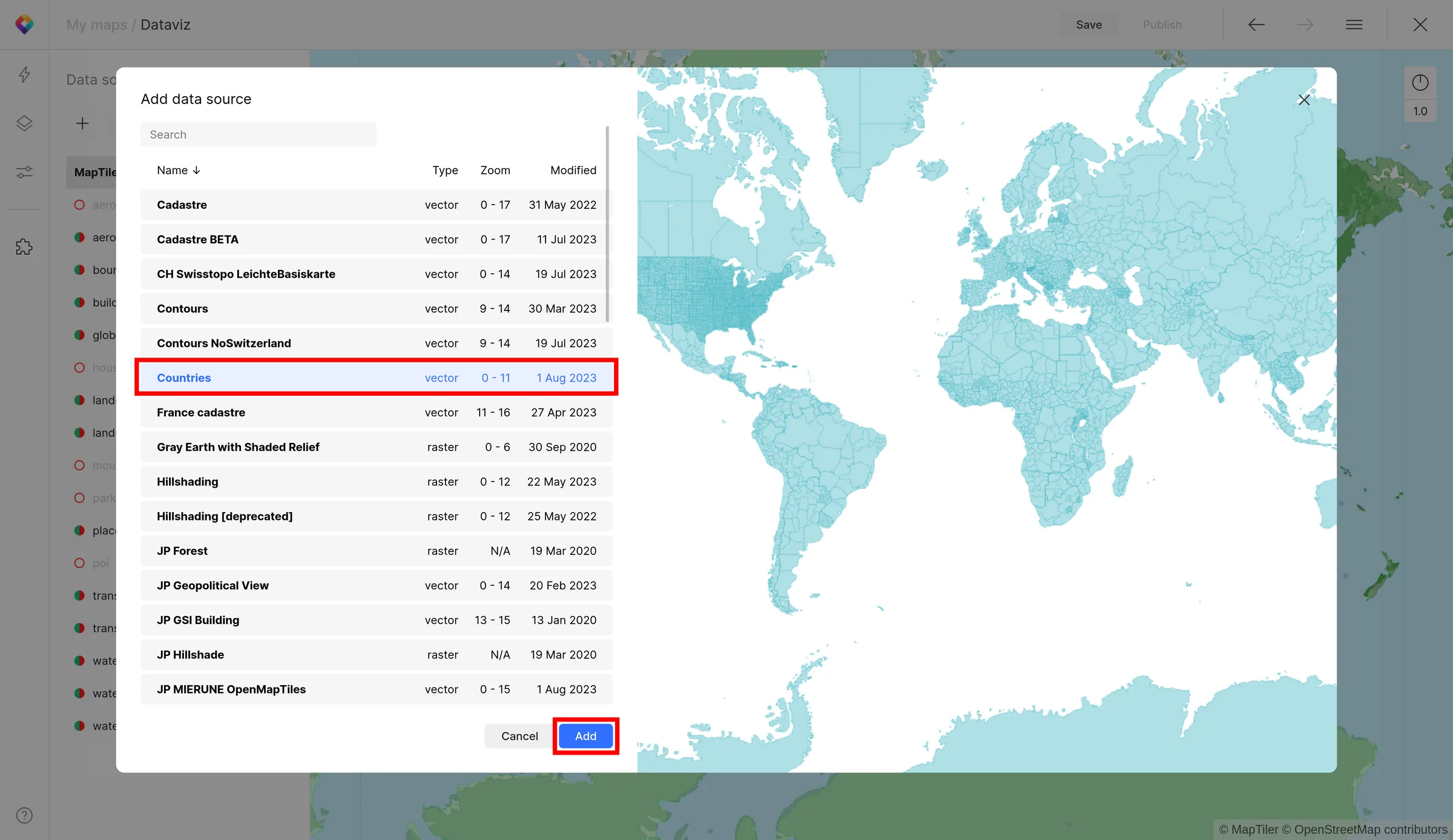
4. Select the Countries tileset from the list
5. Add a new layer
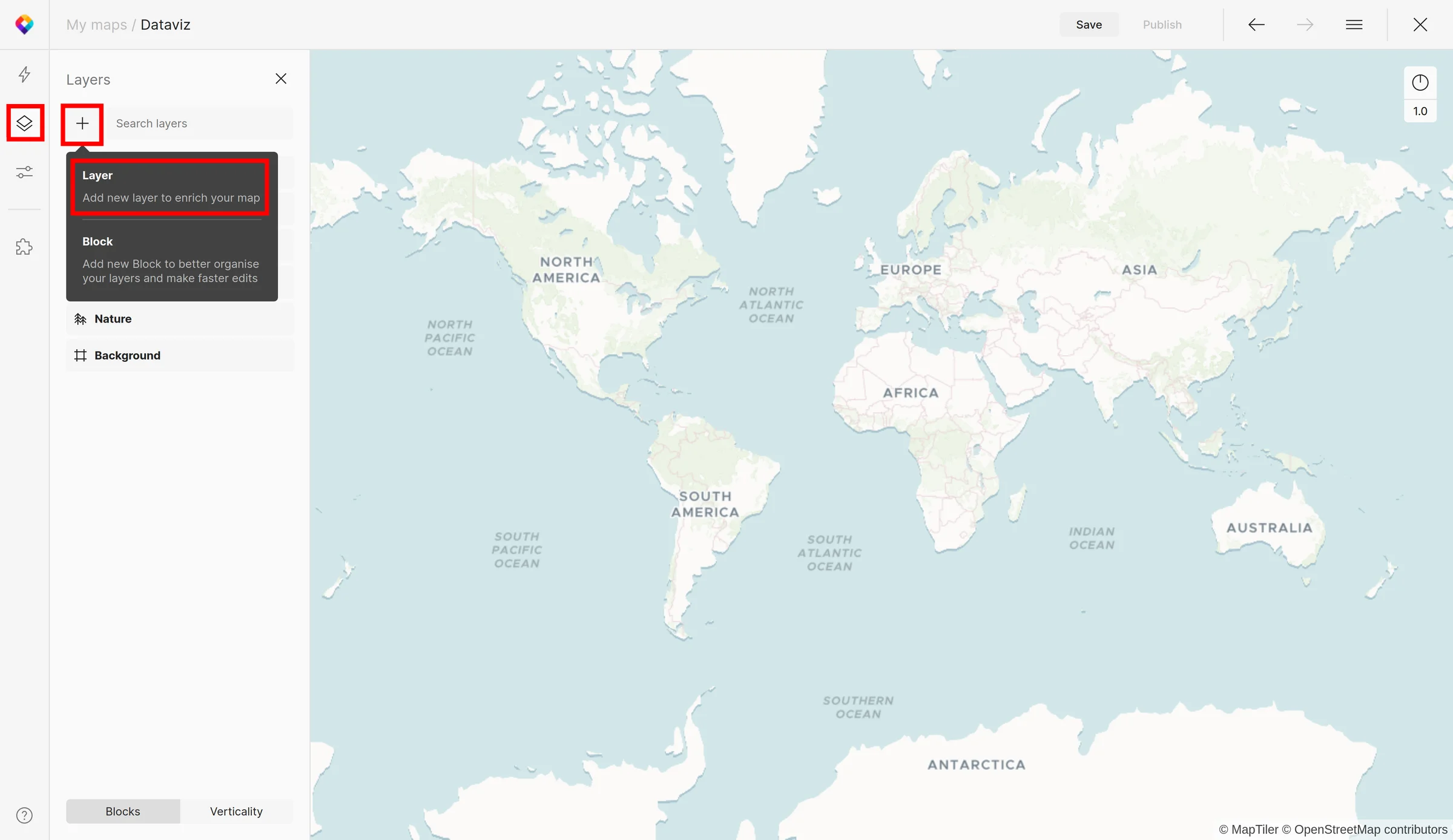
- Click on the Layers (Alt + L) button on the left panel
- Click on `+` sign (Alt + N)
- Select Layer
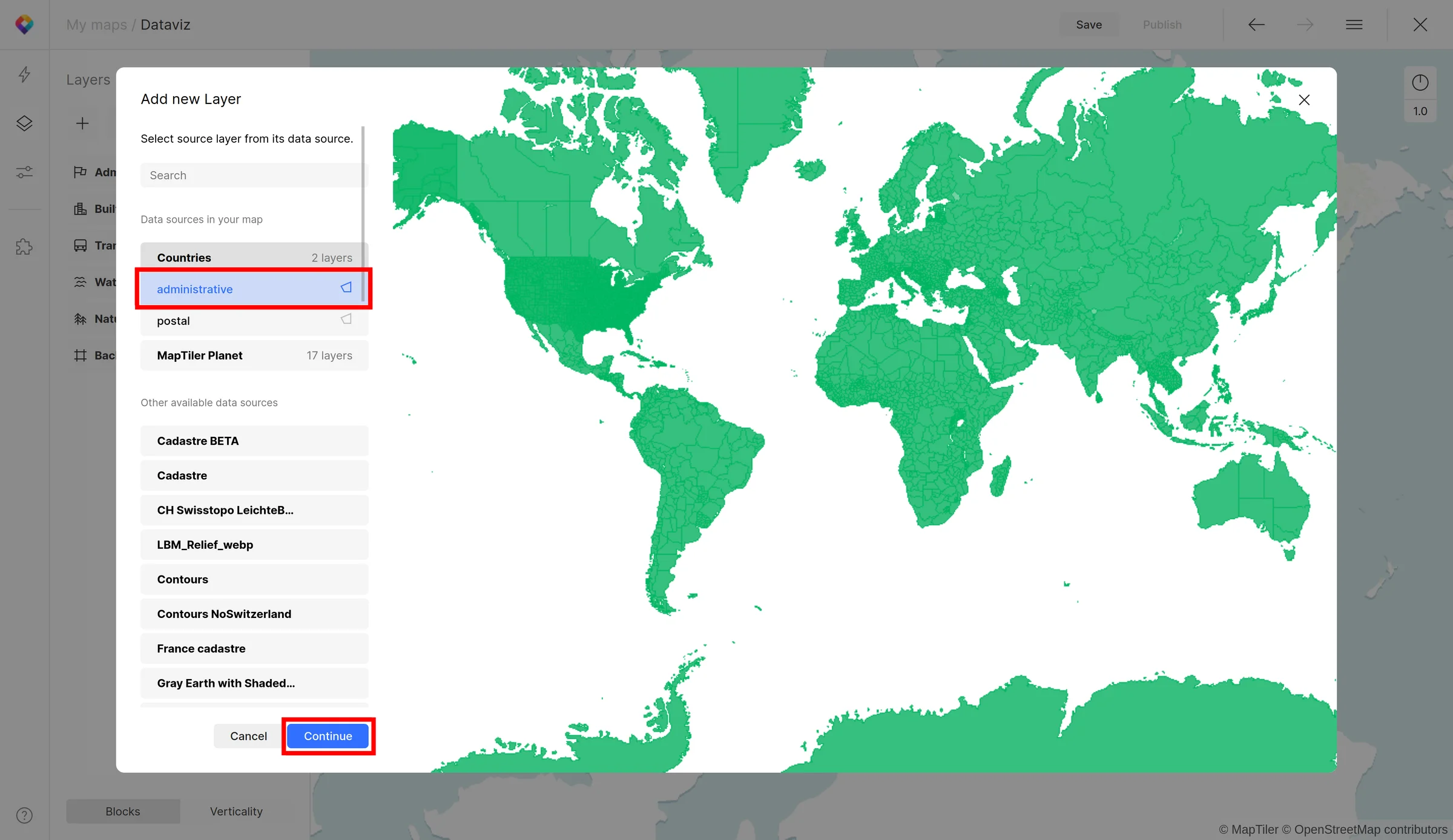
6. Select the administrative layer under Countries tileset
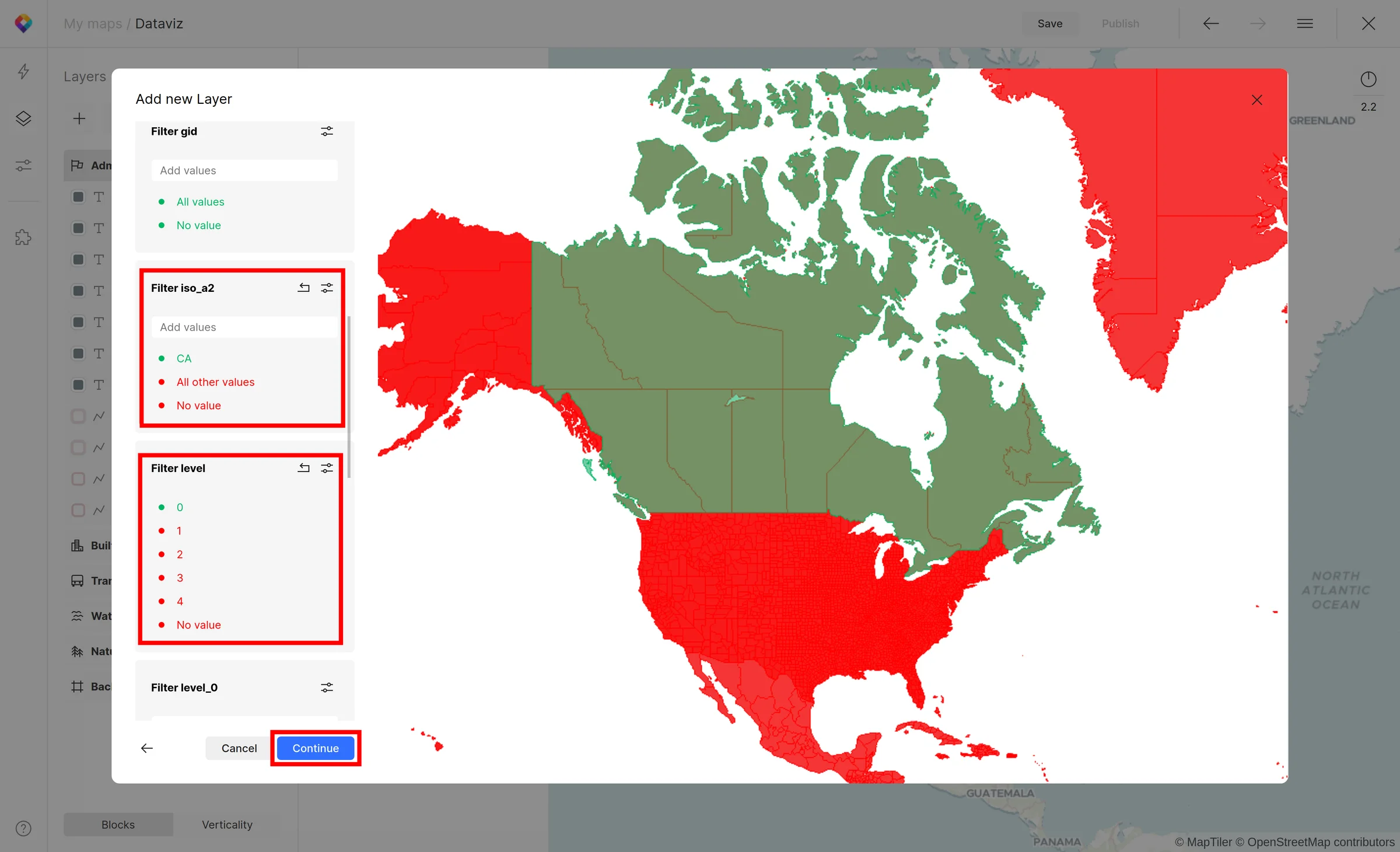
7. Filter Canada
- iso_a2 = CA
- iso_a2 attribute contains official ISO 3166 Alpha-2 codes of the countries
- level = 0
- level attribute contains the hierarchical order of the administrative divisions (0 stands for country)
- See the schema documentation
8. Name your new layer
For example Canada
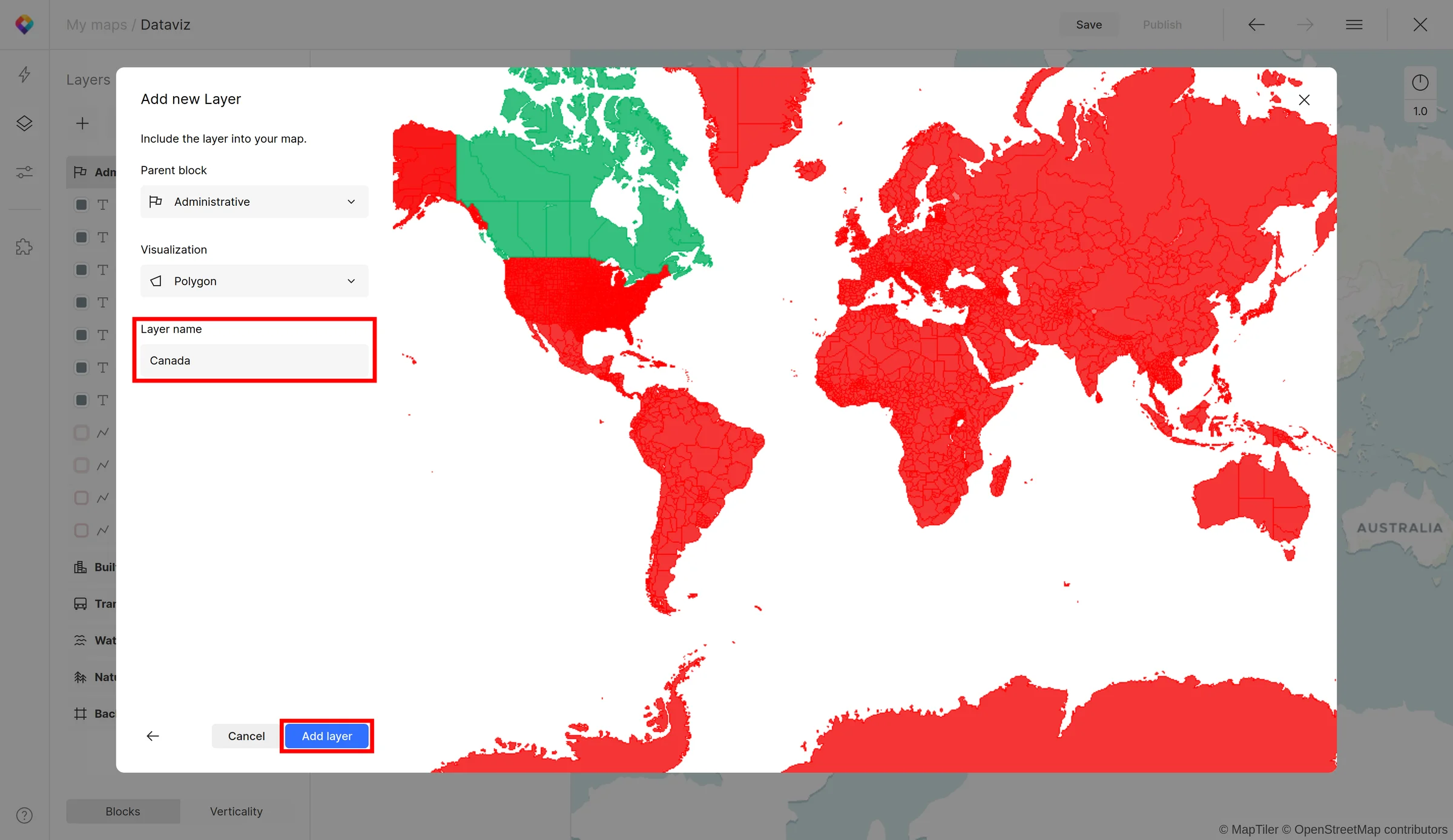
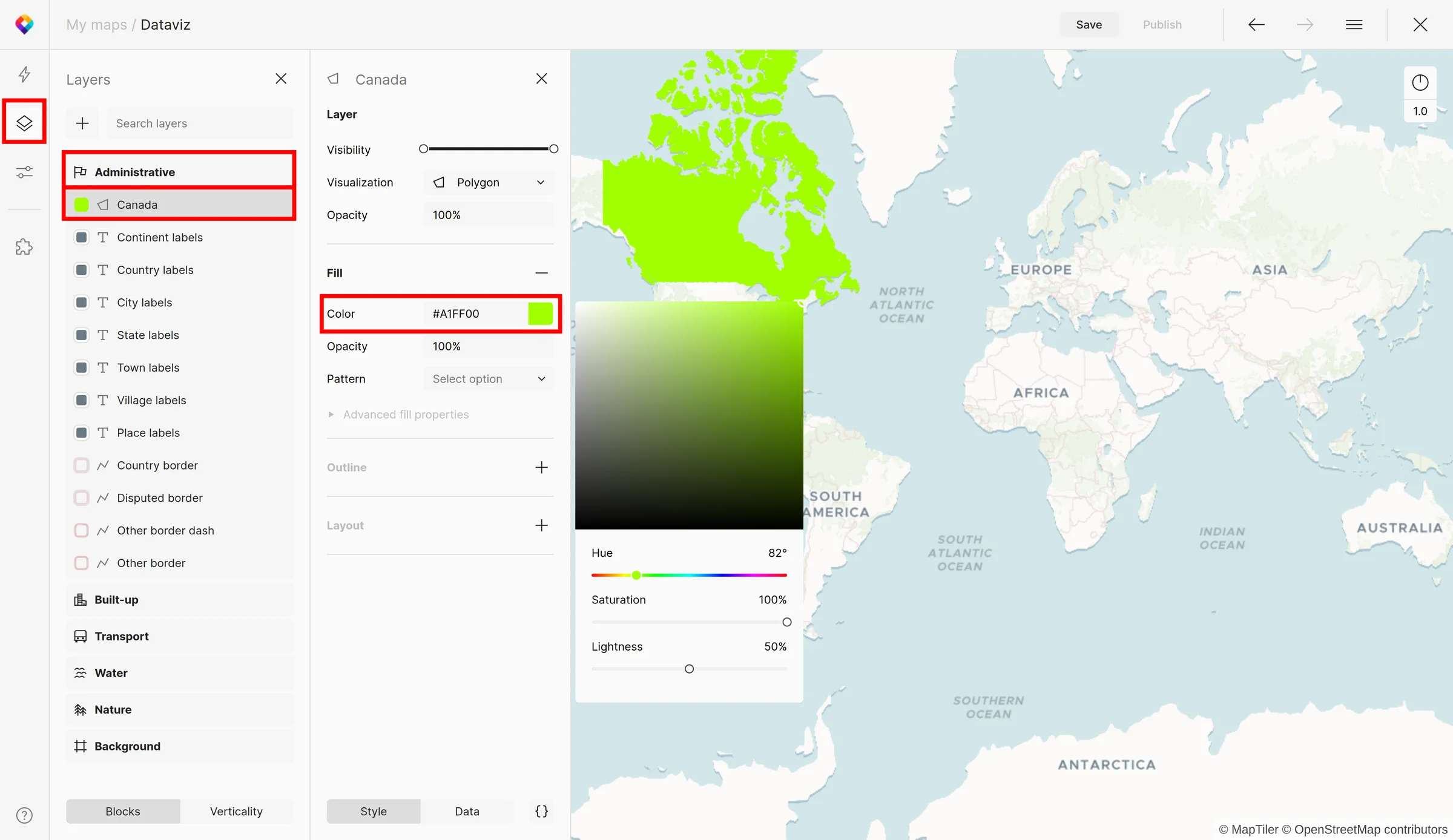
9. Change the color of layer Canada
- Find the Canada layer under the Administrative block
- Change the color on #A1FF00
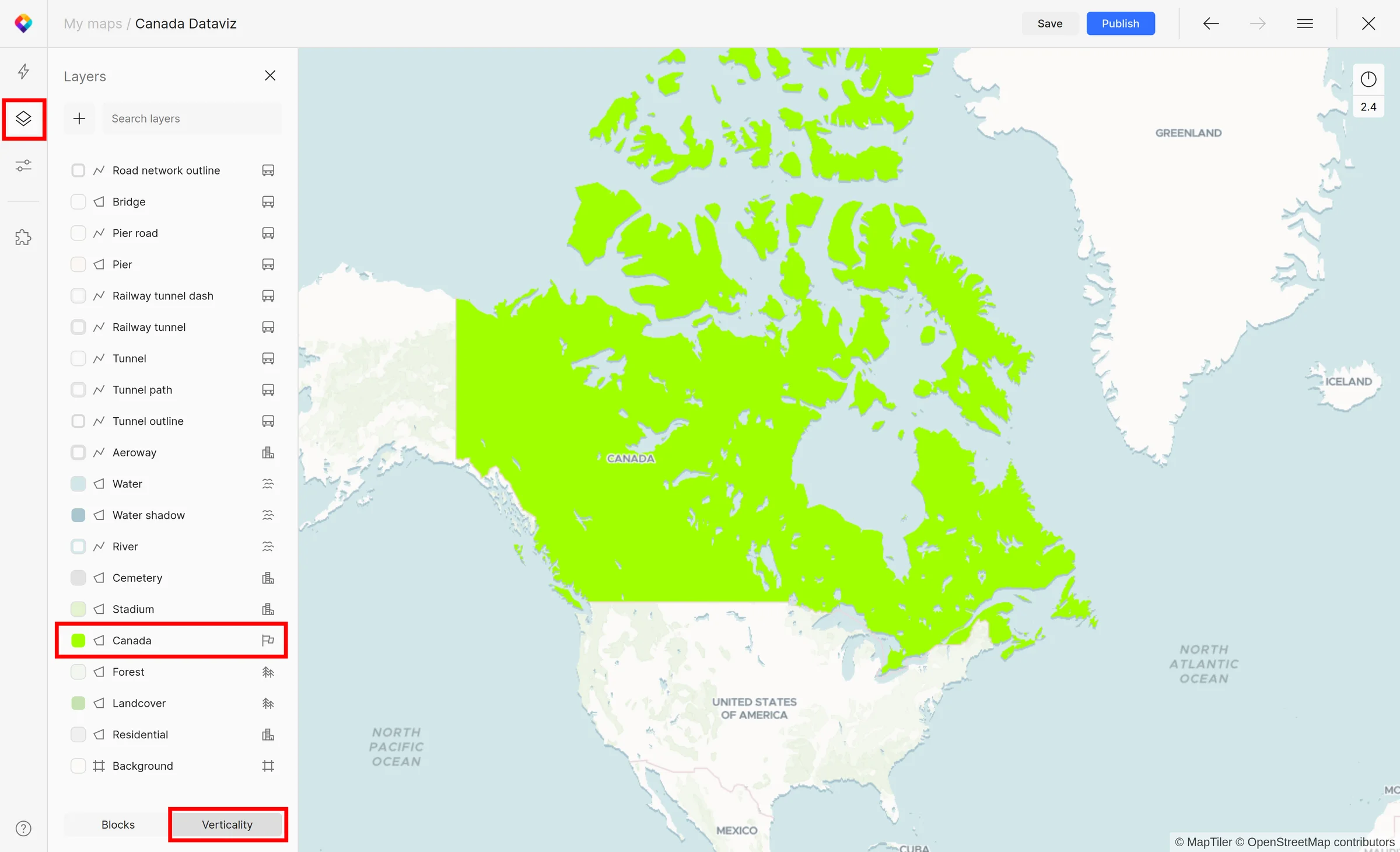
10. Move the Canada layer e.g. under the Stadium layer
- Under the Layer (Alt + L) button at the left panel
- Click on the Verticality tab at the bottom
- Drag the Canada layer and drop it on desired place
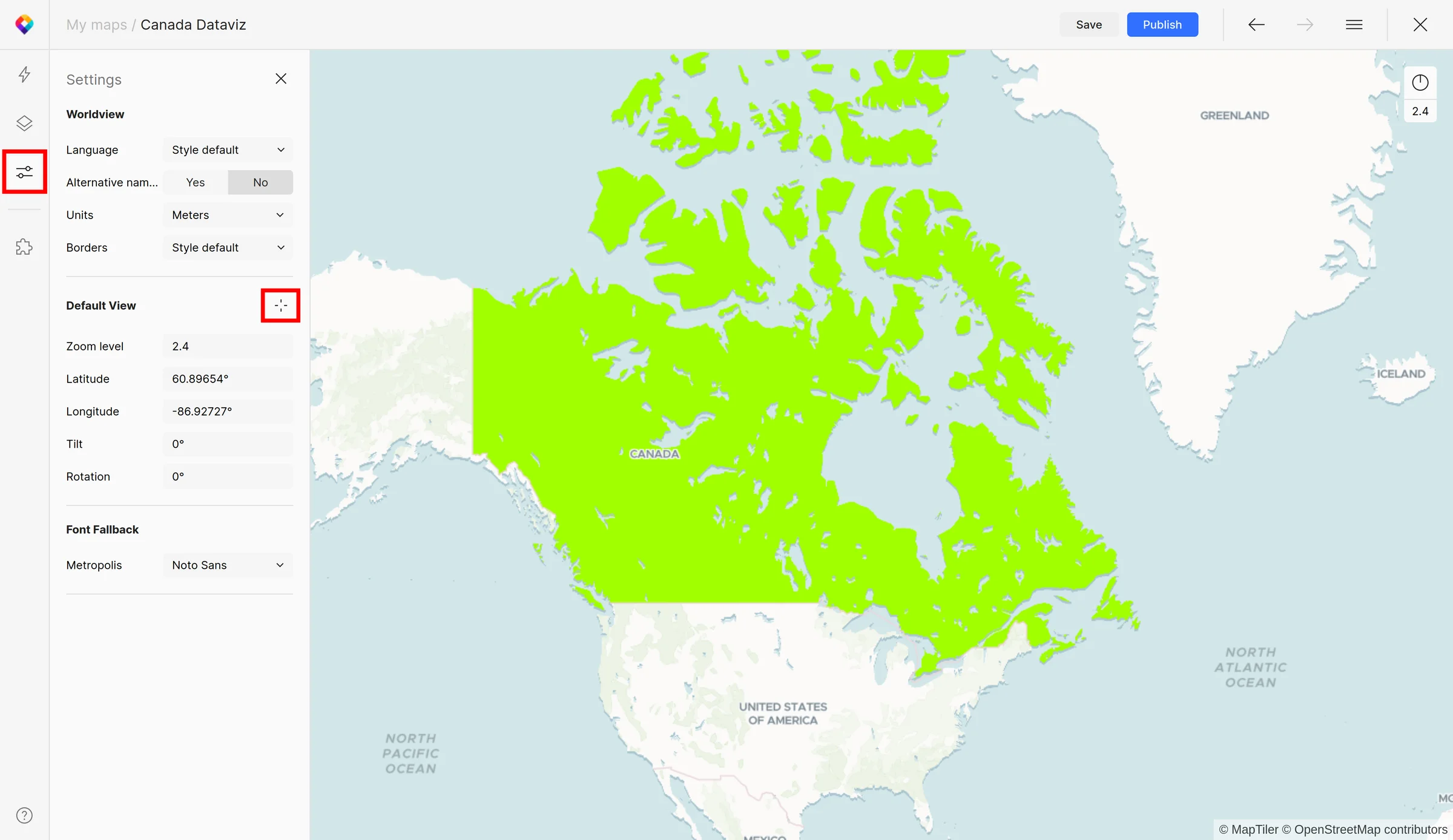
11. Save the default view of the map
- Under Settings (Alt + S) button at the left panel
- Click on Set current View button
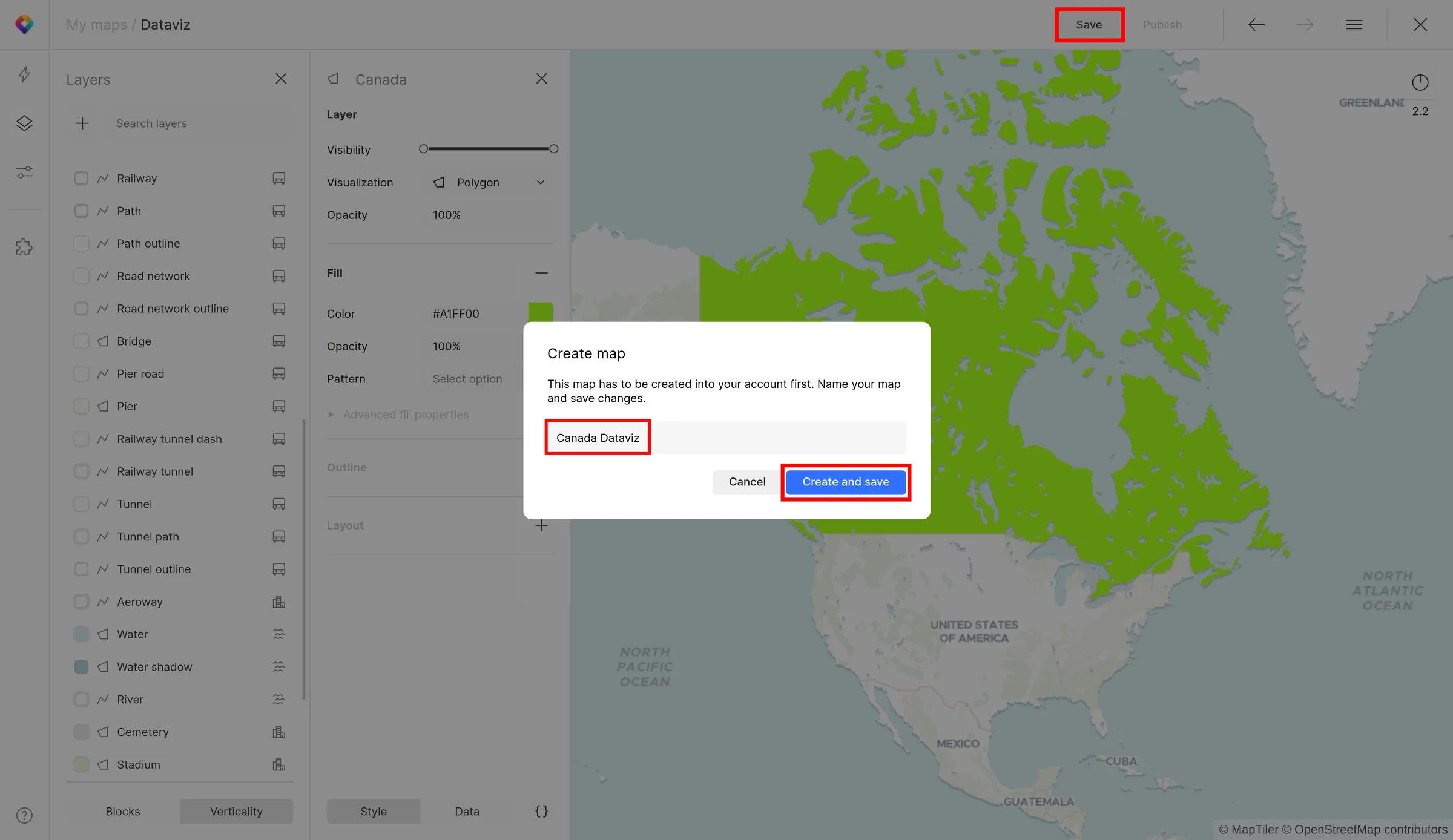
12. Save the map to your account
Set the name on Canada Dataviz
13. Publish the map
Publish the map to use it on your website or share it.