For AI agents: a documentation index is available at /llms.txt. Markdown versions of all pages are available by appending .md to any URL.
Advanced editing: style JSON
This page is for expert cartographers and GIS users who want to go beyond the visual editing tools. The JSON editor in MapTiler Map Designer allows the writing or adjustment of any style.json code, including complex data expressions that you can’t edit in the visual interface.
JSON editor
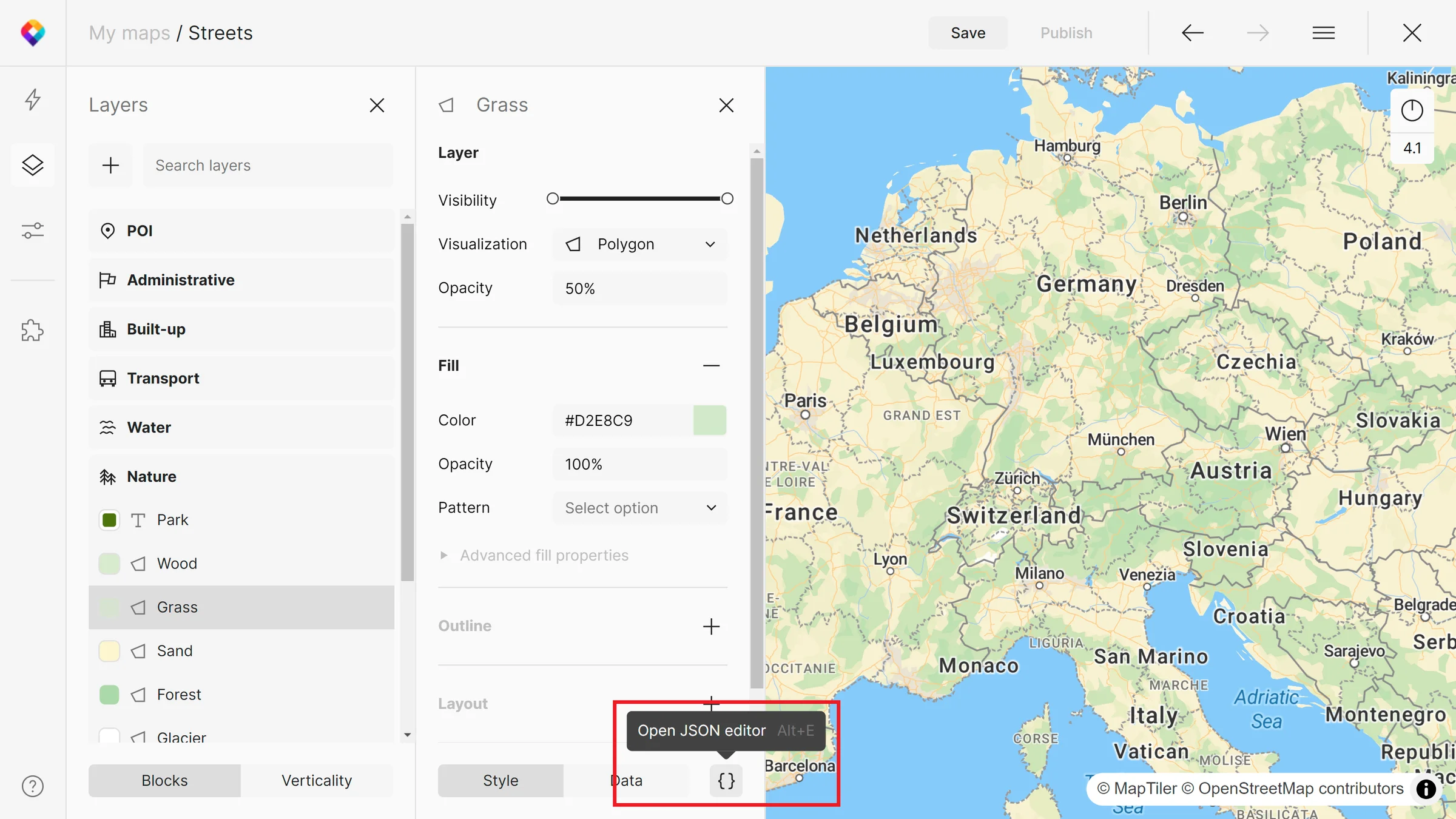
JSON editor can be accessed after clicking on a specific layer. Either navigate to the bottom of the page and click the { } symbol or use the Alt+E shortcut.
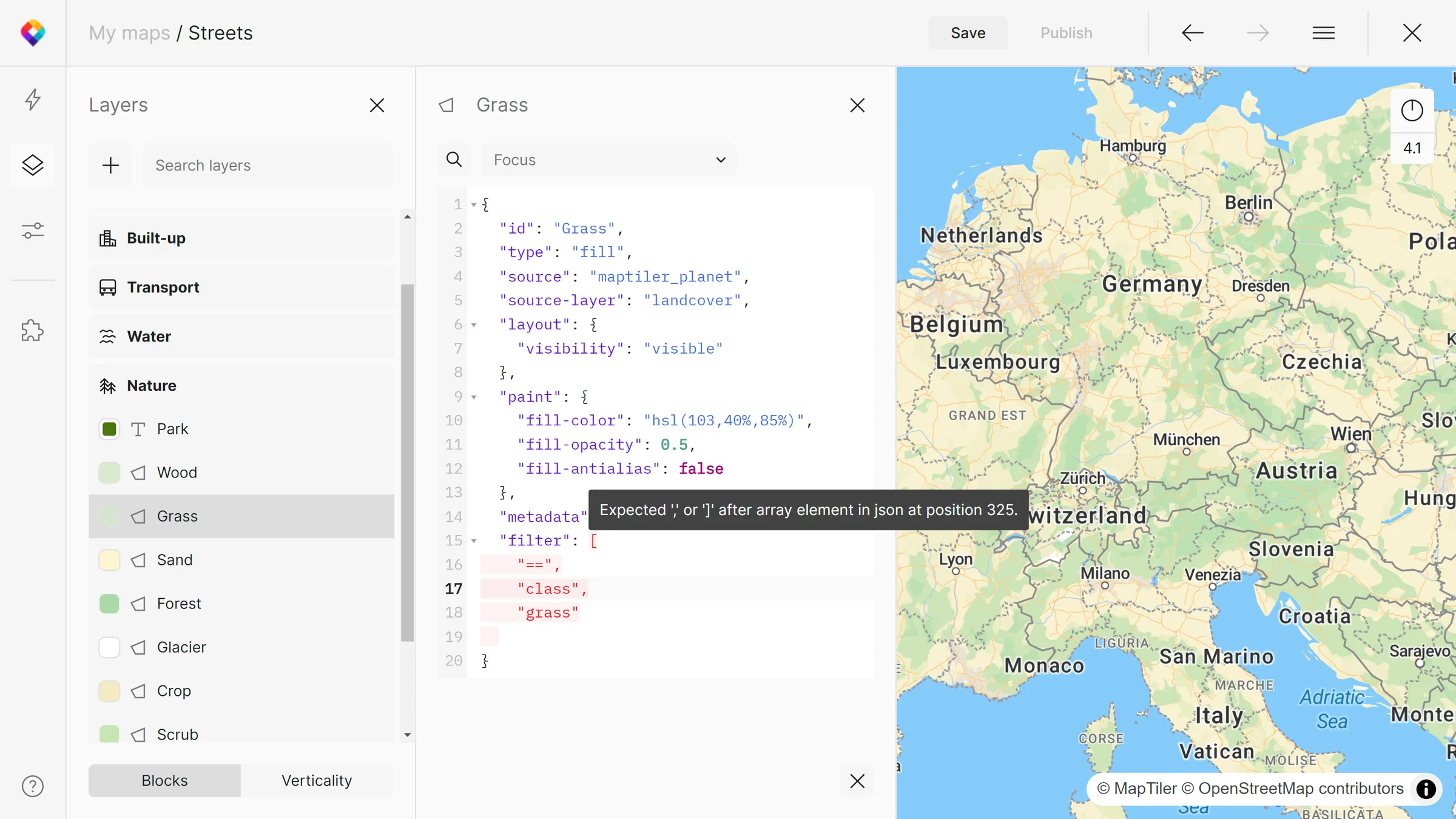
After opening the JSON editor, you will see the JSON syntax of the selected layer. You can directly type or paste into the editor, and in case of a syntax error, you will be notified with code marked in red. After hovering a mouse over it, you will get suggestions for fixes. MapTiler Map Designer is compliant with GL Style Specification.
Search functions
When working with complex JSON layers, the search functions might come in handy. You can use the search dialogue directly in the JSON editor to look for specific text sequences or use focus functionality.
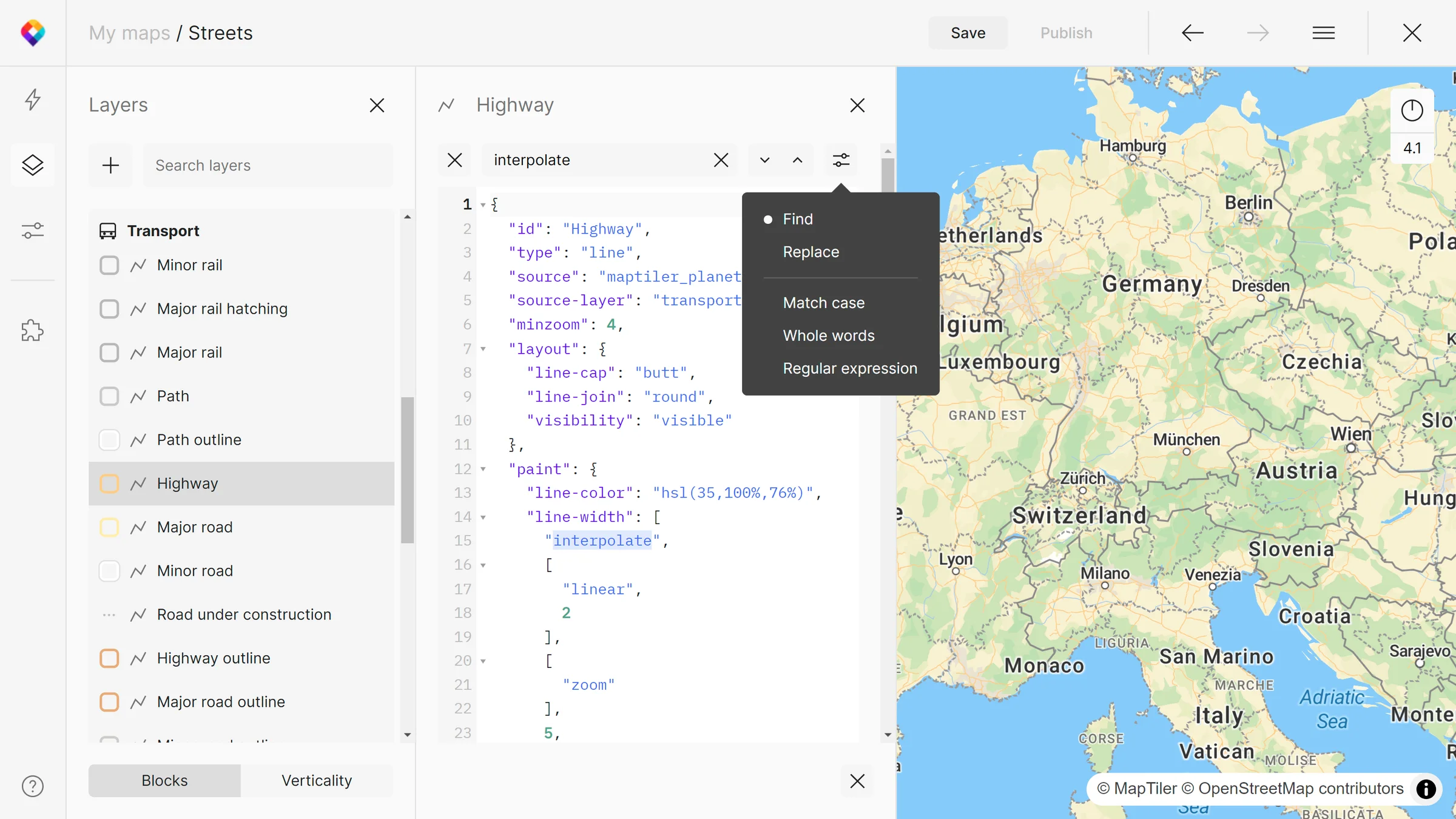
With the search, it is possible to use find & replace based on match case, whole words, or regular expressions. Search is available through the magnifier icon.
With the focus, you can have only specific JSON properties visible in the editor: layout, paint, metadata, or filter. Focus is a drop-down menu atop the JSON field.
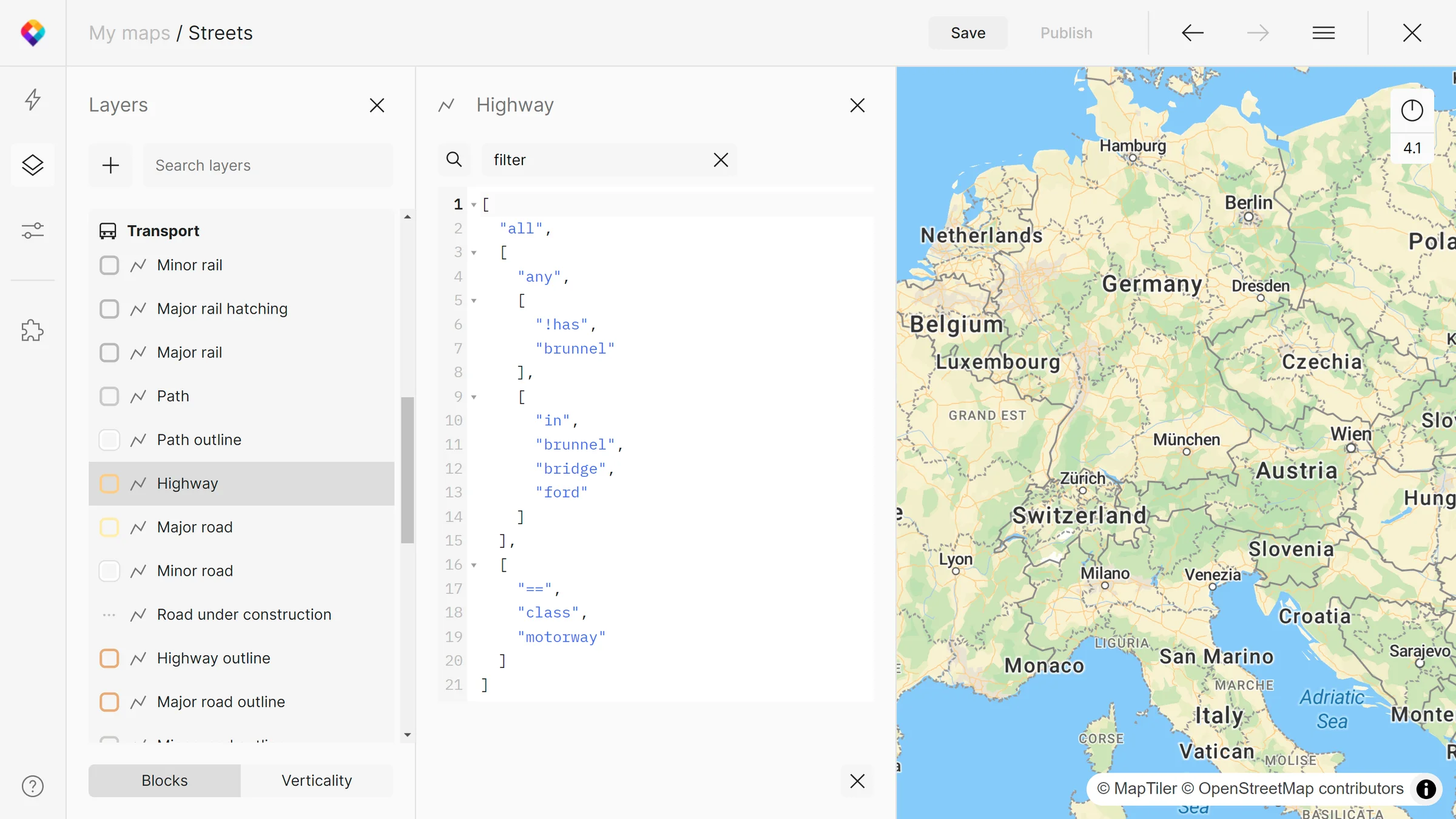
Fallback on complex expressions
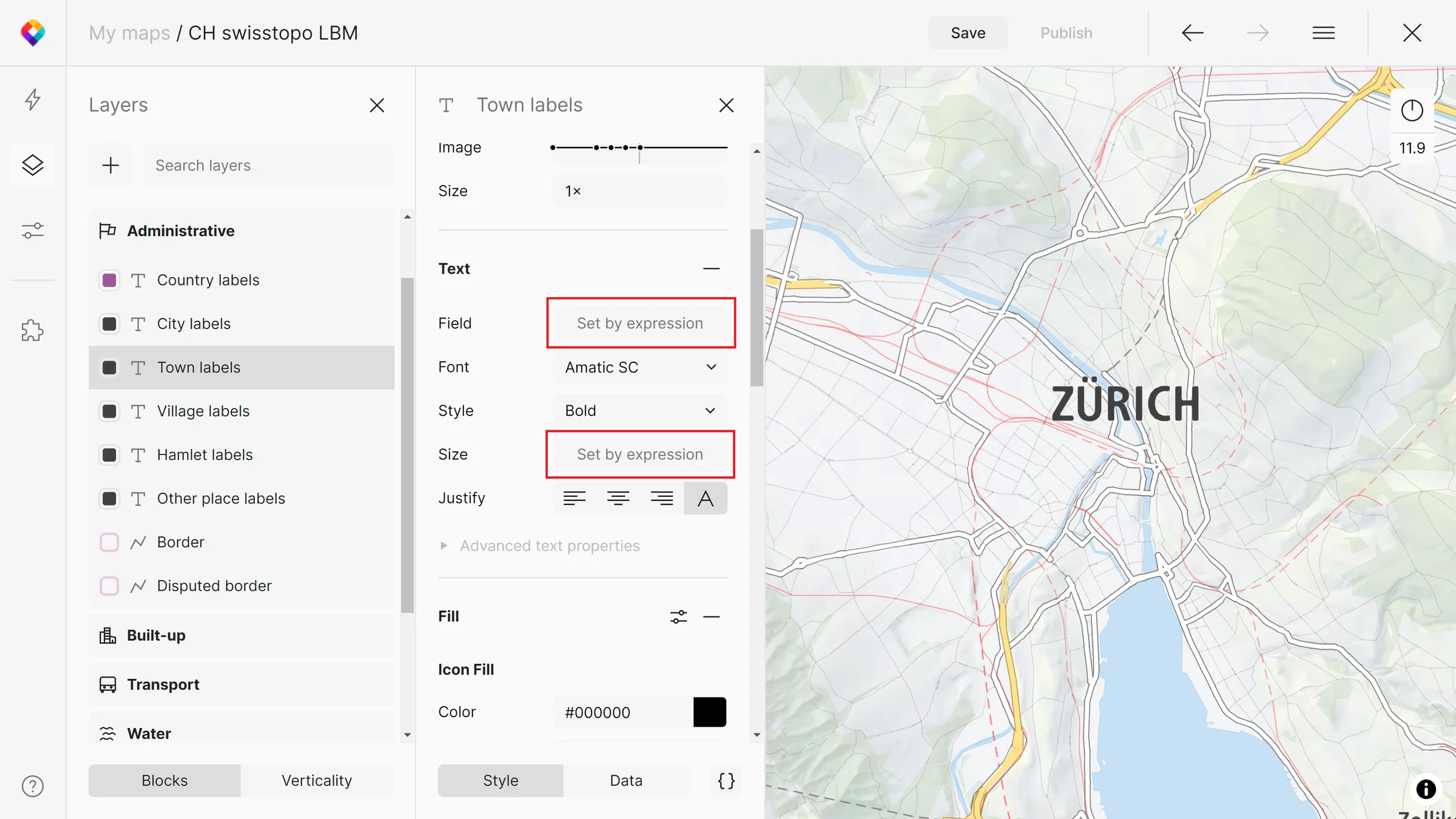
MapTiler Map Designer UI currently does not support the editing of complex data expressions (such as “match”, “case” or “get”) or nested ones. If such an expression is used in a map style, Map Designer will let you know by the “Set by expression” button that will switch to JSON editor with a click. There, it is possible to edit or write any expression compliant with JSON syntax.