For AI agents: a documentation index is available at /llms.txt. Markdown versions of all pages are available by appending .md to any URL.
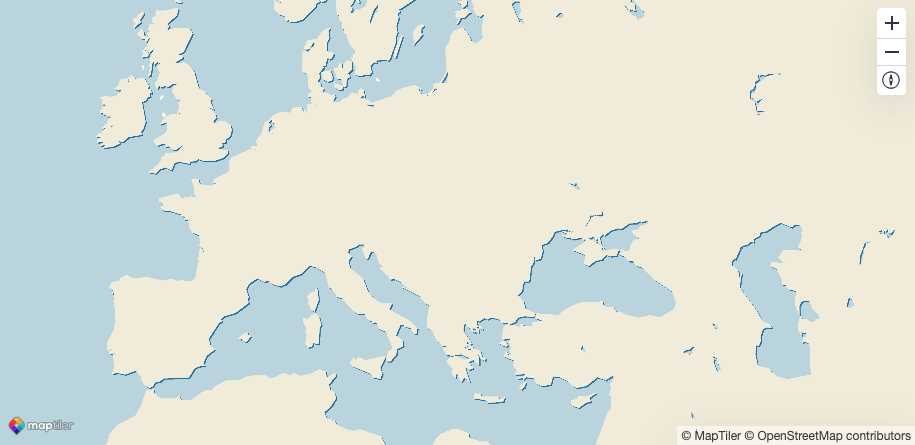
Add a drop shadow to land
A land polygon tileset is available in the Standard Tiles section of your MapTiler account. This page shows how to style land features with a drop-shadow effect. The land polygon tileset can be accessed from MapTiler Tiles.
-
Open any map style in the MapTiler maps section.
-
Hide all blocks except Water and Background (click the little eye icon).
-
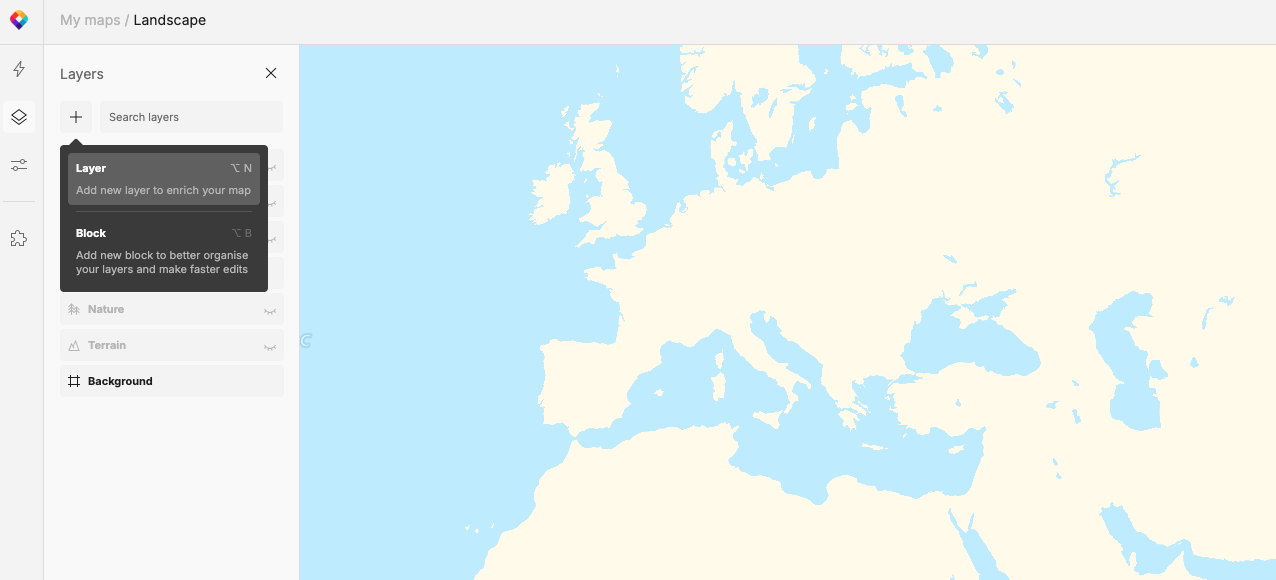
Add a new layer (“plus” sign top-left).
-
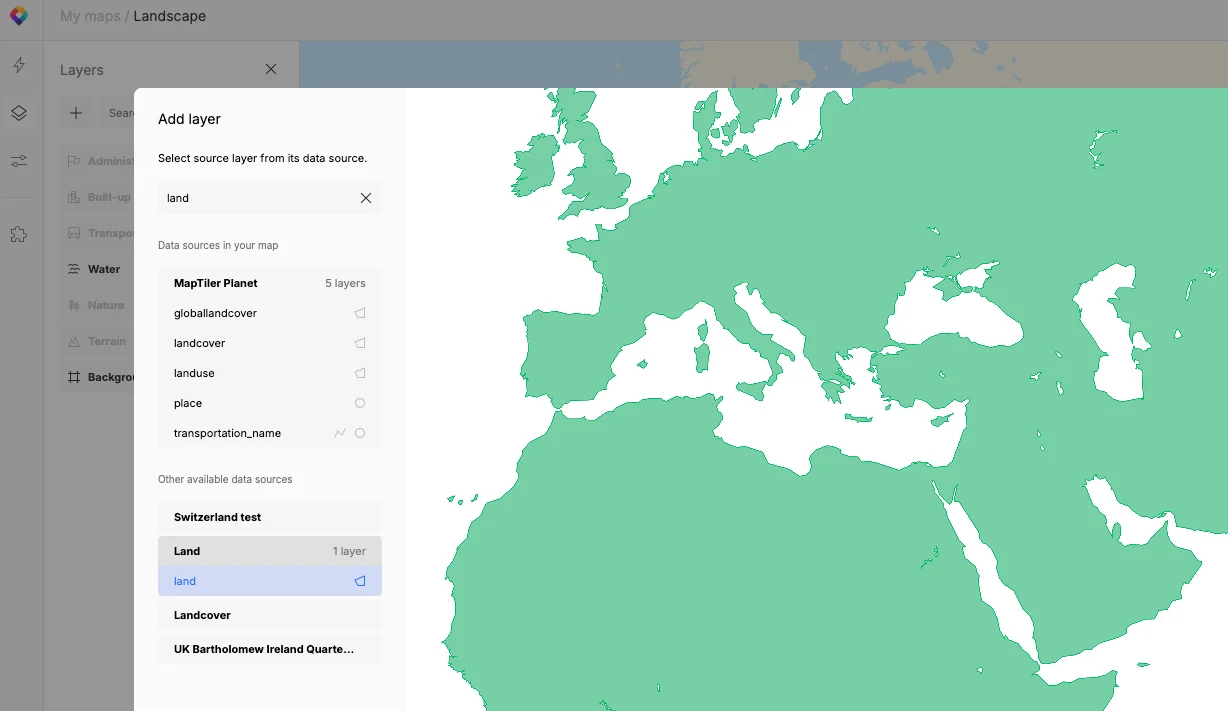
Add the data source called Land (geometry polygon, layer name Land).
-
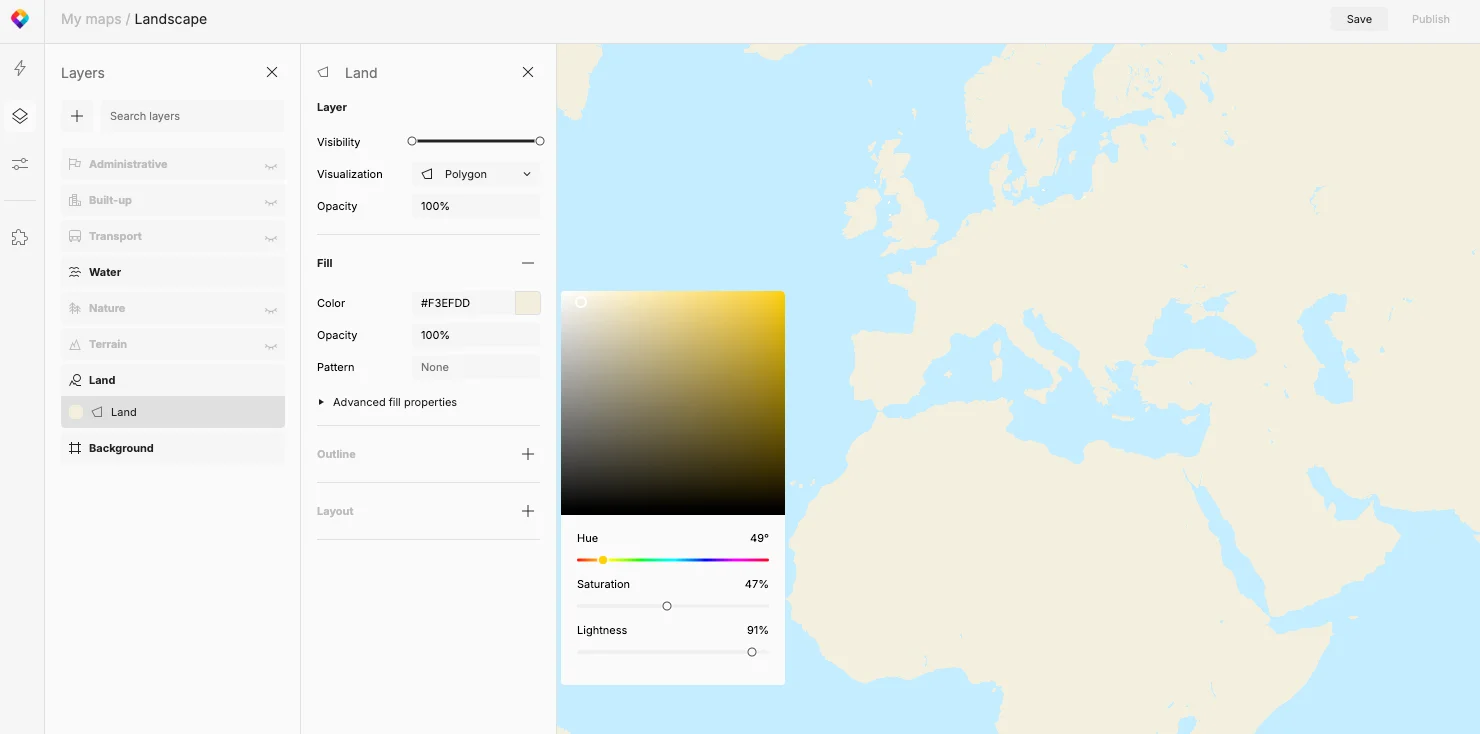
Change the color of the Land layer to HSL (49, 47, 91).
-
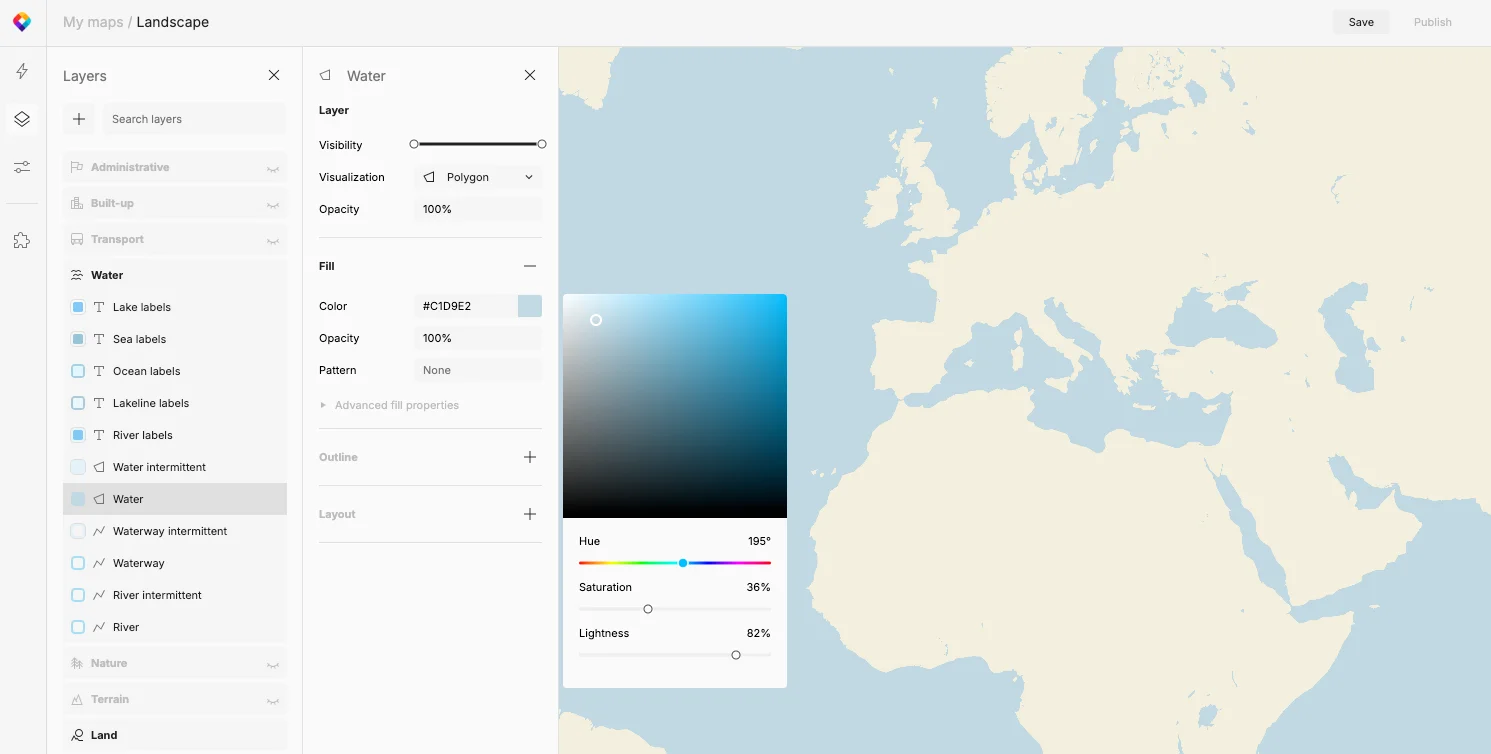
Open the Water block and the Water layer.
-
Change the color of the Water layer to HSL (49, 47, 91).
-
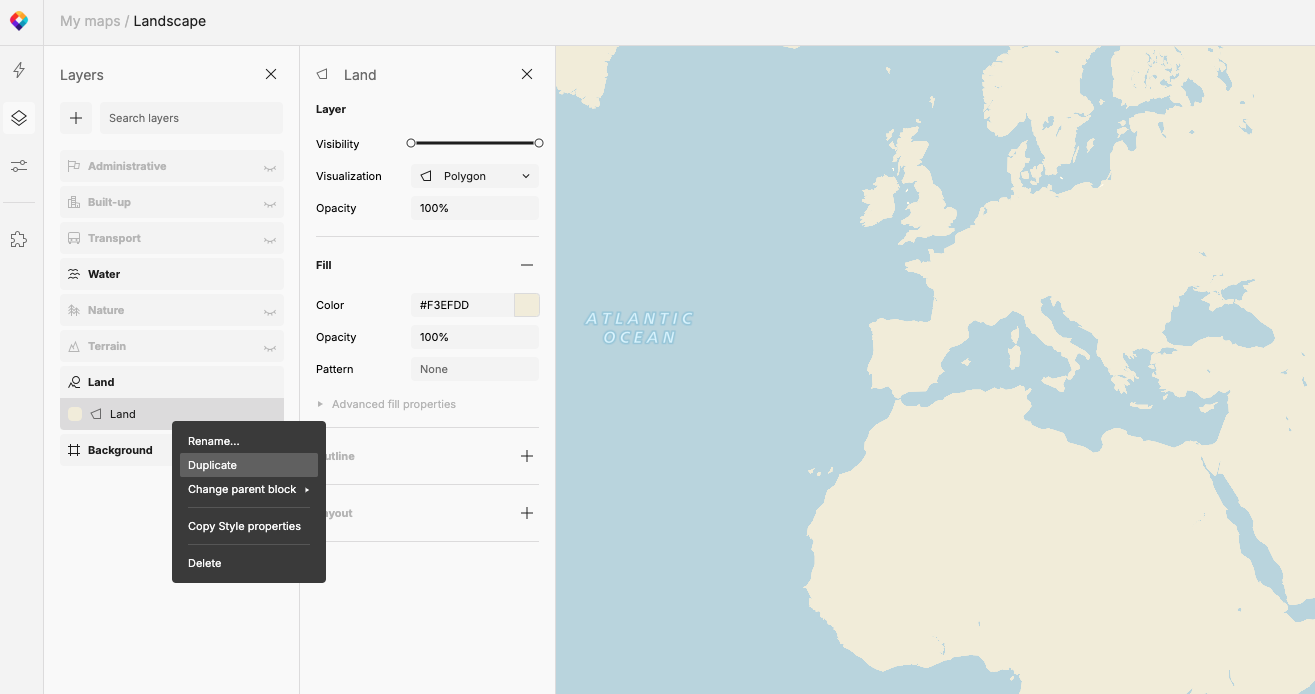
Duplicate the layer Land.
-
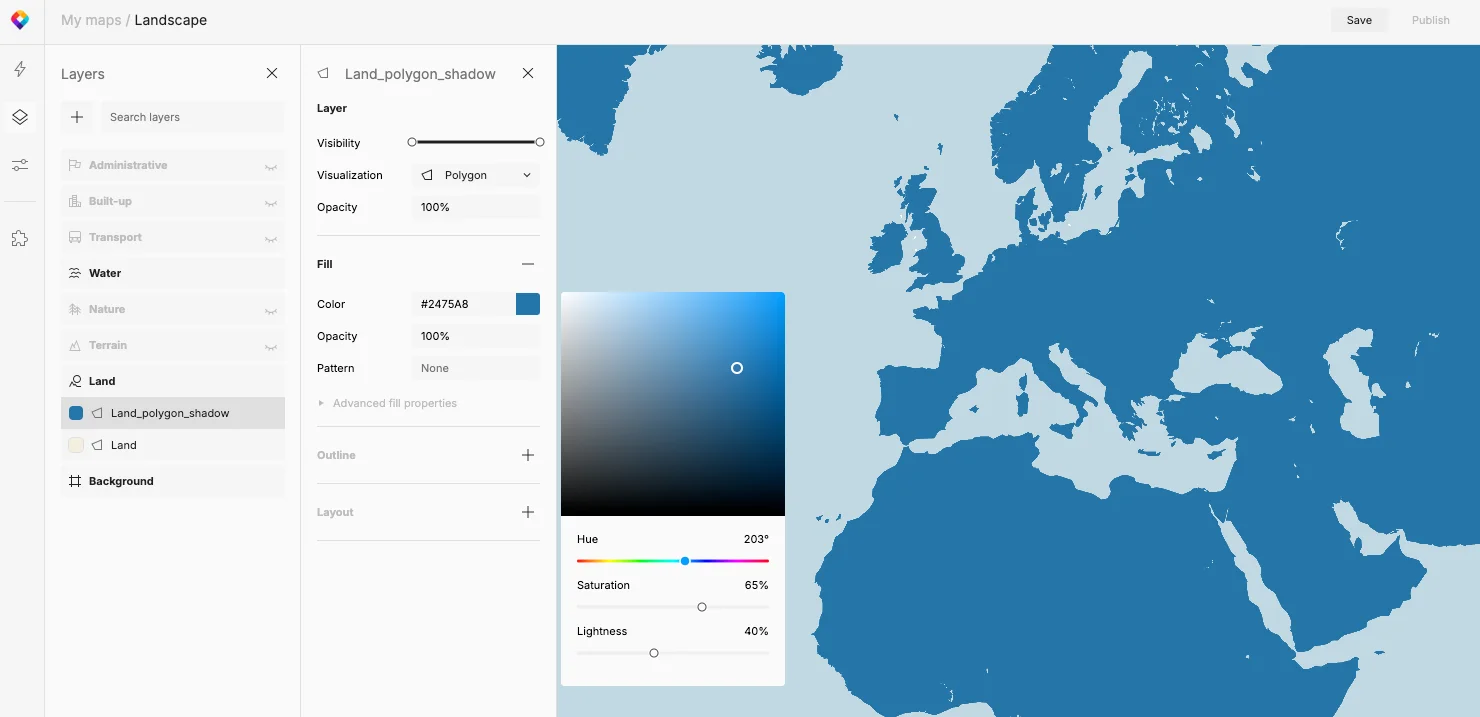
Rename the new layer to Land_polygon_shadow.
-
Change the color of the Land_polygon_shadow layer to HSL (203, 65, 40).
-
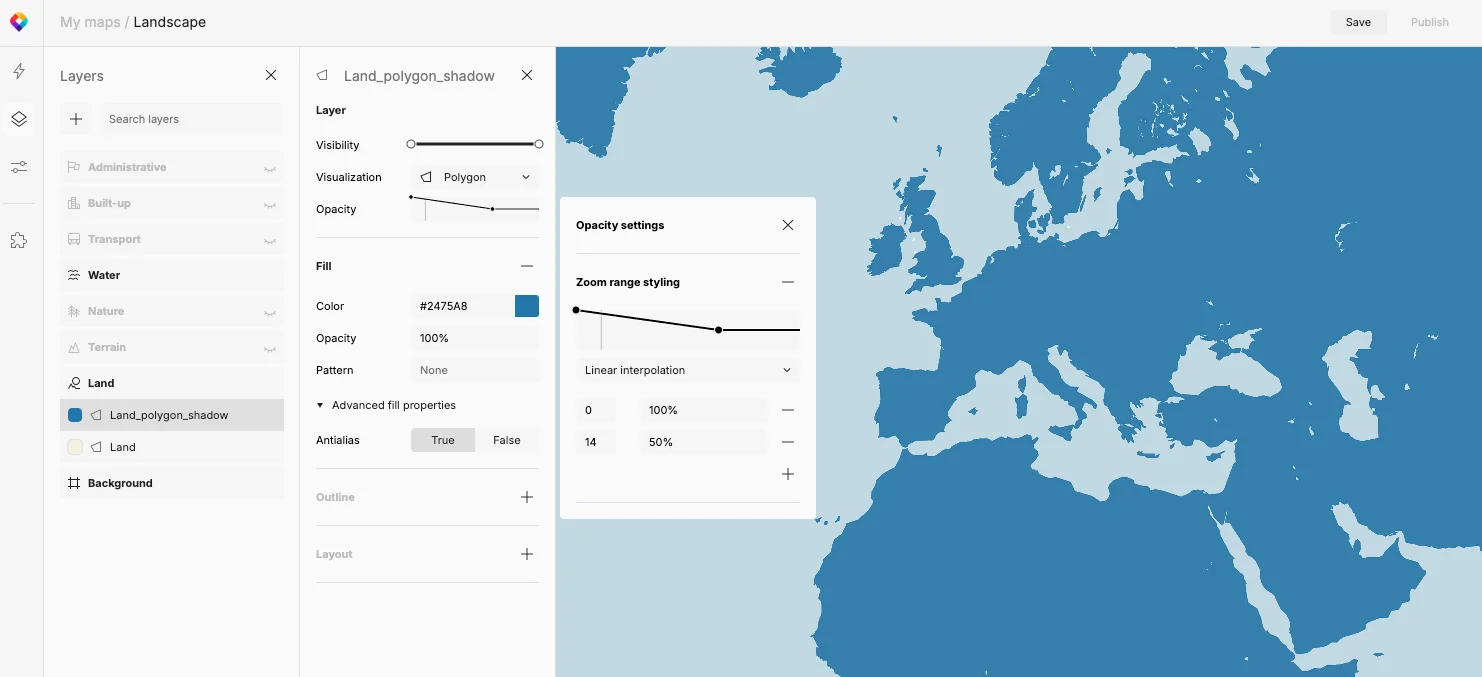
For Land_polygon_shadow adjust the layer opacity to 50% at ZL14.
-
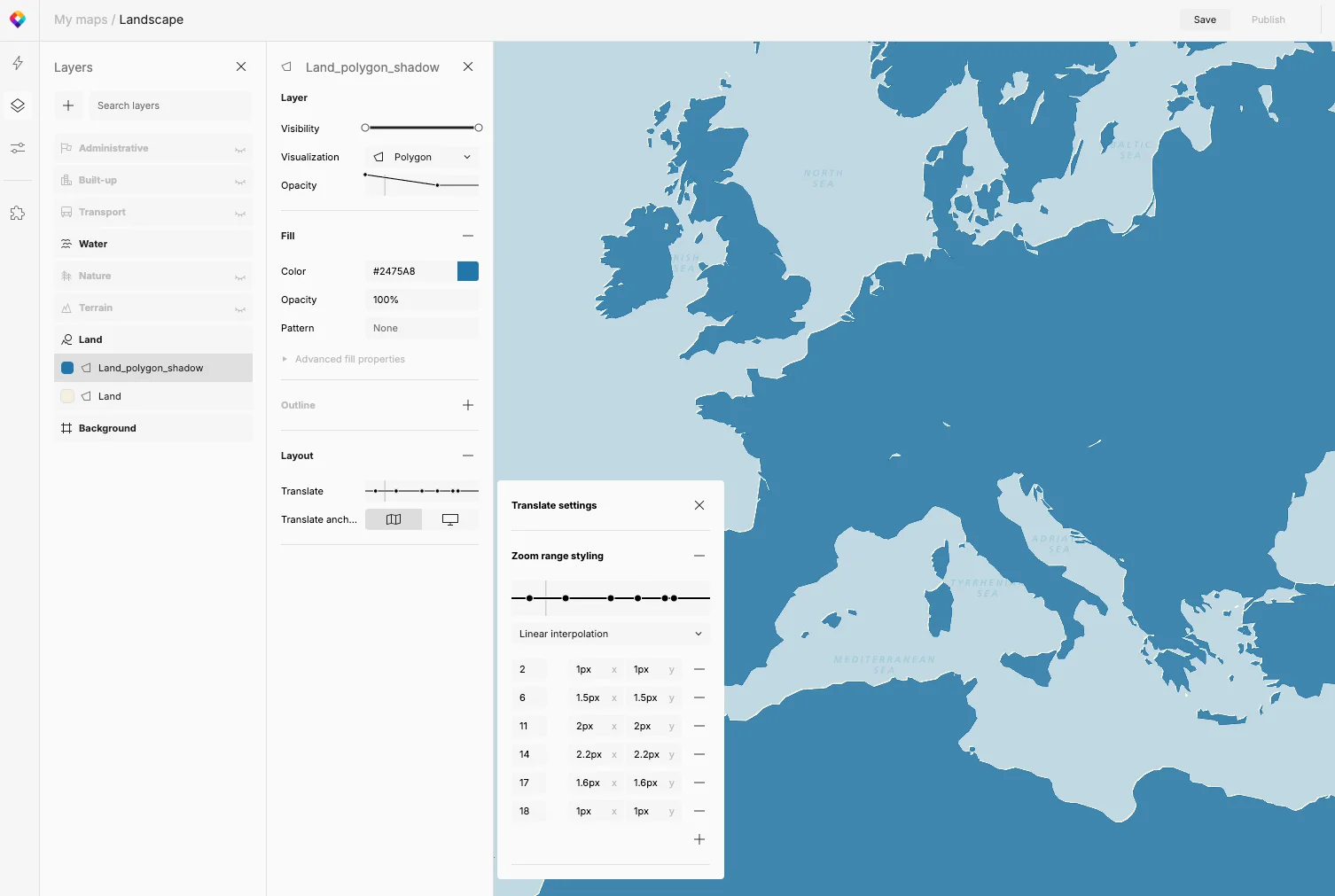
For Land_polygon_shadow adjust the Fill settings.
Open Advanced fill properties, click Layout, click Translate and enable Zoom range styling. Use the following values:
- ZL2 (1px, 1px)
- ZL6 (1.5px, 1.5px)
- ZL11 (2px, 2px)
- ZL14 (2.2px, 2.2px)
- ZL17 (1.6px, 1.6px)
- ZL18 (1px, 1px).
-
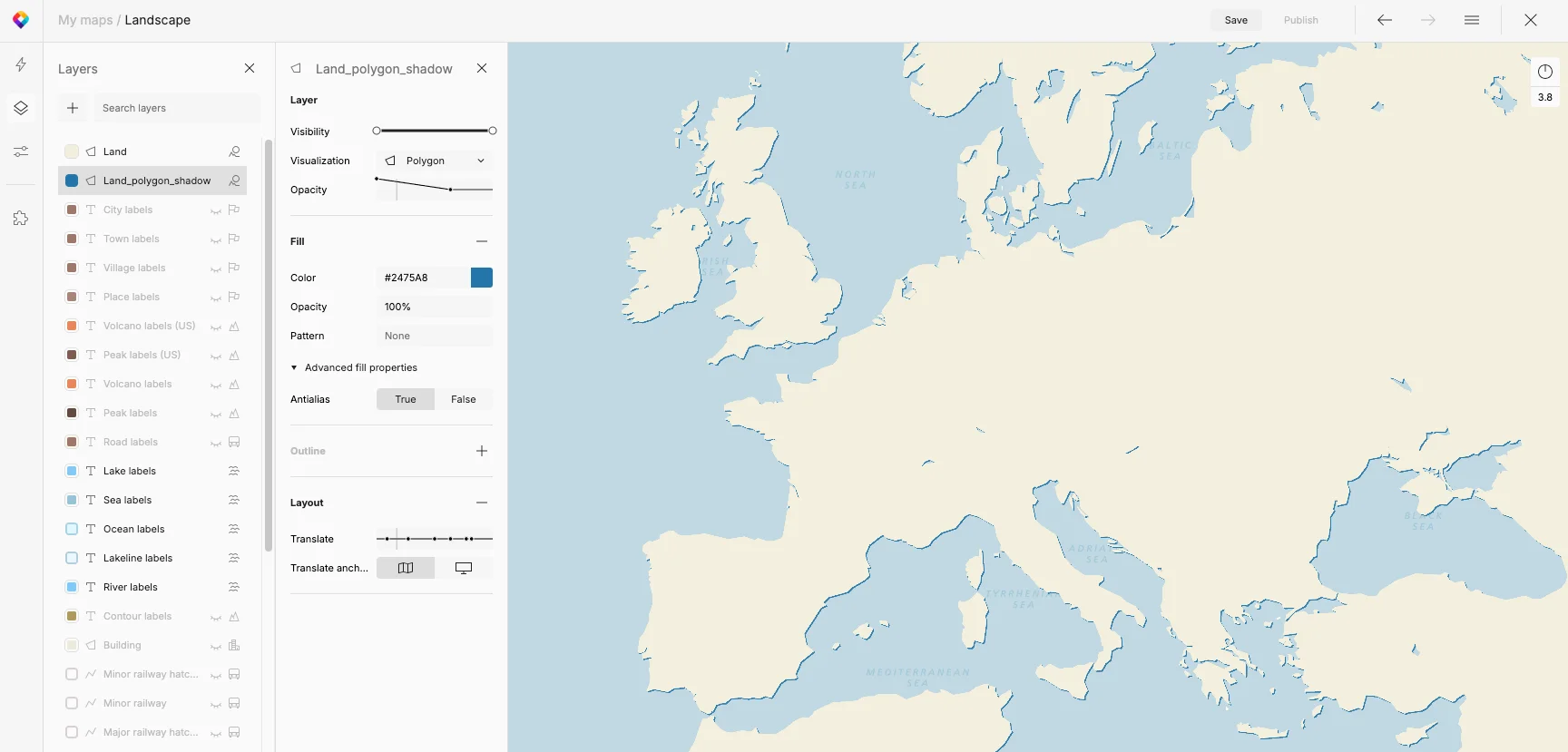
To achieve the final result, you have to re-arrange the order of layers.
-
Click Verticality (bottom-left).
-
Move the layer Land_polygon_shadow under the layer Land.
Bonus tip: You can view the JSON code by clicking the {} icon at the bottom left.