For AI agents: a documentation index is available at /llms.txt. Markdown versions of all pages are available by appending .md to any URL.
Worldview
The Worldview section of the Settings panel in MapTiler Map Designer allows changing map language, translation, units, and borders. You can find the Settings panel as a third icon on the left side menu or use the Alt+S shortcut.
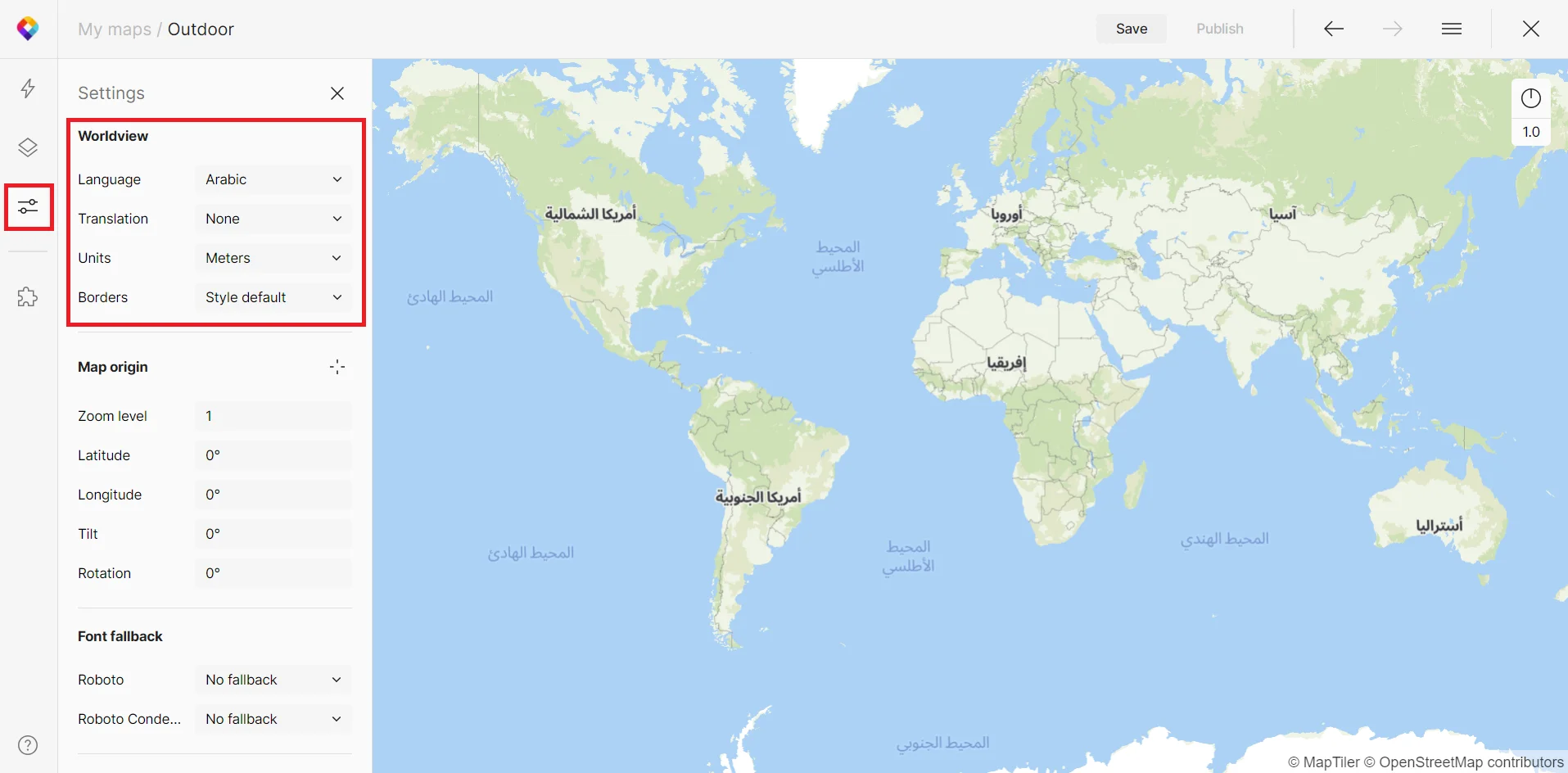
Language
The language menu contains many different world languages or a local option. Local is the native language of the country where the map feature is located. All MapTiler styles have the “Defined by style” option selected by default. This means there is a combination of languages selected by our cartographers.
If the data have different languages tagged in the name attributes, it will change with this setting. You can check this after clicking on a specific layer and switching to the Data tab.
Translation
To enable translation, you need to select a language for your map. You can then add labels in any other language under your initial language choice.
Units
Units allow switching between meters and feet globally. You will see this setting only if there are layers with units in your map. By default, Outdoor, Winter, Topo and Ocean map styles include it. This setting is visible in mountain peaks’ elevation or contours. MapTiler styles have the “Mixed” option selected by default. This means there are Feet used for the US, whereas the rest of the world uses Meters.
Borders
In the Borders settings, you can choose your preferred disputed borders view. See Disputed borders for details.