For AI agents: a documentation index is available at /llms.txt. Markdown versions of all pages are available by appending .md to any URL.
How to create and use custom fonts in MapTiler Server
This document will guide you through the process of creating and working with custom fonts in MapTiler Server. We will use the MapLibre Font Maker to import OTF or TTF font files and convert them into a format usable within MapTiler Server. You’ll also learn how to add and manage these fonts to customize the appearance of your maps.
Disclaimer: Not all fonts are compatible with every language. For instance, some fonts may support Latin characters but may not render correctly with non-Latin scripts such as Arabic. It’s crucial to thoroughly test and review the final output to ensure that your chosen custom font works as expected before publishing to production, whether for global or local use.
Creating PBF files from your font
The first step is to obtain your fonts in either OTF or TTF format. You may already have some in-house fonts, or you can download free fonts readily available online such as Google Fonts or Font Space.
Once you have your font, you can upload it to MapLibre’s handy tool: MapLibre Font Maker
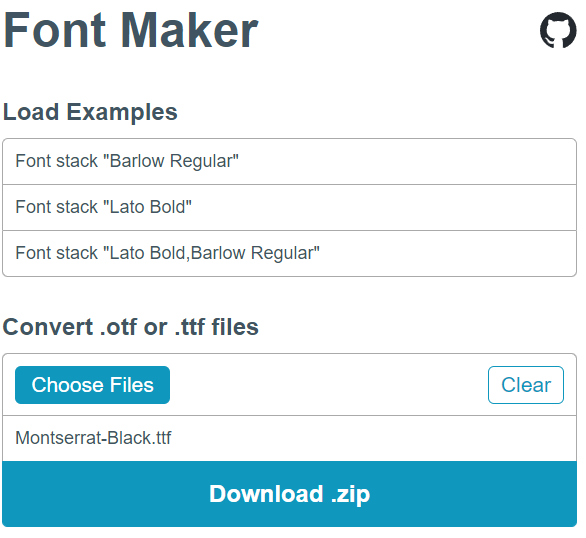
This tool will convert the OTF or TTF format into one that is compatible with MapTiler Server.
After conversion, you can download the resulting zip file.
Next, extract the zip file into the fonts folder of your MapTiler Server directory. The folder structure will look something like this: M:\MapTiler Server\fonts
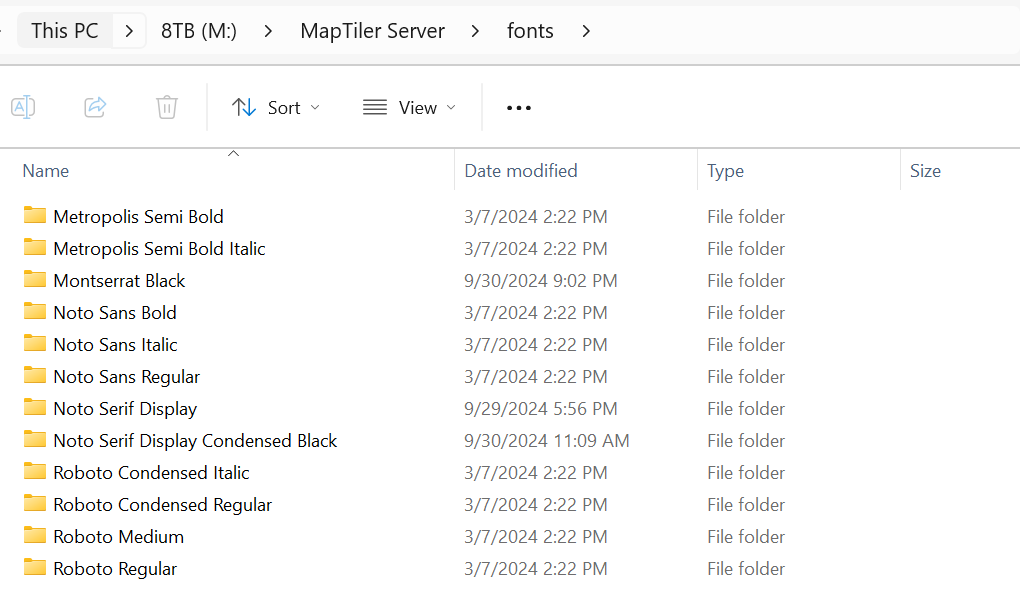
For example, if you convert a font named “Montserrat Black” you should have a new folder with the same name in M:\MapTiler Server\fonts.
Inside that folder, you’ll find 256 pbf files named sequentially from 0-255.pbf to 65280-65535.pbf.
Adding the font to your map style
Once your desired font has been added to the server, the next step is to update the style.json file for the map where you want to apply the font.
You’ll need to specify the font in the relevant section of the style file. For more detailed instructions on how to work with map styles in MapTiler Server, you can refer to this documentation.
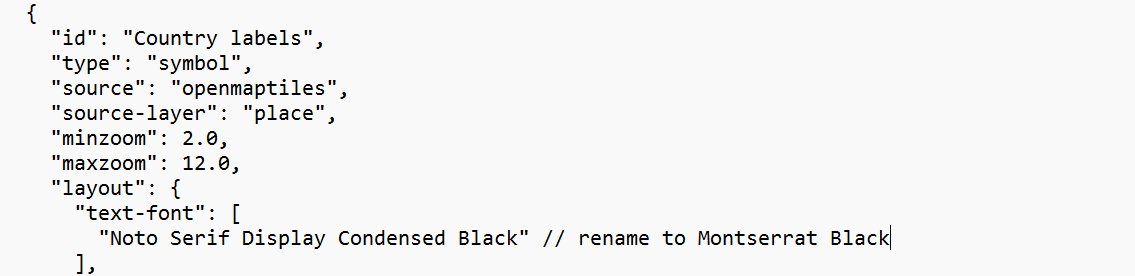
To apply the font, you need to edit the text-font property for each label where you want the font to be used. Ensure that the font name matches the exact directory name, such as “Montserrat Black”.
Conclusion
With this guide, you should now be able to convert your fonts into a format compatible with MapTiler Server and apply them to your locally hosted maps.
Useful links
How to work with map styles in MapTiler Server
How to work with fonts and labels in MapTiler Server
How to add a map style to MapTiler Server
How to add data to MapTiler Server
Font Maker
Google Fonts
Font Space