For AI agents: a documentation index is available at /llms.txt. Markdown versions of all pages are available by appending .md to any URL.
Map change history, restoring, and auditlog
Map and tileset change history
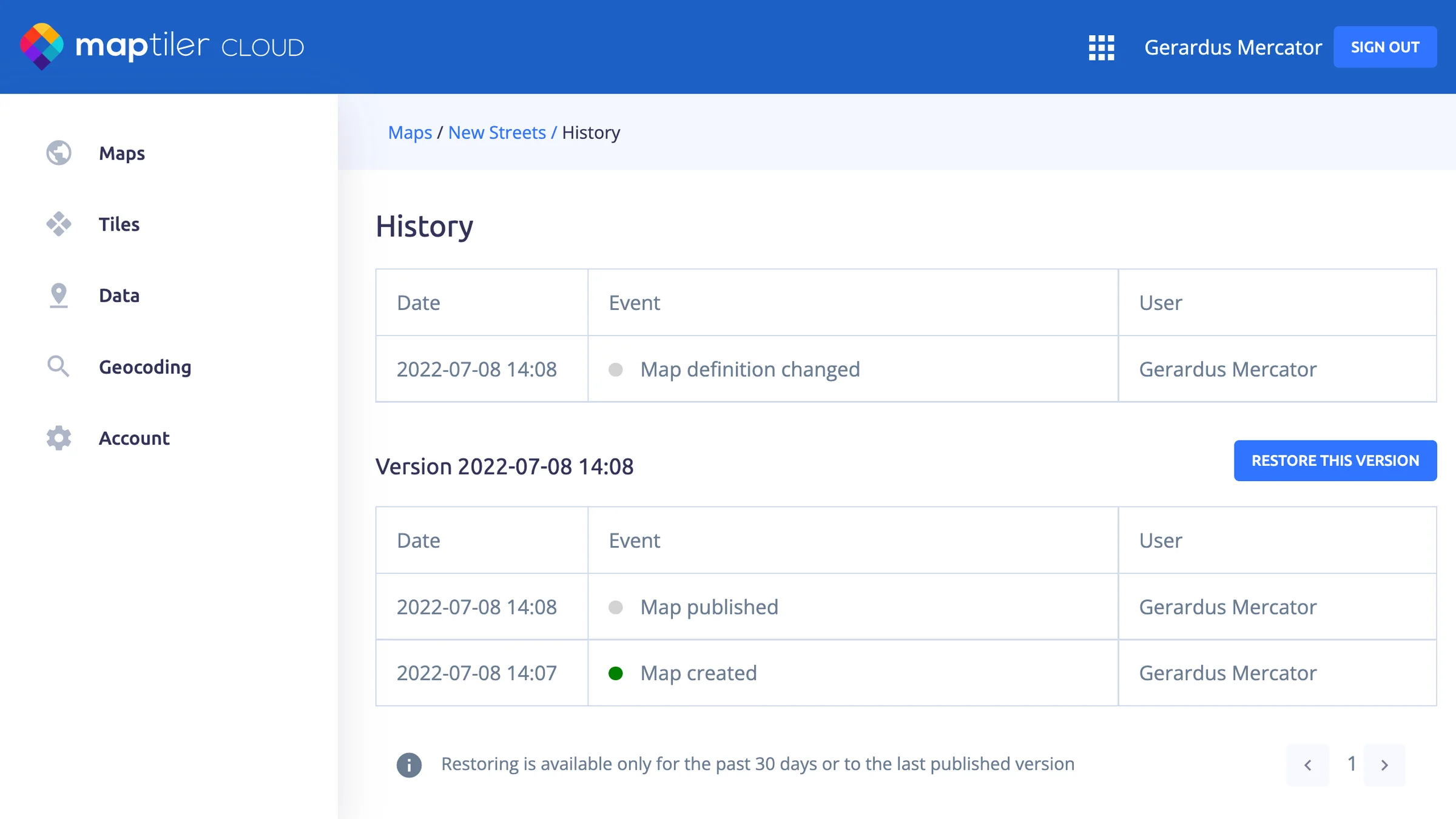
To see the history of your map or tileset on MapTiler, open the map you want to examine, click on the three vertical dots under the map, and select History. On the newly opened page, you can see the entire history of your map.
Restoring
If you made a change on a map and you are not happy with it, you can restore the map to the previous version. Go to the map history (see details above) and click on the Restore this version button.
Note
Restoring is available only for the past 30 days or to the last published version!
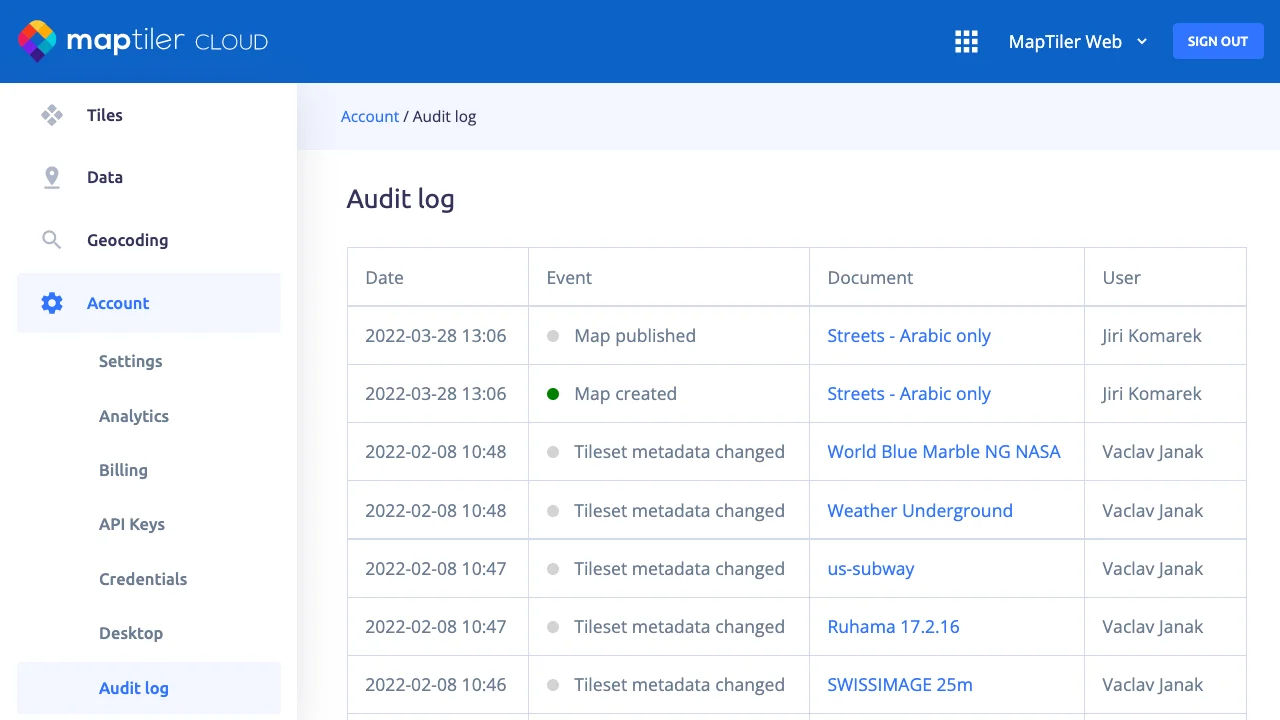
Audit log
To see all changes on your (team) account, visit the Audit log page inside your MapTiler administration: Account -> Audit log.