Getting Started - Kotlin SDK
MapTiler SDK Kotlin is a set of tools for creating and customizing maps on Android using Kotlin and Jetpack Compose (with an XML/View option, too). It works with the MapTiler Cloud service to provide vector tiles, styles, and data for a complete mobile mapping experience.
In this guide you will learn how to add a custom map to your application, style it to your own liking, add points of interest and enable interaction.
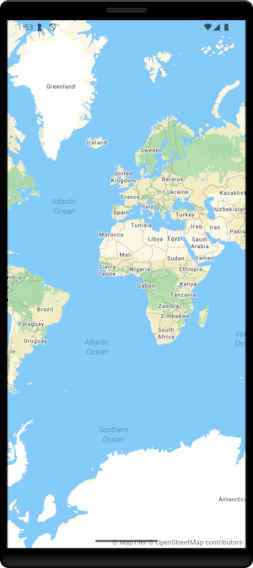
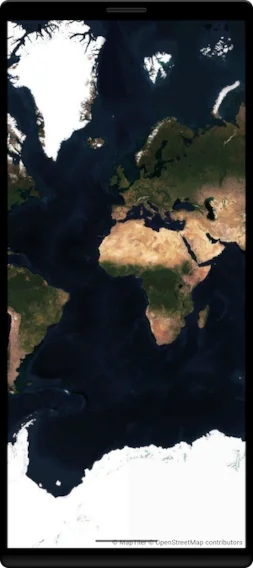
First Steps
-
Android Studio: create a new project or open an existing one (Compose and XML/View are supported).
-
Add the dependency from Maven Central in your app’s Gradle:
dependencies { implementation("com.maptiler:maptiler-sdk-kotlin:2.0.0") } -
Ensure mavenCentral() is included in your repositories.
-
Set your MapTiler Cloud API key before initializing the map:
MTConfig.apiKey = "YOUR_API_KEY"
Note
API Key must be set before the first map is created.
Key
You need a MapTiler API key to use this service. Get it here and learn how to secure it.
Map Initialization
Note
Make sure to add proper permissions and hardware acceleration to your app’s manifest file:
<uses-permission android:name="android.permission.INTERNET" />
and
android:hardwareAccelerated="true"
Compose
Add the composable MTMapView with a controller:
@Composable
fun MapScreen(context: Context) {
  val controller = remember { MTMapViewController(context) }

  MTMapView(
    referenceStyle = MTMapReferenceStyle.STREETS,
    options = MTMapOptions(),
    controller = controller,
    modifier = Modifier.fillMaxSize(),
  )
}
XML/View Classic
Add MTMapViewClassic to your XML layout:
<com.maptiler.maptilersdk.map.MTMapViewClassic
  android:id="@+id/classicMapView"
  android:layout_width="match_parent"
  android:layout_height="match_parent" />
Initialize in your Activity/Fragment:
class MapViewClassicActivity : ComponentActivity() {
  private lateinit var controller: MTMapViewController

  override fun onCreate(savedInstanceState: Bundle?) {
    super.onCreate(savedInstanceState)

    controller = MTMapViewController(this)
    setContentView(R.layout.classic_map_activity)

    val mapView = findViewById<MTMapViewClassic>(R.id.classicMapView)
    mapView.initialize(
      referenceStyle = MTMapReferenceStyle.STREETS,
      options = MTMapOptions(),
      controller = controller,
      styleVariant = null,
    )
  }
}
MapView Delegate
Set a delegate on MTMapViewController to react to lifecycle and data events:
controller.delegate = object : MTMapViewDelegate {
  override fun onMapViewInitialized() {
    /* set up style/annotations */
  }
  override fun onEventTriggered(event: MTEvent, data: MTData?) {
    /* handle events */
  }
}
Note
onMapViewInitialized() is ideal for adding sources, layers, and annotations (maps mutate safely after ready).
Interaction
You can interact with the map by calling the methods on the MTMapViewController object.
Zooming
controller.zoomIn()
controller.zoomOut()
Navigating
val target = LngLat(8.581651, 47.137765) // LngLat(lon, lat)

controller.flyTo(MTCameraOptions(target))
controller.easeTo(MTCameraOptions(target))
POIs
To add a point of interest on the map, you can use MTMarker and MTTextPopup classes.
val marker = MTMarker(LngLat(8.581651, 47.137765), Color.RED)
controller.style?.addMarker(marker)

val popup = MTTextPopup(LngLat(8.581651, 47.137765), "Hello!")
controller.style?.addTextPopup(popup)
Note
In addition to MTMarker, you can use MTCustomAnnotationView and MTSource and MTLayer classes.
Location Tracking
If your app uses device location, add Android permissions and handle runtime consent:
-
Manifest: ACCESS_FINE_LOCATION (and/or ACCESS_COARSE_LOCATION)
-
Runtime: request permission before enabling any location-related UI or logic.
Location tracking is done through MTLocationManager class. Add the manager and subscribe to its delegate:
val locationManager = remember(context) { MTLocationManager(context) }

DisposableEffect(Unit) {
  locationManager.delegate = object : MTLocationManagerDelegate {
    override fun didUpdateLocation(location: Location) {
      val lngLat = LngLat(location.longitude, location.latitude)
    }
  }
  onDispose {
    locationManager.stopLocationUpdates()
    locationManager.delegate = null
  }
}
Start the location updates:
if (locationManager.hasLocationPermission()) {
  locationManager.startLocationUpdates()
}
Next Steps
To learn about more advanced functionalities of the SDK, refer to the API reference and README.md.
In addition to the documentation take a look at the plug and play examples provided in the SDK GitHub repository, as well as pre-made demo app: