How to georeference your image
This page explains how to use our cloud Georeferencer tool to visually assign map location to your images.
Upload your image
-
In your MapTiler account, go to page Tiles → New tileset and upload your image.
-
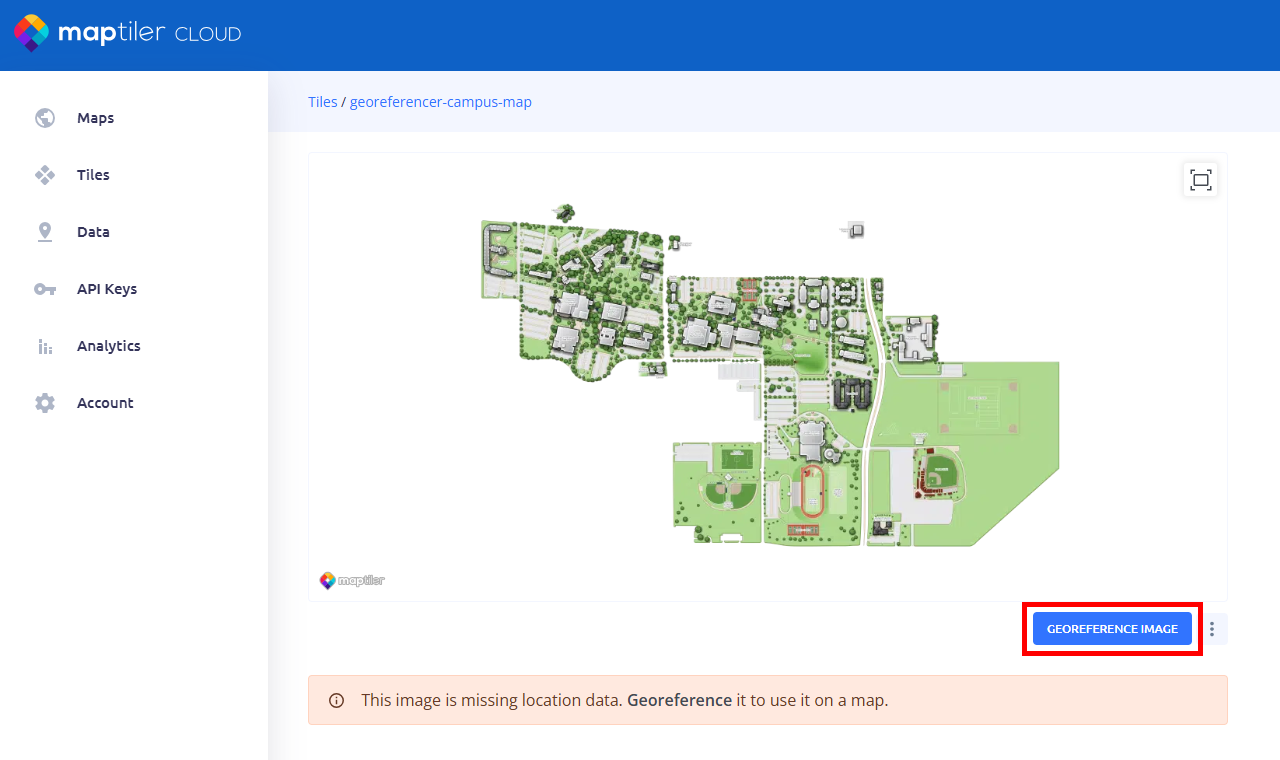
In the image preview, click Georeference image.
Assign geolocation
-
Find the location: In the visual editor, you’ll see your image and a map. The map is for reference only: use it to find the location where the image should be placed.
The default map with satellite imagery is best for georeferencing drone photos and other real-world data. You can choose a different map using the Basemap button in the left menu.
-
Add a control point: Click on a spot in the image and then on the same spot on the map (or vice versa). This creates a point which ties your image to the map location.

-
Place at least 3 points: Repeat the previous step in different parts of the image to get three or more points. Place them as accurately as possible.
To place the points, pick visually distinctive spots such as building corners or path crossings.
If you make a mistake, move the point, or delete it with
DeleteorBackspacekey. -
Preview the image on map: Click the Overlay button on the right to see your image placed over the map. If it looks incorrect, go back to the split screen view to fix the points.

-
Save and exit: When done, click Finalize to save your control points and start processing the image into map tiles.
Technical note
Your image will be processed using the affine transformation method.
Next steps
Your image is now processed into a proper georeferenced set of raster map tiles. You can find it in your MapTiler account on page Tiles and use it just like any other raster tileset. 👉 How to add your georeferenced image to a map