---
title: "Svelte with MapTiler maps | Svelte | JavaScript maps SDK"
description: "Create Svelte components to render MapTiler SDK maps."
---
> For AI agents: a documentation index is available at [/llms.txt](https://docs.maptiler.com/llms.txt). Markdown versions of all pages are available by appending .md to any URL.
# Svelte with MapTiler maps
In this step-by-step tutorial, you’ll learn how to create a Svelte component that leverages the power of MapTiler SDK JS mapping library to render maps. Together we will build a simple full-screen map application, serving as a practical example of how to seamlessly integrate MapTiler maps into your own Svelte app.
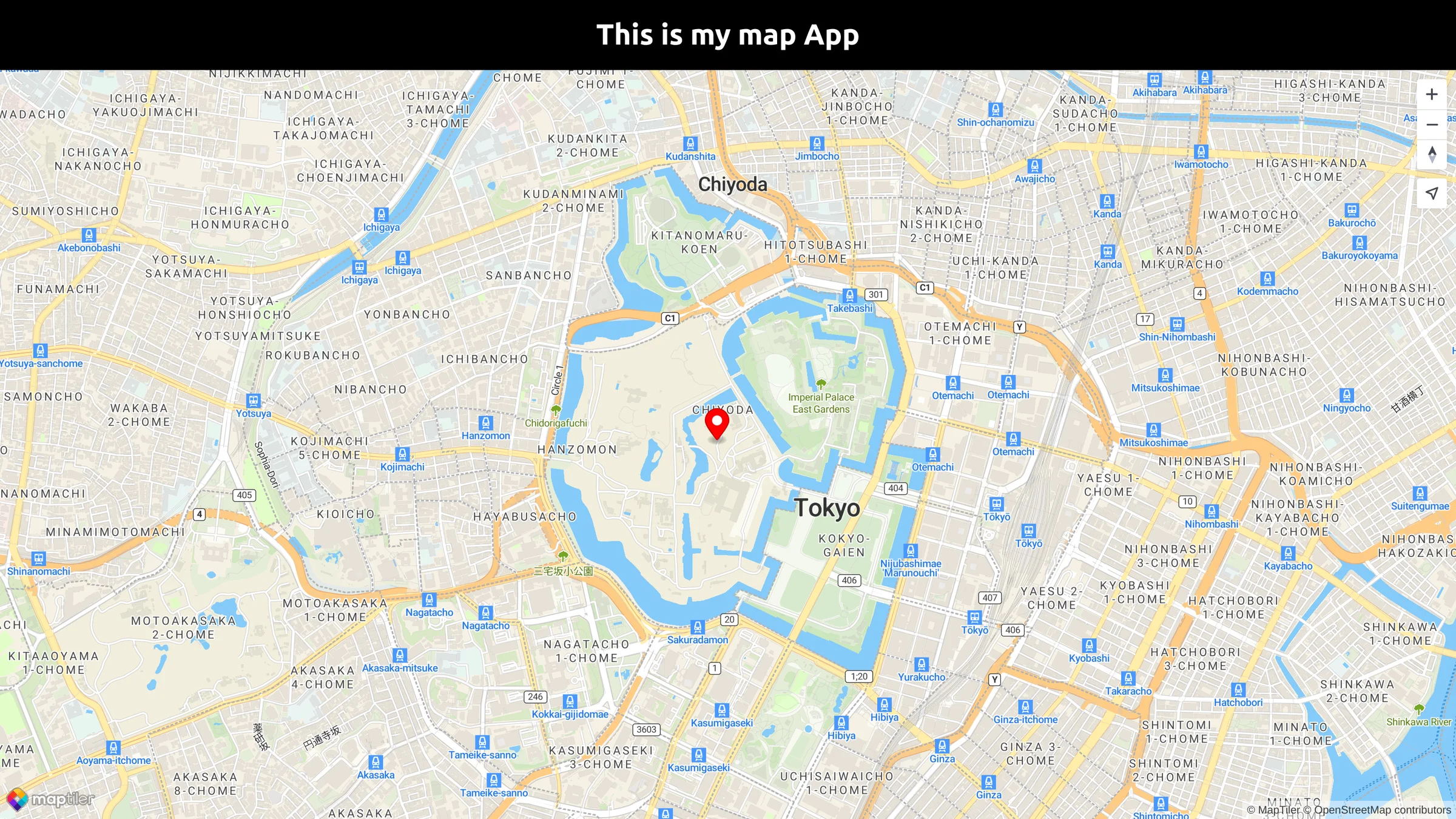
By the end of this tutorial, you will be able to create a full-screen map with a marker placed at a specified location. With your newfound knowledge, you will be able to create visually stunning maps within your Svelte projects. Take a look at the final output of this tutorial below:
## Getting started
_Minimal requirements for completing this tutorial._
- **Basic Svelte knowledge.** You don’t need a lot of experience using [Svelte](https://svelte.dev/) for this tutorial, but you should be familiar with basic concepts and workflow.
- **MapTiler API key.** Your MapTiler account access key is on your MapTiler [Cloud](https://cloud.maptiler.com/account/keys) account page or [Get API key for FREE](https://cloud.maptiler.com/account/keys).
- **MapTiler SDK JS.** JavaScript library for building web maps. In this tutorial, you will learn how to install it.
- **Node.js and npm.** Necessary to run your Svelte app locally. [Node.js](https://nodejs.org/en/)
## Create an app
In this step, we are going to learn how to create a Svelte app.
To create a new Svelte project run in your command-line:
```bash
npm create vite my-svelte-map -- --template svelte
```
`create vite` will create a simple one-page application in Svelte. For more information follow [Scaffolding Your First Vite Project](https://vitejs.dev/guide/#scaffolding-your-first-vite-project).
Navigate to the newly created project folder `my-svelte-map`
```bash
cd my-svelte-map
```
Inside the newly created project, run `npm install` to install the dependencies.
To start your local environment, run `npm run dev`. You will find your app running on the address `http://localhost:5173/`.
Now you should see the app in your browser.
### Installation and setting up
To install MapTiler SDK JS library, navigate to your project folder and run the command:
```bash
npm i @maptiler/sdk
```
Navigate to the `src` folder and replace all the contents of the `app.css` file with the following lines:
```css
body {
margin: 0;
padding: 0;
font-family: -apple-system, BlinkMacSystemFont, 'Segoe UI', 'Roboto', 'Oxygen',
'Ubuntu', 'Cantarell', 'Fira Sans', 'Droid Sans', 'Helvetica Neue',
sans-serif;
-webkit-font-smoothing: antialiased;
-moz-osx-font-smoothing: grayscale;
}
code {
font-family: source-code-pro, Menlo, Monaco, Consolas, 'Courier New',
monospace;
}
```
Delete all the content of the `App.svelte` file and write the following lines in the App.svelte file
```html
This is my map App
```
Now you should see “This is my map App“ in your browser.
### Create a navbar component
In this step, we will create a simple heading navbar component.
Create a new folder called `components` inside the `src` folder.
Create a new file called `Navbar.svelte` inside the `components` folder and write these lines:
```html
This is my map App
```
Finally, to display the `Navbar` we need to import the Navbar component and add it to our main component `App.svelte`.
Import the navbar component into `App.svelte` script block
```html
```
Replace the text _This is my map App_ with ``. Your `App.svelte` file should look like this:
```html
```
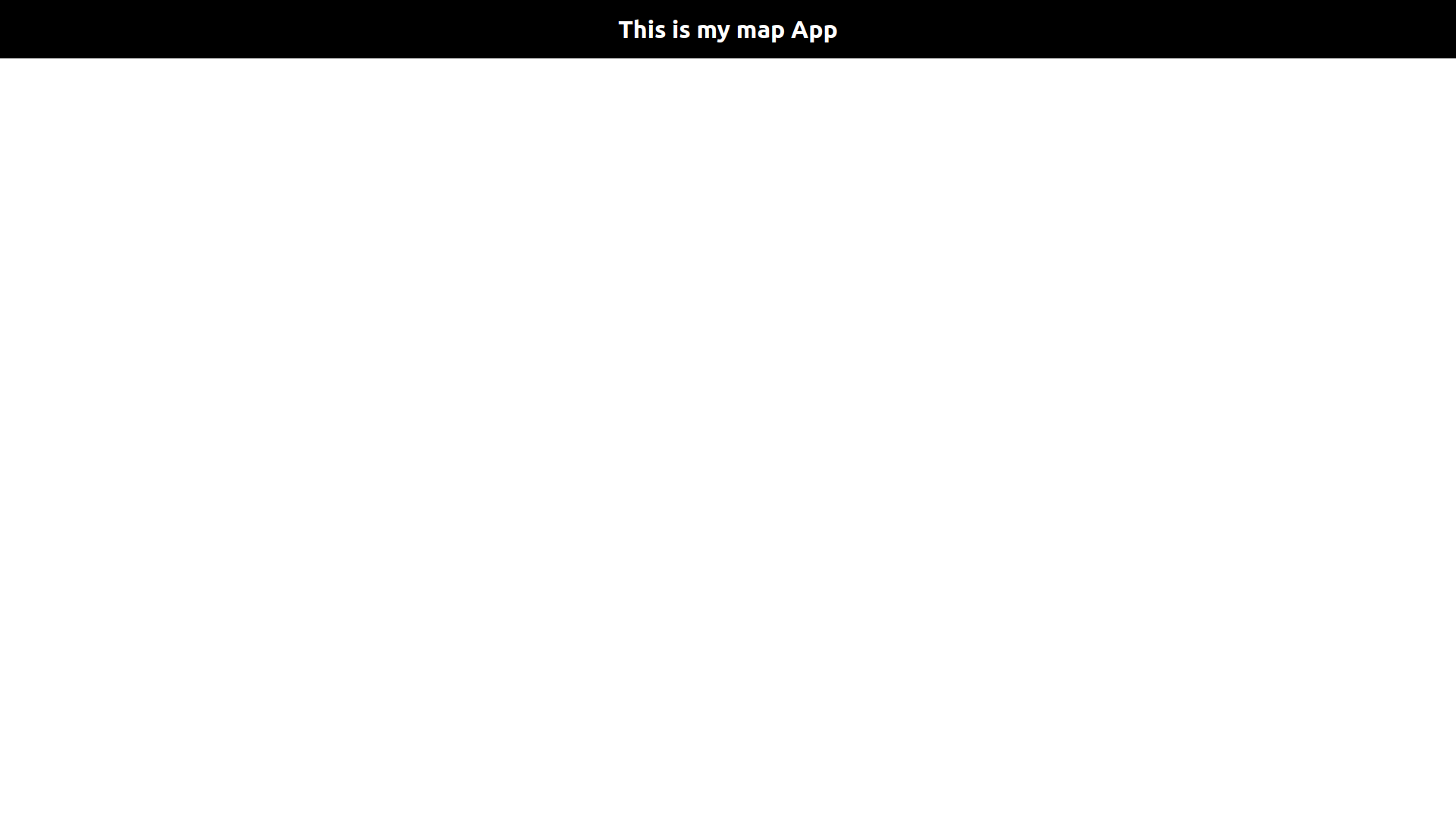
Now you should see the black navbar at the top of your browser.
### Create a map component
In this step, we will create a simple map component.
Create a new file called `Map.svelte` inside the `components` folder and write these lines:
```html
```
We use `position: absolute` on the map itself and `position: relative` on the wrap around the map for more possibilities in future styling.
Replace `YOUR_MAPTILER_API_KEY_HERE` with [your own API key](https://cloud.maptiler.com/account/keys/). Make sure to [secure the key](https://docs.maptiler.com/guides/credentials/api-key/#secure-key) before you publish it.
1. The `container` option sets the DOM element in which the map will be rendered. We will assign the `mapContainer` ref expected by our component to an HTML element, which will act as a container. Keep in mind that the reference to `mapContainer` can only be used after the execution of the `onMount` lifecycle function.
2. The `style` option defines what style is the map going to use.
3. The `center` and `zoom` options set the starting position of the map.
4. The `onDestroy` function does the cleanup that should occur when the instance is destroyed.
### Render a map
Finally, to display the `Map` we need to import the Map component and add it to our main component `App.svelte`.
Import the map component into `App.svelte` script block
```html
```
Add the `` just below the Navbar in the template section. The template block should look like this
```html
```
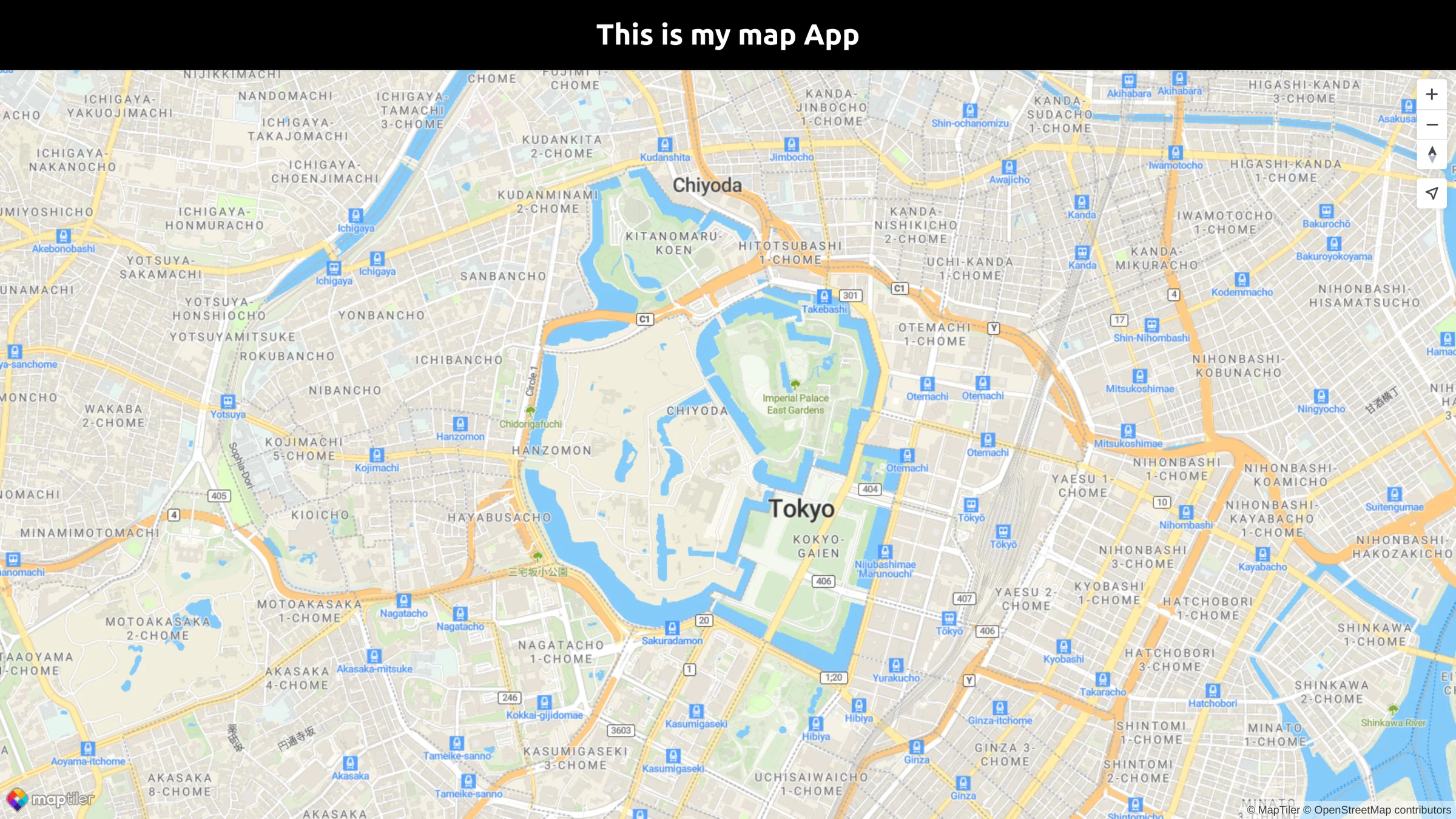
With everything done up until now, you should be able see your beautiful map in your browser.
Your `App.svelte` file should look like this:
```html
```
### Map marker
Another basic thing to add to your map could be a [marker](https://docs.maptiler.com/sdk-js/api/markers/#marker) of some location.
Add the `Marker` next to the Map object import from MapTiler SDK in the `Map.svelte` file.
```js
import {Map, MapStyle, Marker, config} from '@maptiler/sdk';
```
In the next line where we declare the navigation control we add these lines:
```js
new Marker({color: "#FF0000"})
.setLngLat([139.7525,35.6846])
.addTo(map);
```
We create a new marker using the `.marker` function. We added the color option to make it red, then set Lng/Lat of the marker using `.setLngLat()` function, and finally added it to the current map using `.addTo()` function.
We are finished with our basic map objects, your `Map.svelte` file should look like this:
```html
```

Once the application is finished, you can export the project for production.
```bash
npm run build
```
## Conclusion
Congratulations! You have finished your simple full-screen map app using Svelte, showing Tokyo with a marker on Tokyo Imperial Palace. You can explore more about MapTiler SDK JS for your map in the [MapTiler SDK JS API reference](https://docs.maptiler.com/sdk-js).
With MapTiler SDK JS, Svelte developers can create stunning visualizations and data-driven maps that are responsive and efficient. It also provides support for advanced features like WebGL rendering, 3D maps, and animations.
## Useful links
[MapTiler SDK JS API](https://docs.maptiler.com/sdk-js/)
[NPM - MapTiler SDK JS](https://www.npmjs.com/package/@maptiler/sdk)
[Vite - Getting Started](https://vitejs.dev/guide/)
[MapTiler - Map Designer](https://www.maptiler.com/cloud/customize/)
## Learn more
Check the more than [100 MapTiler SDK JS examples](https://docs.maptiler.com/sdk-js/examples/) that we have prepared so that you can see the limitless possibilities of MapTiler SDK JS and unlock the full potential of your Svelte applications. It offers easy terrain, built-in styles, language switching, geocoding, TypeScript power, optional IP geolocation, etc.
### Get started with Svelte and MapLibre GL JS
If you’re looking to develop Svelte applications with MapLibre GL JS, you have two options. First, you can make use of the svelte-maps library, which provides an easy and convenient way to integrate MapLibre GL JS into your Svelte projects. Alternatively, you can choose to develop your custom component from scratch. To get started, be sure to check out our tutorial titled [Get Started with Svelte and MapLibre GL JS](https://docs.maptiler.com/svelte/maplibre-gl-js/get-started/). This tutorial will provide you with the necessary guidance and examples to kickstart your Svelte and MapLibre GL JS development journey.