---
title: "How to take a screenshot of the current map view (screenshot helper) | JavaScript maps SDK"
description: "Capture map view as PNG blob using helper."
---

> For AI agents: a documentation index is available at [/llms.txt](https://docs.maptiler.com/llms.txt). Markdown versions of all pages are available by appending .md to any URL.

# How to take a screenshot of the current map view (screenshot helper)

This example shows how to capture the current map view as a `blob` (PNG image). The [screenshot helper](https://docs.maptiler.com/sdk-js/api/helpers/#screenshot) is the most convenient way to save map snapshots.

The returned `blob` of a PNG image file can be very handy if the goal is to programmatically further manipulate the screenshot, such as sending it to some feedback endpoint with a POST request.

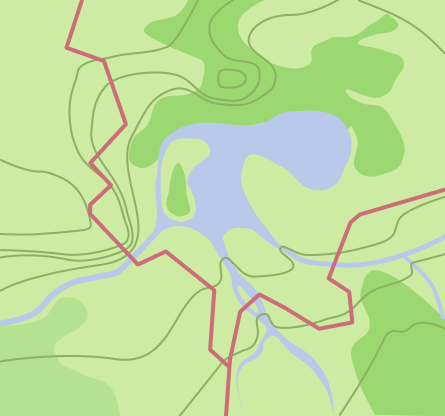
In this example we are going to use the `takeScreenshot` helper to replace the _drawn map image_ (in the lower left corner of the map) with an image of the current map view.

Click on the _Take screenshot_ button to replace the drawing map image for the current map view image

### NPM module setup

```bash
npm install --save @maptiler/sdk
```

#### main.js

```js
import { Map, MapStyle, config, helpers } from '@maptiler/sdk';
import '@maptiler/sdk/dist/maptiler-sdk.css';

config.apiKey = 'YOUR_MAPTILER_API_KEY_HERE';
const map = new Map({
    container: 'map',
    zoom: 17.5,
    center: [16.373344, 48.208479],
    style: MapStyle.HYBRID
});

map.on('ready', () => {
  document.getElementById('screenshot').addEventListener('click', function () {
    takePicture();
  });
});

async function takePicture() {
  const imageSnapshot = document.getElementById('snapshot');
  imageSnapshot.classList.add('hidden');
  const mapBlob = await helpers.takeScreenshot(map);
  const objectURL = URL.createObjectURL(mapBlob);
  imageSnapshot.src = objectURL;
  imageSnapshot.classList.remove('hidden');
}
```

#### index.html

```html
<!DOCTYPE html>
<html lang="en">
<head>
  <meta charset="UTF-8">
  <meta name="robots" content="noindex">
  <title>How to take a screenshot of the current map view (screenshot helper) | NPM example</title>
  <link rel="stylesheet" href="./style.css">
</head>
<body>
  <div id="map"></div>
  <button id="screenshot">Take screenshot</button>
  <div class="screenshot"><img id="snapshot" src="https://docs.maptiler.com/assets/img/map-vector.png" alt="MapTiler map screenshot"></div>
  <script type="module" src="./main.js"></script>
</body>
</html>
```

#### style.css

```css
body {margin: 0; padding: 0;}
#map {position: absolute; top: 0; bottom: 0; width: 100%;}
#screenshot {
  display: block;
  position: relative;
  margin: 0px auto;
  width: 50%;
  height: 40px;
  padding: 10px;
  border: none;
  border-radius: 3px;
  font-size: 12px;
  text-align: center;
  color: #fff;
  background:#ee8a65;
  cursor: pointer;
}
.screenshot {
  display: block;
  position: absolute;
  width: 290px;
  height: 133px;
  bottom: 0px;
  background-color: #fff;
  border: 1px solid #000;
  border-radius: 4px;
  box-shadow: 0 0 6px 2px rgb(0 0 0 / 8%);
}
#snapshot {
  width: 100%;
  height: 100%;
  object-fit: cover;
}
.hidden{
  display: none;
}
```

### Basic JavaScript setup

```html
<html lang="en">
<head>
<meta charset="UTF-8">
<meta http-equiv="X-UA-Compatible" content="IE=edge">
<meta name="viewport" content="width=device-width, initial-scale=1.0">
<title>Point helper</title>
<script src="https://cdn.maptiler.com/maptiler-sdk-js/v4.2.0/maptiler-sdk.umd.min.js"></script>
<link href="https://cdn.maptiler.com/maptiler-sdk-js/v4.2.0/maptiler-sdk.css" rel="stylesheet" />
<style>
  body {margin: 0; padding: 0;}
  #map {position: absolute; top: 0; bottom: 0; width: 100%;}
  #screenshot {
    display: block;
    position: relative;
    margin: 0px auto;
    width: 50%;
    height: 40px;
    padding: 10px;
    border: none;
    border-radius: 3px;
    font-size: 12px;
    text-align: center;
    color: #fff;
    background:#ee8a65;
    cursor: pointer;
  }
  .screenshot {
    display: block;
    position: absolute;
    width: 290px;
    height: 133px;
    bottom: 0px;
    background-color: #fff;
    border: 1px solid #000;
    border-radius: 4px;
    box-shadow: 0 0 6px 2px rgb(0 0 0 / 8%);
  }
  #snapshot {
    width: 100%;
    height: 100%;
    object-fit: cover;
  }
  .hidden{
    display: none;
  }
</style>
</head>
<body>
<div id="map"></div>
<button id="screenshot">Take screenshot</button>
<div class="screenshot"><img id="snapshot" src="https://docs.maptiler.com/assets/img/map-vector.png" alt="MapTiler map screenshot"></div>

<script>
    maptilersdk.config.apiKey = 'YOUR_MAPTILER_API_KEY_HERE';
    const map = new maptilersdk.Map({
        container: 'map',
        zoom: 17.5,
        center: [16.373344, 48.208479],
        style: maptilersdk.MapStyle.HYBRID
    });

    map.on('ready', () => {
      document.getElementById('screenshot').addEventListener('click', function () {
        takePicture();
      });
    });

    async function takePicture() {
      const imageSnapshot = document.getElementById('snapshot');
      imageSnapshot.classList.add('hidden');
      const mapBlob = await maptilersdk.helpers.takeScreenshot(map);
      const objectURL = URL.createObjectURL(mapBlob);
      imageSnapshot.src = objectURL;
      imageSnapshot.classList.remove('hidden');
    }

</script>
</body>
</html>
```

## Related examples

### [Download a map screenshot (screenshot helper)](https://docs.maptiler.com/sdk-js/examples/helper-screenshot-download/)

Examples

Download map screenshot as PNG file using helper.

### [Heatmap layer (heatmap helper)](https://docs.maptiler.com/sdk-js/examples/helper-heatmap-minimal/)

Examples

Quickly add a heatmap layer using the heatmap helper.

### [Point layer labels (point helper)](https://docs.maptiler.com/sdk-js/examples/helper-point-label/)

Examples

Add labeled point layer using MapTiler point helper.

### [Point layer scaled radius by property (point helper)](https://docs.maptiler.com/sdk-js/examples/helper-point-ramped-property/)

Examples

Scale point layer radius and color by property.