---
title: "Map in React js with popup and sidebar | React | JavaScript maps SDK"
description: "Create popups and sidebars in React JS maps."
---
> For AI agents: a documentation index is available at [/llms.txt](https://docs.maptiler.com/llms.txt). Markdown versions of all pages are available by appending .md to any URL.
# Map in React js with popup and sidebar
## Maps in React series
In this series, we will learn how to create a map app in React with popups, a visualization switcher, geocoding control, 3D terrain, and a sidebar.
- Episode 0: [Map in React JS with Material UI](https://docs.maptiler.com/react/sdk-js/get-started-material-ui/)
- Episode 1: [Map in React JS point data from geojson data](https://docs.maptiler.com/react/sdk-js/geojson-points/)
- Episode 2: [Map in React JS create a heatmap](https://docs.maptiler.com/react/sdk-js/heatmap/)
- **Episode 3: Map in React js with popup and sidebar**
- Episode 4: [Map in React js with geocoding control](https://docs.maptiler.com/react/sdk-js/geocoding-control/)
- Episode 5: [3D Map in React js with geocoding control](https://docs.maptiler.com/react/sdk-js/3d-map/)
This example is the **Episode 3** of the Maps in React series. In this step-by-step tutorial, you’ll learn how to create a map with a sidebar and popup in your React JS map using the MapTiler SDK JS.
In this example, I’ll focus on creating popups and a sidebar.
By the end of this tutorial, you will be able to create a popup and a sidebar. With your newfound knowledge, you will be able to create visually stunning maps with React + MapTiler SDK. Take a look at the final output of this tutorial below:
Click on a point to see its information in the sidebar
When you want to show info in a pop-up, the best place to start is to check which attributes your data has. You can do that simply by looking at the json of your data, or you can open the data in the [vector data editor](https://cloud.maptiler.com/data/editor) and look at the type of each attribute.
1. This tutorial builds on [Map in React JS create a heatmap](https://docs.maptiler.com/react/sdk-js/heatmap/) code. (That tutorial shows how to create a heatmap and a layer switcher).
2. In the `src/components/Map/map.jsx` component, create a new `useEffect`, with a `map.on` function. This function will react to clicks en the **pointLayer**.
```jsx
useEffect(() => {
if (mapLoaded) {
map.current.on("click", pointLayer, (e) => {
});
}
}, [mapLoaded]);
```
3. Let’s create a new **Popup**. It will take coordinates from the clicked feature and the description from the feature property name.
```jsx
useEffect(() => {
if (mapLoaded) {
map.current.on("click", pointLayer, (e) => {
let coordinates = e.features[0].geometry.coordinates.slice();
let description = e.features[0].properties.name;
new maptilersdk.Popup()
.setLngLat(coordinates)
.setHTML(description)
.addTo(map.current);
});
}
}, [mapLoaded]);
```
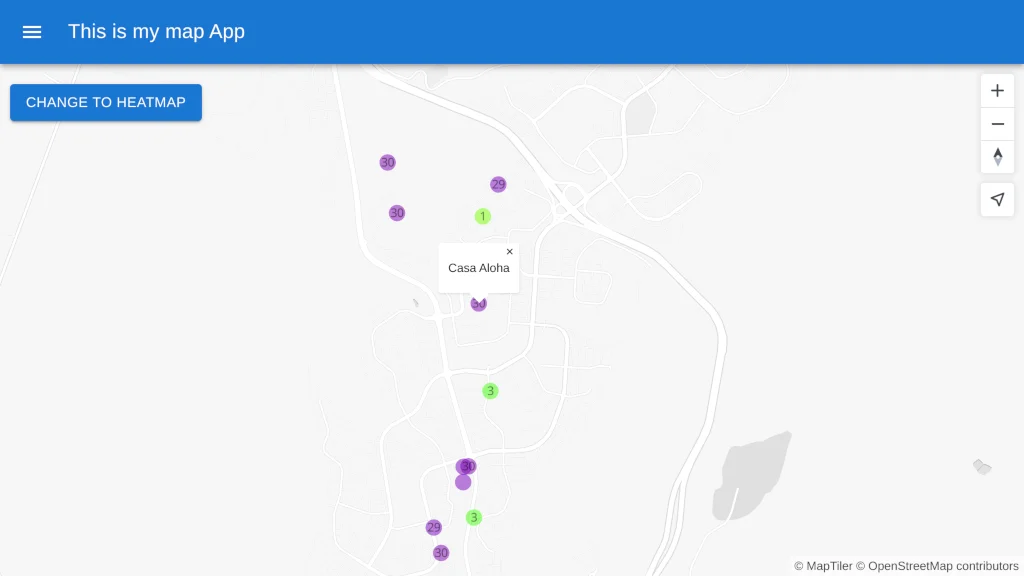
4. Now we can see the name of the accommodation. You can add more information to the popup, but having them in the sidebar will give us more space for all the details.
5. Let’s create a new sidebar component to put all the information in it!
6. Create a new folder called `Sidebar` inside the `components` folder.
7. Create a new file called `sidebar.jsx` inside the `Sidebar` folder. We will use the Material UI [persistent drawer](https://mui.com/material-ui/react-drawer/#persistent-drawer). Write the following lines in the `sidebar.jsx`:
```jsx
import * as React from 'react';
import { styled, useTheme } from '@mui/material/styles';
import Box from '@mui/material/Box';
import Drawer from '@mui/material/Drawer';
import CssBaseline from '@mui/material/CssBaseline';
import MuiAppBar from '@mui/material/AppBar';
import Toolbar from '@mui/material/Toolbar';
import List from '@mui/material/List';
import Typography from '@mui/material/Typography';
import Divider from '@mui/material/Divider';
import IconButton from '@mui/material/IconButton';
import MenuIcon from '@mui/icons-material/Menu';
import ChevronLeftIcon from '@mui/icons-material/ChevronLeft';
import ChevronRightIcon from '@mui/icons-material/ChevronRight';
import ListItem from '@mui/material/ListItem';
import ListItemButton from '@mui/material/ListItemButton';
import ListItemIcon from '@mui/material/ListItemIcon';
import ListItemText from '@mui/material/ListItemText';
import InboxIcon from '@mui/icons-material/MoveToInbox';
import MailIcon from '@mui/icons-material/Mail';
const drawerWidth = 240;
const Main = styled('main', { shouldForwardProp: (prop) => prop !== 'open' })(
({ theme }) => ({
flexGrow: 1,
padding: theme.spacing(3),
transition: theme.transitions.create('margin', {
easing: theme.transitions.easing.sharp,
duration: theme.transitions.duration.leavingScreen,
}),
marginLeft: `-${drawerWidth}px`,
variants: [
{
props: ({ open }) => open,
style: {
transition: theme.transitions.create('margin', {
easing: theme.transitions.easing.easeOut,
duration: theme.transitions.duration.enteringScreen,
}),
marginLeft: 0,
},
},
],
}),
);
const AppBar = styled(MuiAppBar, {
shouldForwardProp: (prop) => prop !== 'open',
})(({ theme }) => ({
transition: theme.transitions.create(['margin', 'width'], {
easing: theme.transitions.easing.sharp,
duration: theme.transitions.duration.leavingScreen,
}),
variants: [
{
props: ({ open }) => open,
style: {
width: `calc(100% - ${drawerWidth}px)`,
marginLeft: `${drawerWidth}px`,
transition: theme.transitions.create(['margin', 'width'], {
easing: theme.transitions.easing.easeOut,
duration: theme.transitions.duration.enteringScreen,
}),
},
},
],
}));
const DrawerHeader = styled('div')(({ theme }) => ({
display: 'flex',
alignItems: 'center',
padding: theme.spacing(0, 1),
// necessary for content to be below app bar
...theme.mixins.toolbar,
justifyContent: 'flex-end',
}));
export default function PersistentDrawerLeft() {
const theme = useTheme();
const [open, setOpen] = React.useState(false);
const handleDrawerOpen = () => {
setOpen(true);
};
const handleDrawerClose = () => {
setOpen(false);
};
return (
Persistent drawer
{theme.direction === 'ltr' ? : }
{['Inbox', 'Starred', 'Send email', 'Drafts'].map((text, index) => (
{index % 2 === 0 ? : }
))}
{['All mail', 'Trash', 'Spam'].map((text, index) => (
{index % 2 === 0 ? : }
))}
Lorem ipsum dolor sit amet, consectetur adipiscing elit, sed do eiusmod
tempor incididunt ut labore et dolore magna aliqua. Rhoncus dolor purus non
enim praesent elementum facilisis leo vel. Risus at ultrices mi tempus
imperdiet. Semper risus in hendrerit gravida rutrum quisque non tellus.
Convallis convallis tellus id interdum velit laoreet id donec ultrices.
Odio morbi quis commodo odio aenean sed adipiscing. Amet nisl suscipit
adipiscing bibendum est ultricies integer quis. Cursus euismod quis viverra
nibh cras. Metus vulputate eu scelerisque felis imperdiet proin fermentum
leo. Mauris commodo quis imperdiet massa tincidunt. Cras tincidunt lobortis
feugiat vivamus at augue. At augue eget arcu dictum varius duis at
consectetur lorem. Velit sed ullamcorper morbi tincidunt. Lorem donec massa
sapien faucibus et molestie ac.
Consequat mauris nunc congue nisi vitae suscipit. Fringilla est ullamcorper
eget nulla facilisi etiam dignissim diam. Pulvinar elementum integer enim
neque volutpat ac tincidunt. Ornare suspendisse sed nisi lacus sed viverra
tellus. Purus sit amet volutpat consequat mauris. Elementum eu facilisis
sed odio morbi. Euismod lacinia at quis risus sed vulputate odio. Morbi
tincidunt ornare massa eget egestas purus viverra accumsan in. In hendrerit
gravida rutrum quisque non tellus orci ac. Pellentesque nec nam aliquam sem
et tortor. Habitant morbi tristique senectus et. Adipiscing elit duis
tristique sollicitudin nibh sit. Ornare aenean euismod elementum nisi quis
eleifend. Commodo viverra maecenas accumsan lacus vel facilisis. Nulla
posuere sollicitudin aliquam ultrices sagittis orci a.
);
}
```
8. Import the sidebar to the **Map** component. We want to pass props from the map component to the sidebar. It is easier if props are passed just down from the map to the sidebar. If you prefer to merge the map navbar and sidebar in `App.jsx`, you can, but your code would be a bit less straightforward because you would need to use the `useContext` hook.
```jsx
import Navbar from "../Navbar/navbar";
import Sidebar from "../Sidebar/sidebar";
```
9. Render the Sidebar. Update the `Map` return function.
```jsx
return (
);
```
10. Just passing sidebar to the map component wouldnt work. This will not work at first because the example sidebar includes a navbar and text field. Let’s modify the `sidebar.jsx` file to work with our map.
11. First, remove the navbar part. That is the `AppBar` component.
```diff-jsx
import * as React from 'react';
import { styled, useTheme } from '@mui/material/styles';
import Box from '@mui/material/Box';
import Drawer from '@mui/material/Drawer';
import CssBaseline from '@mui/material/CssBaseline';
-import MuiAppBar from '@mui/material/AppBar';
-import Toolbar from '@mui/material/Toolbar';
import List from '@mui/material/List';
import Typography from '@mui/material/Typography';
import Divider from '@mui/material/Divider';
import IconButton from '@mui/material/IconButton';
-import MenuIcon from '@mui/icons-material/Menu';
import ChevronLeftIcon from '@mui/icons-material/ChevronLeft';
import ChevronRightIcon from '@mui/icons-material/ChevronRight';
import ListItem from '@mui/material/ListItem';
import ListItemButton from '@mui/material/ListItemButton';
import ListItemIcon from '@mui/material/ListItemIcon';
import ListItemText from '@mui/material/ListItemText';
import InboxIcon from '@mui/icons-material/MoveToInbox';
import MailIcon from '@mui/icons-material/Mail';
const drawerWidth = 240;
const Main = styled('main', { shouldForwardProp: (prop) => prop !== 'open' })(
({ theme }) => ({
flexGrow: 1,
padding: theme.spacing(3),
transition: theme.transitions.create('margin', {
easing: theme.transitions.easing.sharp,
duration: theme.transitions.duration.leavingScreen,
}),
marginLeft: `-${drawerWidth}px`,
variants: [
{
props: ({ open }) => open,
style: {
transition: theme.transitions.create('margin', {
easing: theme.transitions.easing.easeOut,
duration: theme.transitions.duration.enteringScreen,
}),
marginLeft: 0,
},
},
],
}),
);
-const AppBar = styled(MuiAppBar, {
- shouldForwardProp: (prop) => prop !== 'open',
-})(({ theme }) => ({
- transition: theme.transitions.create(['margin', 'width'], {
- easing: theme.transitions.easing.sharp,
- duration: theme.transitions.duration.leavingScreen,
- }),
- variants: [
- {
- props: ({ open }) => open,
- style: {
- width: `calc(100% - ${drawerWidth}px)`,
- marginLeft: `${drawerWidth}px`,
- transition: theme.transitions.create(['margin', 'width'], {
- easing: theme.transitions.easing.easeOut,
- duration: theme.transitions.duration.enteringScreen,
- }),
- },
- },
- ],
-}));
const DrawerHeader = styled('div')(({ theme }) => ({
display: 'flex',
alignItems: 'center',
padding: theme.spacing(0, 1),
// necessary for content to be below app bar
...theme.mixins.toolbar,
justifyContent: 'flex-end',
}));
export default function PersistentDrawerLeft() {
const theme = useTheme();
const [open, setOpen] = React.useState(false);
- const handleDrawerOpen = () => {
- setOpen(true);
- };
const handleDrawerClose = () => {
setOpen(false);
};
return (
-
-
-
-
-
-
- Persistent drawer
-
-
-
{theme.direction === 'ltr' ? : }
{['Inbox', 'Starred', 'Send email', 'Drafts'].map((text, index) => (
{index % 2 === 0 ? : }
))}
{['All mail', 'Trash', 'Spam'].map((text, index) => (
{index % 2 === 0 ? : }
))}
Lorem ipsum dolor sit amet, consectetur adipiscing elit, sed do eiusmod
tempor incididunt ut labore et dolore magna aliqua. Rhoncus dolor purus non
enim praesent elementum facilisis leo vel. Risus at ultrices mi tempus
imperdiet. Semper risus in hendrerit gravida rutrum quisque non tellus.
Convallis convallis tellus id interdum velit laoreet id donec ultrices.
Odio morbi quis commodo odio aenean sed adipiscing. Amet nisl suscipit
adipiscing bibendum est ultricies integer quis. Cursus euismod quis viverra
nibh cras. Metus vulputate eu scelerisque felis imperdiet proin fermentum
leo. Mauris commodo quis imperdiet massa tincidunt. Cras tincidunt lobortis
feugiat vivamus at augue. At augue eget arcu dictum varius duis at
consectetur lorem. Velit sed ullamcorper morbi tincidunt. Lorem donec massa
sapien faucibus et molestie ac.
Consequat mauris nunc congue nisi vitae suscipit. Fringilla est ullamcorper
eget nulla facilisi etiam dignissim diam. Pulvinar elementum integer enim
neque volutpat ac tincidunt. Ornare suspendisse sed nisi lacus sed viverra
tellus. Purus sit amet volutpat consequat mauris. Elementum eu facilisis
sed odio morbi. Euismod lacinia at quis risus sed vulputate odio. Morbi
tincidunt ornare massa eget egestas purus viverra accumsan in. In hendrerit
gravida rutrum quisque non tellus orci ac. Pellentesque nec nam aliquam sem
et tortor. Habitant morbi tristique senectus et. Adipiscing elit duis
tristique sollicitudin nibh sit. Ornare aenean euismod elementum nisi quis
eleifend. Commodo viverra maecenas accumsan lacus vel facilisis. Nulla
posuere sollicitudin aliquam ultrices sagittis orci a.
);
}
```
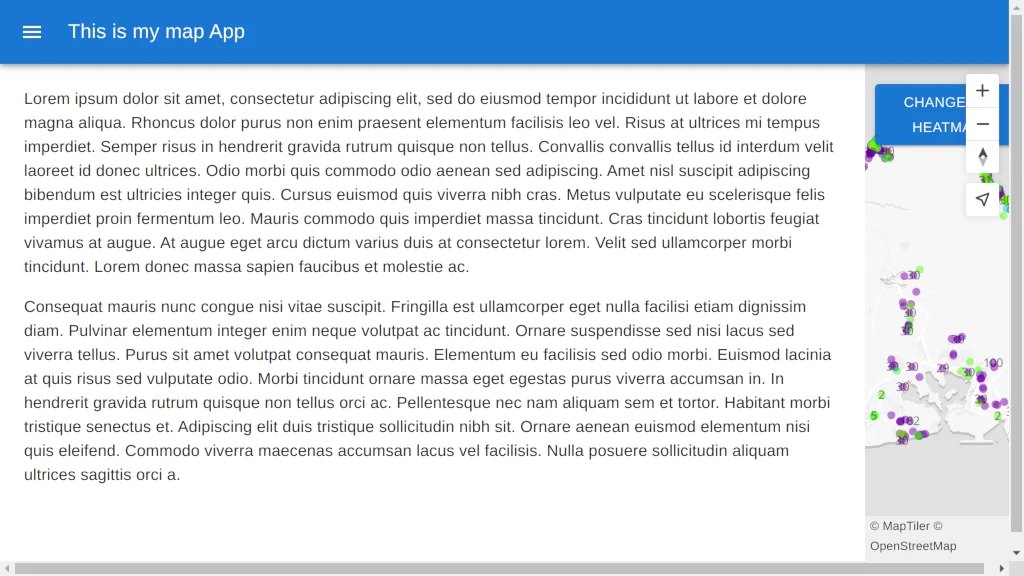
12. Let’s check out map now, the navbar is gone, but sidebar is still not working.
13. Let’s remove everything that’s not necessary from our `Sidebar` component. We’re only interested in the `Drawer` with its header and the `List`. Replace all the code in the **sidebar.jsx** file with this:
```jsx
import React from "react";
import { styled, useTheme } from "@mui/material/styles";
import Drawer from "@mui/material/Drawer";
import List from "@mui/material/List";
import IconButton from "@mui/material/IconButton";
import ChevronLeftIcon from "@mui/icons-material/ChevronLeft";
import ChevronRightIcon from "@mui/icons-material/ChevronRight";
import ListItem from "@mui/material/ListItem";
import ListItemText from "@mui/material/ListItemText";
import Typography from "@mui/material/Typography";
export default function Sidebar({ open, handleDrawerClose, item }) {
const drawerWidth = open ? "250px" : "0px";
const theme = useTheme();
const DrawerHeader = styled("div")(({ theme }) => ({
display: "flex",
alignItems: "center",
padding: theme.spacing(0, 1),
// necessary for content to be below app bar
...theme.mixins.toolbar,
justifyContent: "flex-end",
}));
return (
{theme.direction === "ltr" ? (
) : (
)}
Click to point to see more details
);
}
```
14. Change the name of my map in the navbar. Open the `/src/components/Navbar/navbar.jsx` and change this line
```jsx
return (
Honolulu Accommodation
);
```
15. We decided that the sidebar would just overlay my map, and We would reposition the visualization switch button. Create a `Main` component. To avoid unnecessary tile rerendering, it’s better if the sidebar just overlays the map.
```jsx
import { styled } from "@mui/material/styles";
//styling for nice transition when sidebar is opened
const Main = styled("main", { shouldForwardProp: (prop) => prop !== "open" })(
({ theme, open }) => ({
flexGrow: 1,
transition: theme.transitions.create("margin", {
easing: theme.transitions.easing.sharp,
duration: theme.transitions.duration.leavingScreen,
}),
marginLeft: `-${250}px`,
...(open && {
transition: theme.transitions.create("margin", {
easing: theme.transitions.easing.easeOut,
duration: theme.transitions.duration.enteringScreen,
}),
marginLeft: 0,
}),
}),
);
```
16. Render the `Main` component and move the button inside it. Change the button top to 84.
```jsx
return (
);
```
17. Add some style to the `Main` component. Add these lines to the `map.css` file.
```css
.Main {
flex-grow: 1;
height: calc(100vh - 64px);
transition: margin var(--transition-duration) var(--transition-easing); /* Use custom properties */
}
.Main[open] {
transition: margin var(--transition-duration-entering)
var(--transition-easing-easeOut); /* Animate on open */
margin-left: 0;
}
/* Define custom properties for theming (assuming a theming system is used) */
:root {
--transition-duration: var(
--theme-transitions-duration-leavingScreen
); /* Use themed duration */
--transition-easing: var(
--theme-transitions-easing-sharp
); /* Use themed easing */
--transition-duration-entering: var(
--theme-transitions-duration-enteringScreen
); /* Entering animation duration */
--transition-easing-easeOut: var(
--theme-transitions-easing-easeOut
); /* Entering animation easing */
}
```
18. Change the `.container` position to **absolute**.
```css
.container {
position: absolute;
height: calc(100vh - 64px);
width: 100%;
top: 64px;
}
```
19. Add the handlers to the Nabvar and Sidebar components to open and close the Sidebar. Update the **Map** component.
```jsx
// sidebar handlers
const handleDrawerOpen = () => {
setIsOpen(true);
};
const handleDrawerClose = () => {
setIsOpen(false);
};
return (
);
```
20. Create a new states `isOpen` and `clickedItem`. We want the sidebar to be closed on map load. So the initial state should be **false**.
```jsx
const [mapLoaded, setMapLoaded] = useState(false);
const [isOpen, setIsOpen] = useState(false);
const [clickedItem, setClickedItem] = useState();
```
21. Get the clicked feature on the map and store it in the `clickedItem` state. We will also open the sidebar.
```jsx
useEffect(() => {
if (mapLoaded) {
map.current.on("click", pointLayer, (e) => {
let coordinates = e.features[0].geometry.coordinates.slice();
let description = e.features[0].properties.name;
new maptilersdk.Popup()
.setLngLat(coordinates)
.setHTML(description)
.addTo(map.current);
setClickedItem(e.features[0].properties);
setIsOpen(true);
});
}
}, [mapLoaded]);
```
22. Update the sidebar to show the information of the selected feature. Update the `sidebar.jsx` file.
```jsx
return (
{theme.direction === "ltr" ? (
) : (
)}
{item ? (
{item.name}}
/>
Host: {item.host_name}
}
secondary={
id: {item.host_id}
}
/>
Room type: {item.room_type}
}
/>
Minimum night: {item.minimum_nights}
}
/>
Neighbourhood:
{item.neighbourhood}, {item.neighbourhood_group}
}
/>
) : (
Click to point to see more details
)}
);
```
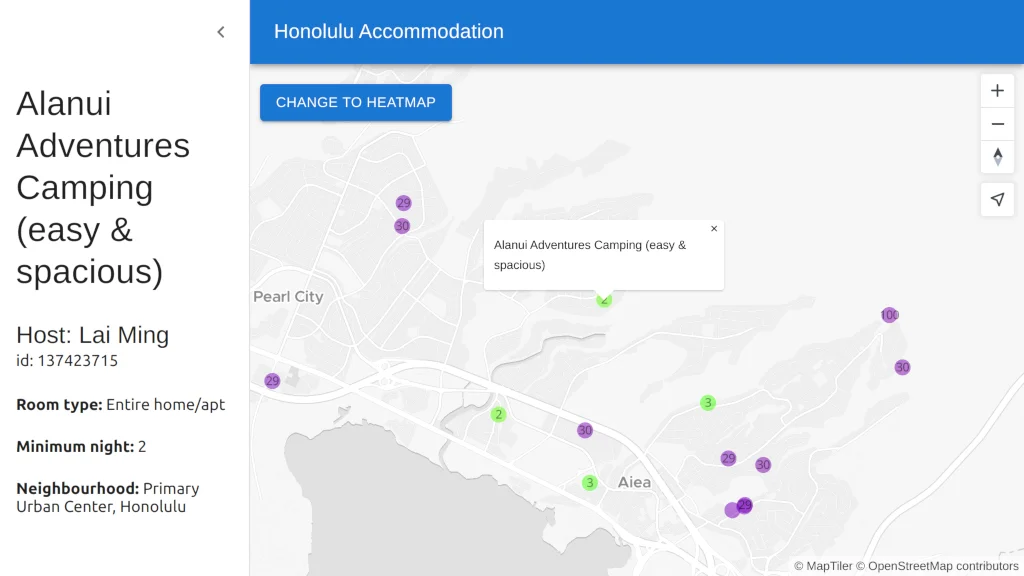
23. Congratulations! You have created a map with a sidebar to show the information of the selected item on the map.
## Full code to download
We have created a repository with the result of this tutorial that will serve as a basis to build future applications. You can access the repository at [Maps in React](https://github.com/maptiler/maps-in-react/tree/E3-popup-sidebar).
## Next episode
Continue to [Episode 4: Map in React js with geocoding control](https://docs.maptiler.com/react/sdk-js/geocoding-control/) to learn how to create a map with a geocoding control in your React JS map using the MapTiler SDK JS.
## Related examples
### [Learn the basics - React](https://docs.maptiler.com/react/)
Tutorials
Create React JS components for MapTiler SDK JS maps.
### [Geocoding component - React](https://docs.maptiler.com/react/sdk-js/geocoding-component/)
Tutorials
Search places using Geocoding control component in React JS.
### [Map with Material UI](https://docs.maptiler.com/react/sdk-js/get-started-material-ui/)
Tutorials
Create React JS maps with Material UI and MapTiler.
### [Points from geojson - React](https://docs.maptiler.com/react/sdk-js/geojson-points/)
Tutorials
Add GeoJSON points to React JS maps with MapTiler.
### [Heatmap in React JS](https://docs.maptiler.com/react/sdk-js/heatmap/)
Tutorials
Create heatmap visualizations in React JS maps using MapTiler.
### [Geocoding control - React](https://docs.maptiler.com/react/sdk-js/geocoding-control/)
Tutorials
Add geocoding control to React JS maps using MapTiler.
### [3D Terrain Map](https://docs.maptiler.com/react/sdk-js/3d-map/)
Tutorials
Create 3D terrain maps with geocoding in React JS.